I finally got around to installing Windows Server 2008 Standard today. I performed a Server Core installation, and was suprised how little interaction I had to have with the installer. It seemed like I answered three or four questions, went to get a Diet Coke, and when I came back the server was at the logon prompt.
During the install process I had not been prompted to provide an Administrator password like I’d experienced during installations of previous Windows Server operating systems. I entered Administator as the User Name and hit enter, and I was automagically logged onto the server.
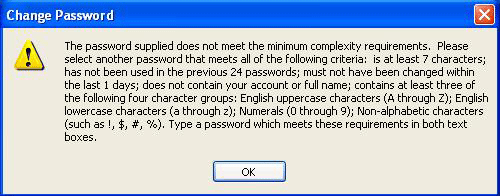
Immediately Windows prompted me to change the Administrator password. I tried reusing a few of my standard passwords, but they kept getting rejected with the following error:
“Unable to update the password. The value provided for the new password does not meet the length, complexity, or history requirements of the domain”
I tried to create a new password several more time, but nothing worked. I finally decided to find out what the default password policy requirements were for Windows 2008.
When this policy setting is enabled, users must create strong passwords to meet the following minimum requirements:
- Passwords cannot contain the user’s account name or parts of the user’s full name that exceed two consecutive characters.
- Passwords must be at least six characters in length.
- Passwords must contain characters from three of the following four categories:
-
English uppercase characters (A through Z).
-
English lowercase characters (a through z).
-
Base 10 digits (0 through 9).
-
Non-alphabetic characters (for example, !, $, #, %).
I thought it was interesting to find the following explanation from the same web page:
“Password must meet complexity requirements -
This policy setting checks all new passwords to ensure that they meet basic requirements for strong passwords. By default, the value for this policy setting in Windows Server 2008 is configured to Disabled, but it is set to Enabled in a Windows Server 2008 domain for both environments described in this guide.”
That was not the behavior I had experienced with my initial install of Windows Server 2008. This was a core installation and was not a domain member, so why was the policy enabled?
On another note, when you want to log out of Server Core, simply type logoff
{ 60 comments… read them below or add one }
Same thing here. Downloaded the MSDN version, burned iso to dvd, and was prompted for a key. Tried the one that I was given for all versions, and it didn’t work.
Then I remembered NOT to enter the key, to be prompted to choose the version to install. I chose ENTERPRISE (Full) and had the same thing happen.
I found this page, which explains it clearly, but I thought I’d add the other part!
How do you go about disabling it? It seems that our installation is enabled by default and we’d like to get rid of it.
It’s in the technet article, but here’s the info from the jump
You can configure the password policy settings in the following location in the Group Policy Object Editor:
Computer Configuration\Windows Settings\Security Settings\Account Policies\Password Policy
I forget my windows 2008 server password, please help.
Junior-
You may try Locksmith, a part of Microsoft Diagnostics and Recovery Toolset. You can find the Toolset at http://www.microsoft.com/downloads/details.aspx?FamilyID=5d600369-0554-4595-8ab4-c34b2860e087&DisplayLang=en
I’ve used Locksmith successfully on client computers before, but never on a Windows 2008 Server, so make sure you know what the risks are.
-Julie
If you want to change complexity requirement password please go into Run press key gpedit.msc —>window setting–>account polocies—>password polocy—>M password
length change to 1(meaning input by yourself) and password must complexity requirement =Disable
It is OK
Hi, i got your answer and i did try it but the problem is i am not able to change the settings since the option box is colorless even i logged by admin. kindly reply me what to do for that/
how to disable password complexity policy in 2008 core??
thanks
what is a default administrator password in server 2008?
please help
what is a default administrator password in server 2008 x64?
If you’re on a stand-alone machine (no AD etc) and dealing with only local accounts, you can enable/disable the policy from:
Administrative Tools -> Local Security Policy -> Account Policies -> Password Policy.
However, you don’t have a lot of settings to work with there. Oh… that’s the GUI way (2008 Standard)… I don’t know the command-line way to do that.
My server 2008 standard are create the new tree domain, I has follow the stap to change the password policy, but is fail to change the “enfore password history” and all the policy setting.
Is the server disable the the password policy and I cun not add my user at active directory domain user.
Please help me, is very urgent.
Thank.
use 7 letters an @ sign and 4 numbers it worked for me
hey everyone! try ” P@ssw0rd ” without the quotes… should work just fine
it contains al four types of characters.
take care,
vdc
very very good bro…….
it’s work fine. thanks.
Dear Friend,
I have a problem when relogin by pressing Alt+Ctrl+Delete.
I am running the Windows Server 2008 in the Virtual PC and that Virtual PC has been hosted in Windows XP System.
When I press Alt+Ctrl+Delete to re-login, it is popped up the windows task manager of the host system instead of letting me relogin in Win Server 2008 system. Though I am working in the Virtual Machine, as soon as I pressed those three keys, it is straightaway switched back to the host Win XP system and poping up its task manager.
Please help me to fix this problem.
Regards
Indu
Try using CTRL-ALT-END instead of CTRL-ALT-DEL.
David
Thanks,
That helped me getting my head ache away. CTRL+ALT+END.
Have a nice day!
Good job guys! Interesting article, adding it to my favourites!
Best wishes, David.
is it posible to use windows server 2008 als standalone server with ad?
or need to use a other domain controller to join it?
Complexity requirements, on INcomplexity requirements?
My password matches what these requirements demand, yet I got the same message.
It contains letters, digits and a UNICODE non-alphanumeric character (alt+3 digit number) which makes it far more secure (the classic brute force password scanners never include unicode because it would take them aeons to complete), it exceeds the minimum length, yet server 2008 refused it as not meeting the complexity requirements.
I had to add one more character from what it considers “non-alphabetic characters”. Apparently they created a list of what non-alphabetic characters are accepted for group 4, instead of defining it as “anything except A-Z, a-z and 0-9″.
LUC, Did you ever find a solution?
I am in the same boat. We just enabled the domain policy for 7char/complexity, and no passwords are “complex enough”.
(no it’s not an issue with trying to make up a complex password) WE’ve tried passwords that are sufficient in legnth, dont contain any portion of the users name, are not similar to prior passwords, and contain ALL of the character types [Aa1#] Example: “ThisP@ssword$ucks!!77″ is not complex enough
I just followed a this answer :
Sri Says:
November 7, 2008 at 6:09 pm
If you’re on a stand-alone machine (no AD etc) and dealing with only local accounts, you can enable/disable the policy from:
Administrative Tools -> Local Security Policy -> Account Policies -> Password Policy.
However, you don’t have a lot of settings to work with there. Oh… that’s the GUI way (2008 Standard)… I don’t know the command-line way to do that.
Password must meet complexity requirements : Disabled
And after that, no PW Complexity anymore..
I have just installed windows server 2008 standard on my new server. Unfortunately, its not allowing me to log in rather requesting me to change my password at first log in. I have put the password that i believe is valid but its rejecting it with this message
“Unable to update the password. The value provided for the new password does not meet the length, complexity, or history requirements of the domain”
Guys can you give me advice,
James.
Ehee guys the solution is “p@ssw0rd” i got it right, thank you brother VDC.
now i know your admin password. just wait till i find your server
Thank you so much.
thanks. what a pain i’m having installing this on a proliant ml110
I have just installed windows server 2008 standard on my new server. Unfortunately, its not allowing me to log in rather requesting me to change my password at first log in. I have put the password that i believe is valid but its rejecting it with this message
“Unable to update the password. The value provided for the new password does not meet the length, complexity, or history requirements of the domain”
Guys can you give me advice,
Follow the VDC recomendation: as password, type: “p@ssw0rd” without the quotes, and have fun
thankz so much VDC. “p@ssw0rd” its really work, well done!.
i followed this and really my problem is sloved
thanks
i take a password- AS12as23
I am surprised at all of the trouble everyone here is having coming up with a sufficient password! I would think if one is “tech savvy” enough to require/desire Server 2008 (or any server OS for that matter) he should at the very least be able to follow the simple directions for creating a secure password. Instead you all now have the same password. Sad really…
Can we fully disable the password for 2008 server. Really irritating when it always ask to change password every 30 days
For the 2008 Server Core. To lift the password complexity:
secedit /export /cfg C:\new.cfg
Then you edit new.cfg (it is ini format) and change line “PasswordComplexity = 1″ to “PasswordComplexity = 0″.
Apply it on Hyper-V server with:
secedit /configure /db %windir%\security\new.sdb /cfg C:\new.cfg /areas SECURITYPOLICY
Excellenttttttttttt ……..thanks
Thanx Gui-guy!!!!
Working 100% will make my life much easier now.
thankkkkkzzzzz it’s work. ^^
worked for me too, thanks alot.
awesome! thx i really needed this
Hi all I just ran into this one and its a pain but it is easy to fix.
goto Server manager install Group policy feature
open group policy console and find you domain> navigate to default domain policy> go to setting tab and then goto windows settings/security settings/ account policies/ right click and edit.
Set them with settings of your choice but be mindfull of setting them 2 low
Cheers for the post it helped me
Paul
Paul….you the man. Thanks a lot.
paul,
you are the ‘one’ my friend..
thanks..
Hi Paul,
your guide worked for me. I have been having similar problem like Johnnyblaze.
thanx. you made me learn somethng new.
rgds,
Joe
Hi All just thought I would give an update as it appears the same question is being asked, my method using group policy is after you have set up the server and your first password, my process should be the next step as it allows you to turn off the default Windows server password policy or at least taylor it to your needs you can shorten the length and turn off the new password feature, but this has to be done through group policy.
just wait till you try and set up Exchange Server 2008 (its great fun or should I say challenging!)
Cheers P
thank you Paul. it works..!
then run: gpupdate /force
to apply changes.
hi folks
i have windows 2008server enterprise as my domain controller ,i am facing problem when i want to change
password complexity , i went
local sercurity policy / acont policy
when i want to change it , all option are disbled
i cant chagne any thing
plz help me
Paul,
You lifesaver! Thanks very much for this password policy update! It was doing my head in!!!
Worked a treat!
Thanks again….
Thanks. I tried a lot of combinations which I thought were very secure but I didn’t know it has to be THIS secure.
your article is awesome
Thanks, its very nice… the trick is working
Don’t try to change the password by pressing ALT+CTRL+DEL, better go to the user management and then change the administrator account password. It worked for me, however complex password I tried in ALT+CTRL+DEL, I use to keep getting
“Unable to update the password”
Thank so much..
I can change Admin password.
I need to reset a Windows Server 2008 password! Please help!
thank u very much!
Dear all,
I have been asked to replace the password after some time, so I changed it, and somehow now I can’t remember the password. Is there any way I can reset the password, since I am unable to use the server now. Thank you so much for the help.
Work great…….. Thanks!
This is crazy jacked… Never ran into this issue before. This time around, I’m creating a WinSvr2008 VM inside of ESXi 4.1. I get the OS installed, configure a few things, restart several times and log into Administrator account with my correct and valid password (which is not P@ssw0rd btw). I then get prepped for installed AD by running the “Net User Administrator passwordreq:yes” command. Then, I proceed with AD DS install without any problems, run dcpromo at the end and when this is completed, server wants to restart. I have not set any passwords or anything except those that are prompted inside the installation, and those are not the domain usernames. Upon rebooting the server, I attempt to log into the newly created domain\administrator account using my former password = FAIL. I try to then log into Local\administrator = FAIL. How the eff did these passwords get changed and why the eff did I not get the opportunity to set them myself?! I’m going to have to reinstall this gd VM yet again because of this stupid issue. Thoughts?!
Thank bro… It works for me 2…. Thanks again….
That’s work perfectly.Thanks
{ 2 trackbacks }