
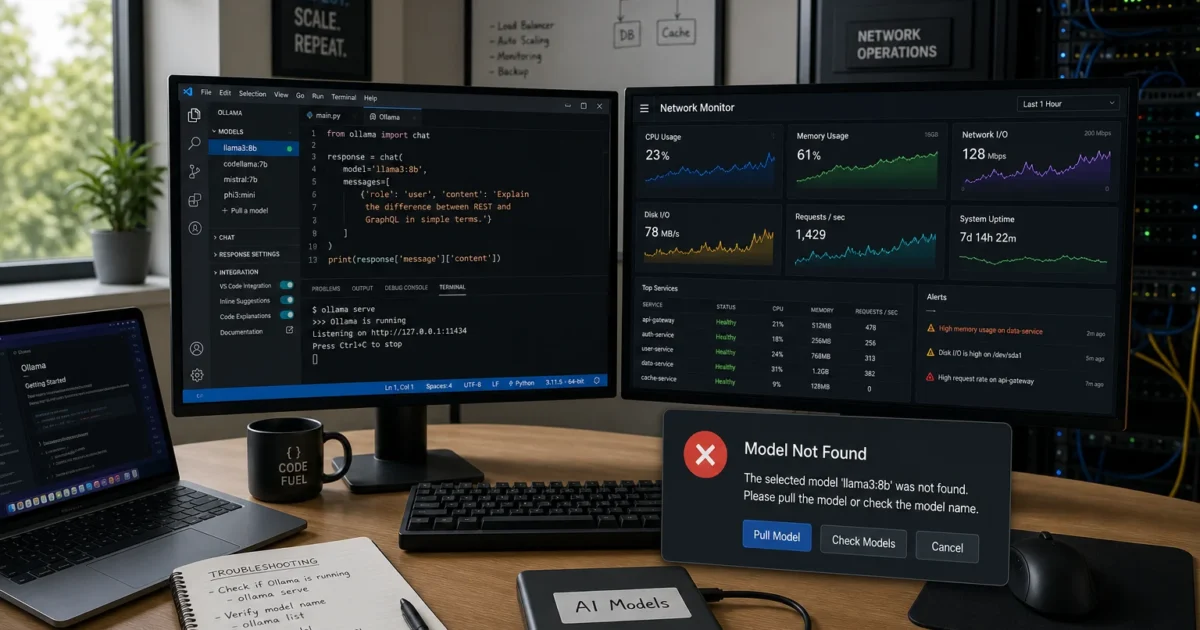
Ollama can give VS Code a local coding model. Still, selecting an Ollama provider doesn’t prove that prompts stay on your machine. The endpoint and model tag decide where the work runs. That matters when prompts contain private code.
Setup takes about 20-30 minutes, plus the model download. You’ll install Ollama, test a model outside VS Code, connect the verified extension, and confirm that your hardware runs it.
What Is Ollama?
Ollama runs large language models on Windows, macOS, and Linux. It also gives compatible apps an HTTP API. The local endpoint defaults to http://localhost:11434.
A local VS Code setup has four parts: Ollama, a downloaded model, VS Code, and the extension linked from Ollama’s official VS Code integration documentation. If one part points elsewhere, your local setup may send work to a remote service.
Prerequisites
Make sure you have:
- A Windows PC or Mac supported by the current Ollama download
- The current Ollama installer from the official website
- A current installation of Visual Studio Code
- The VS Code extension linked by Ollama’s official integration page
- Internet access for application and model downloads
- Free storage for the selected model
- Enough RAM or video RAM (VRAM) for the model and context length
- Permission to install desktop applications
- Access to PowerShell on Windows or Terminal on macOS
Check the live Ollama quickstart before deployment. Record each version you install. Ollama, VS Code, the extension, and OS requirements change on separate schedules. A setup record cuts the guesswork if an update breaks model discovery six months later.
Step-by-Step Guide
Step 1: Choose Local Inference or Ollama Cloud
Decide where inference will run before you download several gigabytes of model data.
| Option | Best fit | Trade-off |
|---|---|---|
| Local Ollama | Private code, offline work, predictable local access, and capable hardware | Consumes your storage, RAM, VRAM, CPU, and GPU time |
| Ollama Cloud | Larger models or computers with limited memory and graphics resources | Prompts leave the local machine, and plan limits apply |
| Hybrid | Local model for routine work and cloud model for demanding tasks | You must check the selected provider before each sensitive request |
Local models don’t have a usage quota on your hardware. The limits are memory, storage, power, and patience. Cloud plans have usage and concurrency limits. As of this writing, Ollama Cloud’s published structure runs from a free tier (one concurrent cloud model) through a Pro tier around $20/month with higher concurrency and larger-model access, up to a Max tier with further concurrency headroom. Plan names, limits, and prices change, so check the live Ollama pricing page before choosing one.
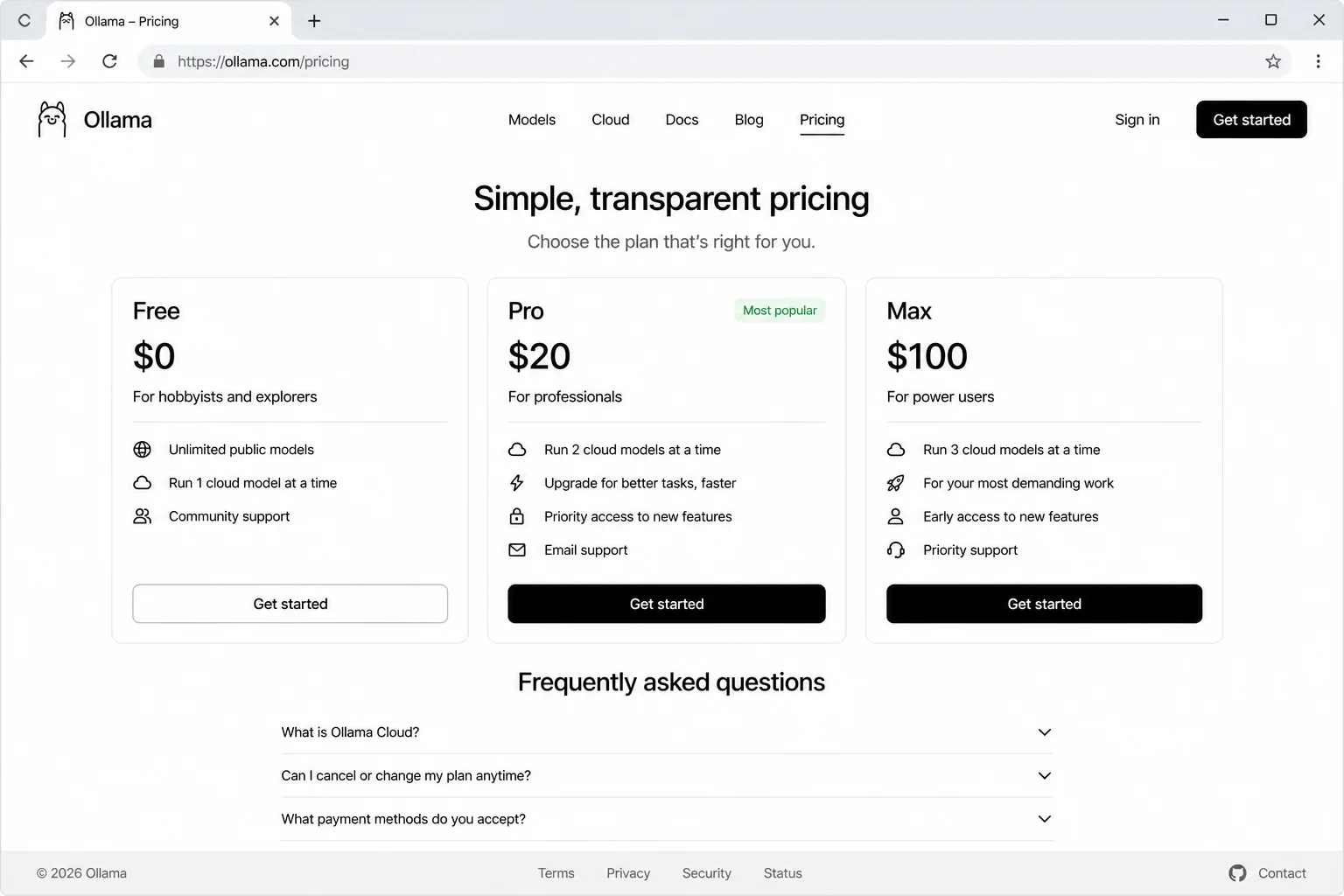
I’d use local inference for private repositories and routine code work. Cloud inference is useful when a model won’t fit. Treat every cloud prompt as data leaving the workstation.
Step 2: Verify Visual Studio Code and Available Memory
Open Visual Studio Code. Click Help > About on Windows or Code > About Visual Studio Code on macOS. Record the version before installing the extension.
Check installed memory next. The model’s download size tells you its storage use. Runtime memory also depends on quantization and context length, so the numbers rarely match.
On Windows, open PowerShell and run:
Get-CimInstance Win32_ComputerSystem | Select-Object TotalPhysicalMemory
Get-CimInstance Win32_VideoController | Select-Object Name, AdapterRAM
Expected result:
TotalPhysicalMemory
——————-
34314805248Name AdapterRAM
—- ———-
Your installed GPU …
TotalPhysicalMemory is in bytes. The example value is about 32 GiB. Some GPU drivers report AdapterRAM poorly. Confirm dedicated GPU memory under Task Manager > Performance > GPU.
On macOS, open Terminal and run:
system_profiler SPHardwareDataTypeExpected output includes fields similar to:
Memory: 32 GB
Chip: Apple M-series
Apple silicon shares one memory pool between the CPU and GPU. A Mac with 32 GB can’t give all 32 GB to the model. macOS, VS Code, browser tabs, and other apps still need memory.
Step 3: Install Ollama on Windows
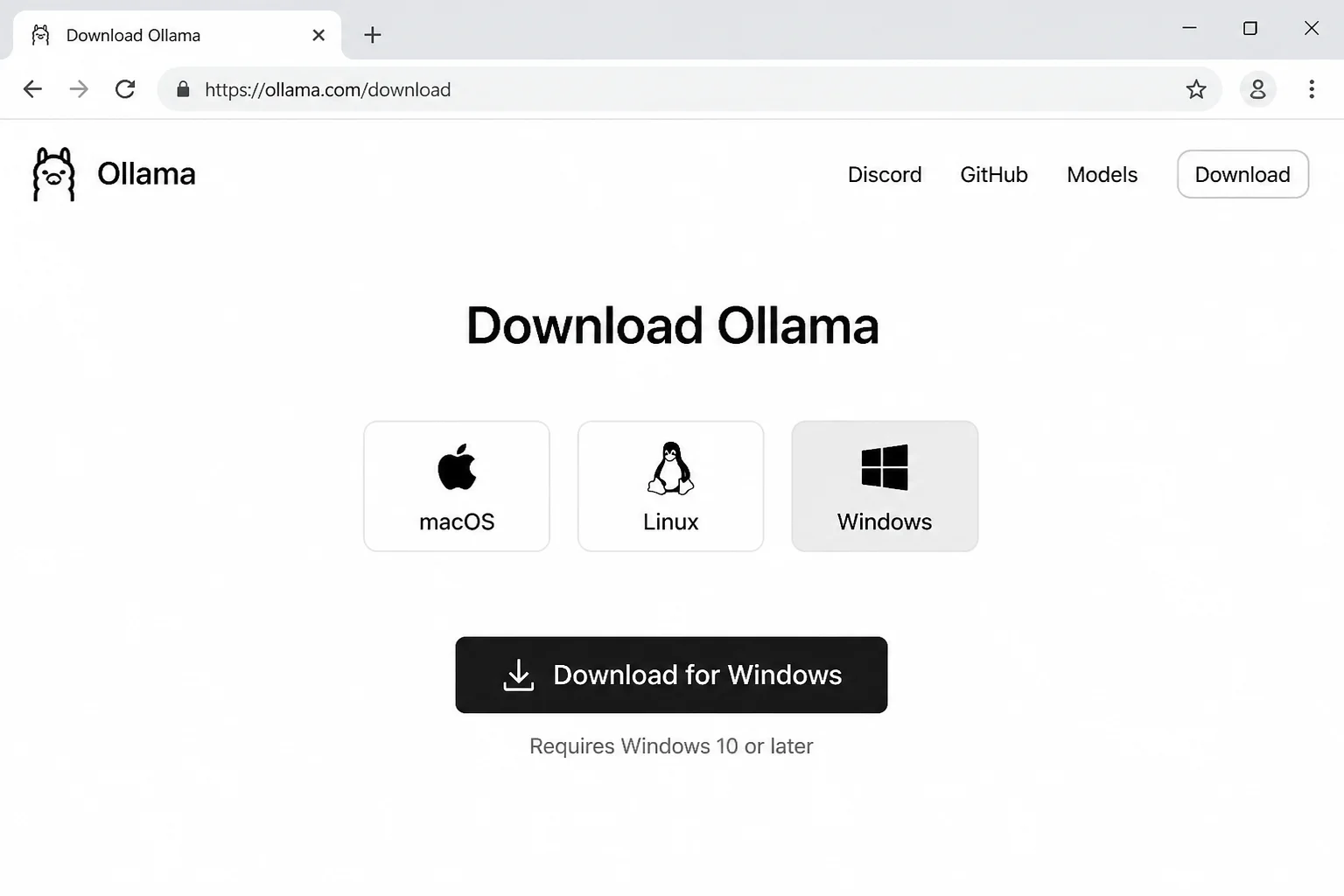
Open the official Ollama website and select the Windows download. Run the installer. Keep the defaults unless your environment has a specific packaging policy.
When installation finishes, find Ollama in the Start menu or system tray. Start it if it isn’t running.
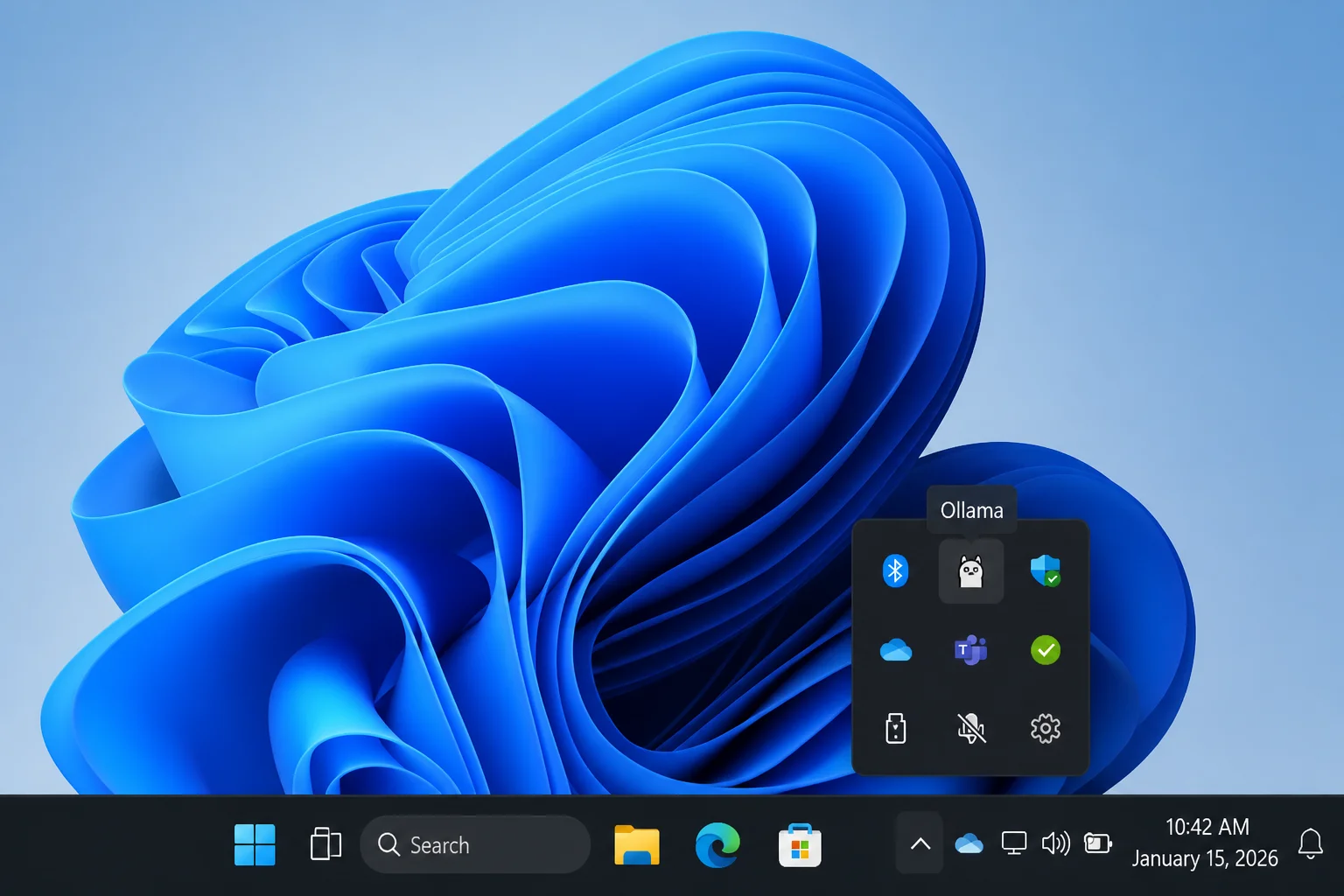
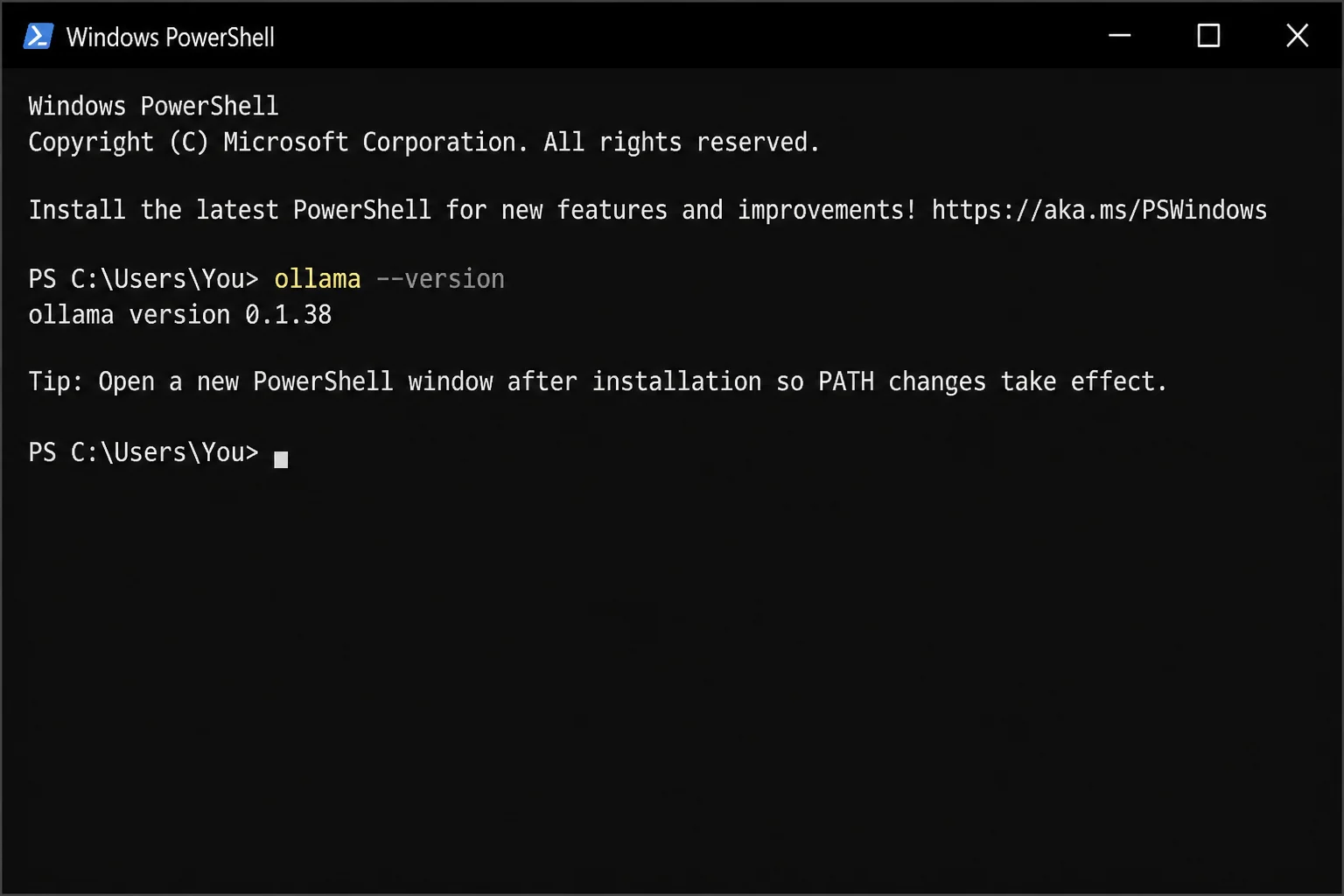
Close any PowerShell or Windows Terminal windows that were open during installation. A new terminal reads the updated PATH; an old one often doesn’t. Open PowerShell and run:
ollama --versionExpected result:
ollama version x.y.z
Record the exact version. If PowerShell says that ollama isn’t recognized, open a fresh terminal first. Reopen or reinstall Ollama only if the new terminal shows the same error.
Step 4: Install Ollama on macOS
Open the official Ollama website and choose the macOS download. Open the package and follow its steps. Move Ollama to Applications when prompted.
Open Applications > Ollama. Approve the normal macOS launch prompt if it appears. Confirm that Ollama appears in the menu bar or app state.
Quit any Terminal window that was open during installation, then open a new one. This avoids wasting ten minutes on a stale shell environment.
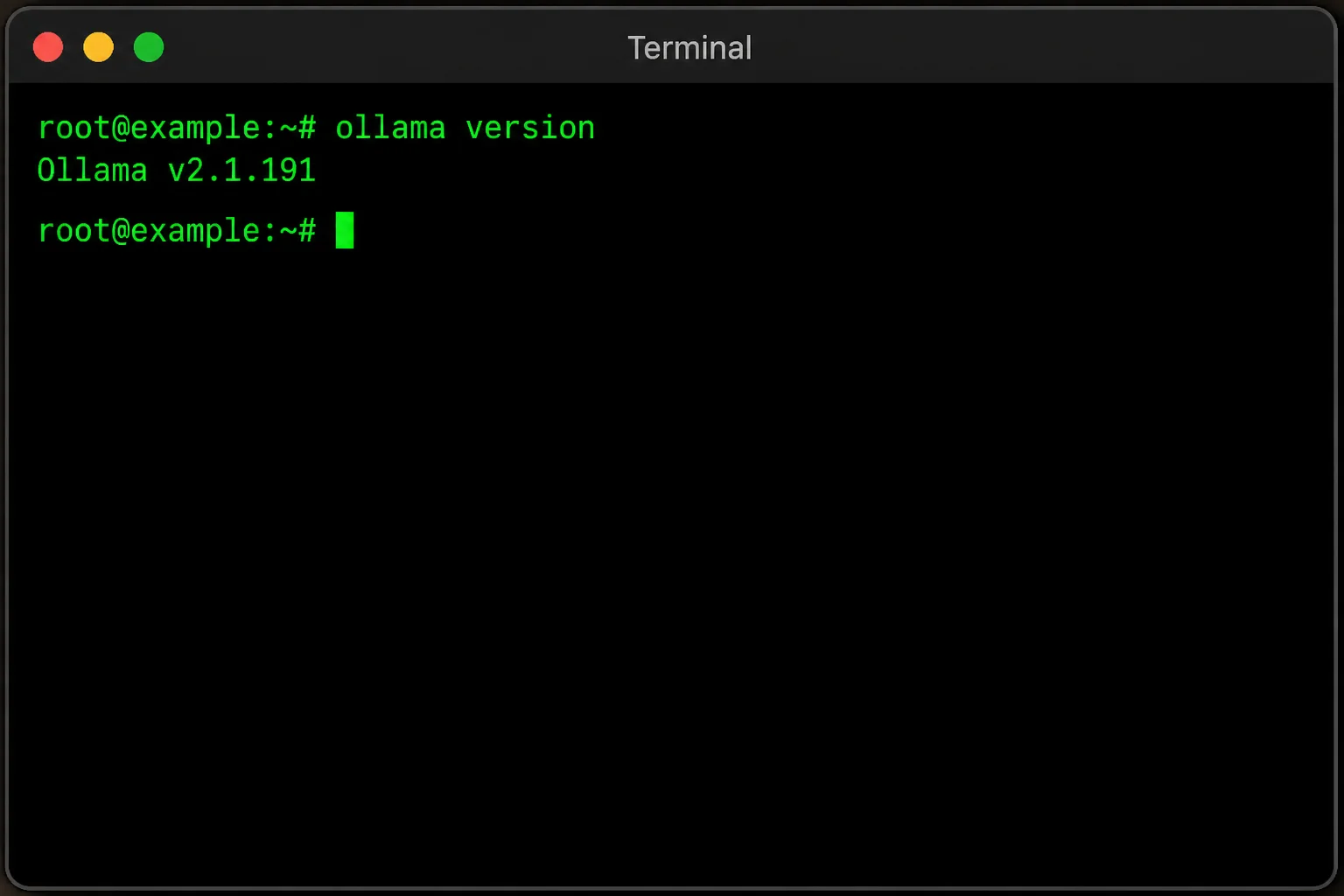
Run:
ollama --versionExpected result:
ollama version x.y.z
Record that version with the VS Code version. You’ll need both if an extension update stops connecting later.
Step 5: Pull a Coding-Capable Model
Run the same command in PowerShell or macOS Terminal:
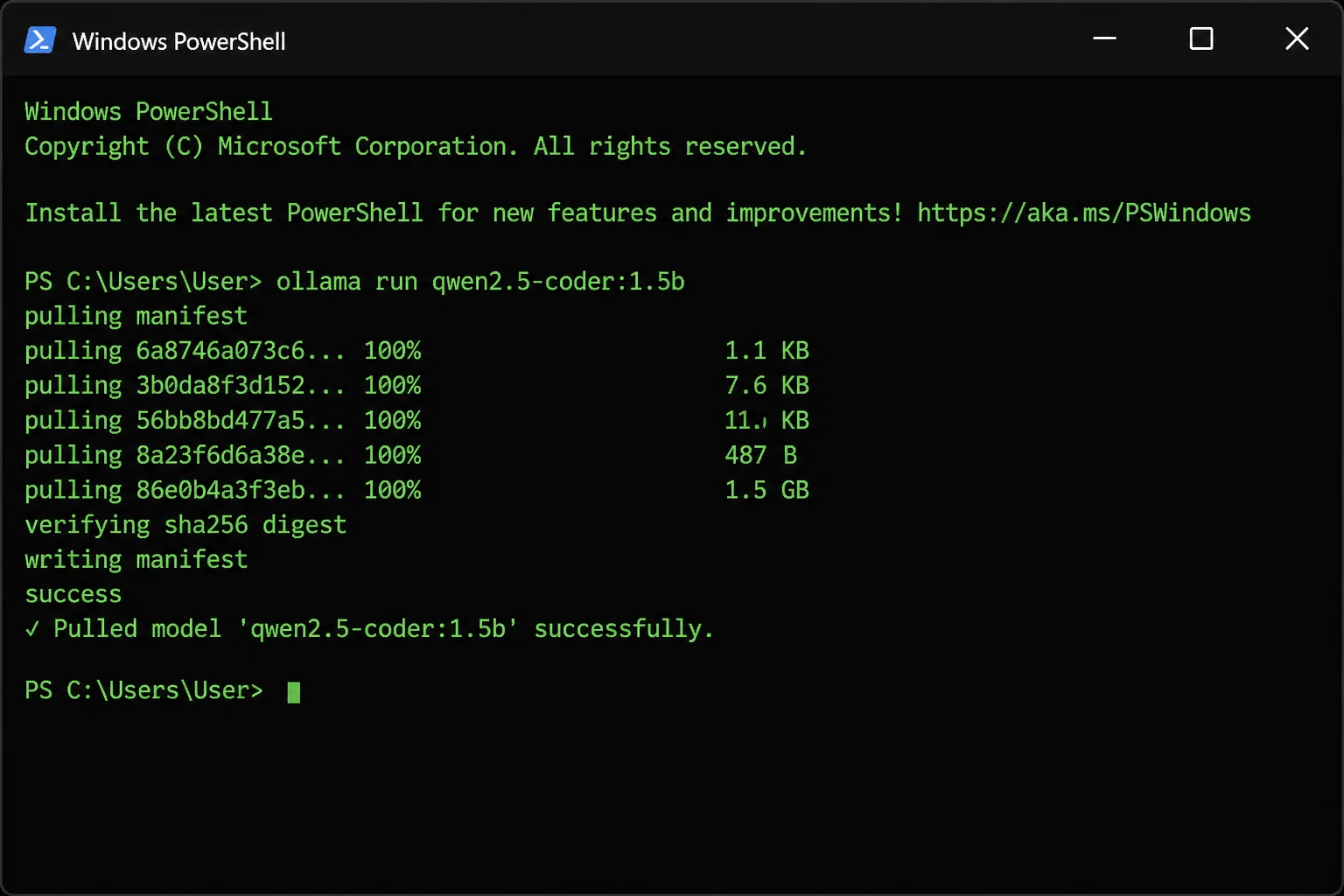
ollama pull qwen2.5-coderpull downloads the model layers to local storage. Several minutes is normal. The actual time depends on model size and connection speed. Don’t start this with a nearly full system drive.
Expected output ends with a success message similar to:
pulling manifest
pulling …
verifying sha256 digest
writing manifest
success
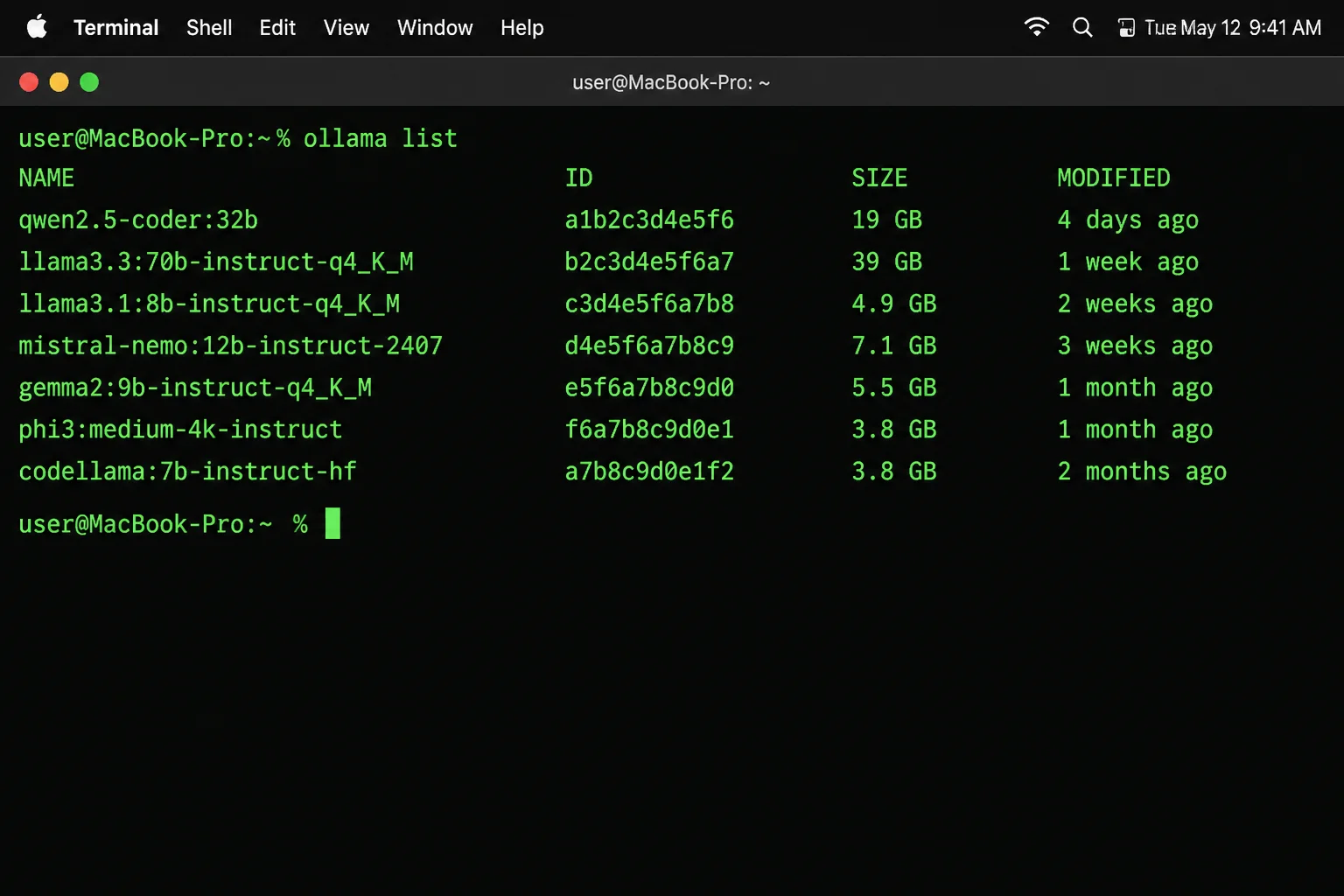
List the installed models:
ollama listExpected output:
NAME ID SIZE MODIFIED
qwen2.5-coder:latest … … …
Copy the exact value from the NAME column. Tags matter. model-name:tag-a and model-name:tag-b can refer to different builds, so an approximate name won’t do. For a setup you’ll repeat later, pin a specific tag (for example qwen2.5-coder:7b) instead of relying on :latest — :latest can point to a different build the next time you pull, which breaks reproducibility.
Test the model before adding VS Code:
ollama run qwen2.5-coderAt the prompt, enter:
Write a Python function that returns the larger of two integers.
A generated reply confirms that Ollama can load and run the model. This test separates the base service from extension problems. Enter /bye to leave the session.
Step 6: Install the Extension Linked by Ollama
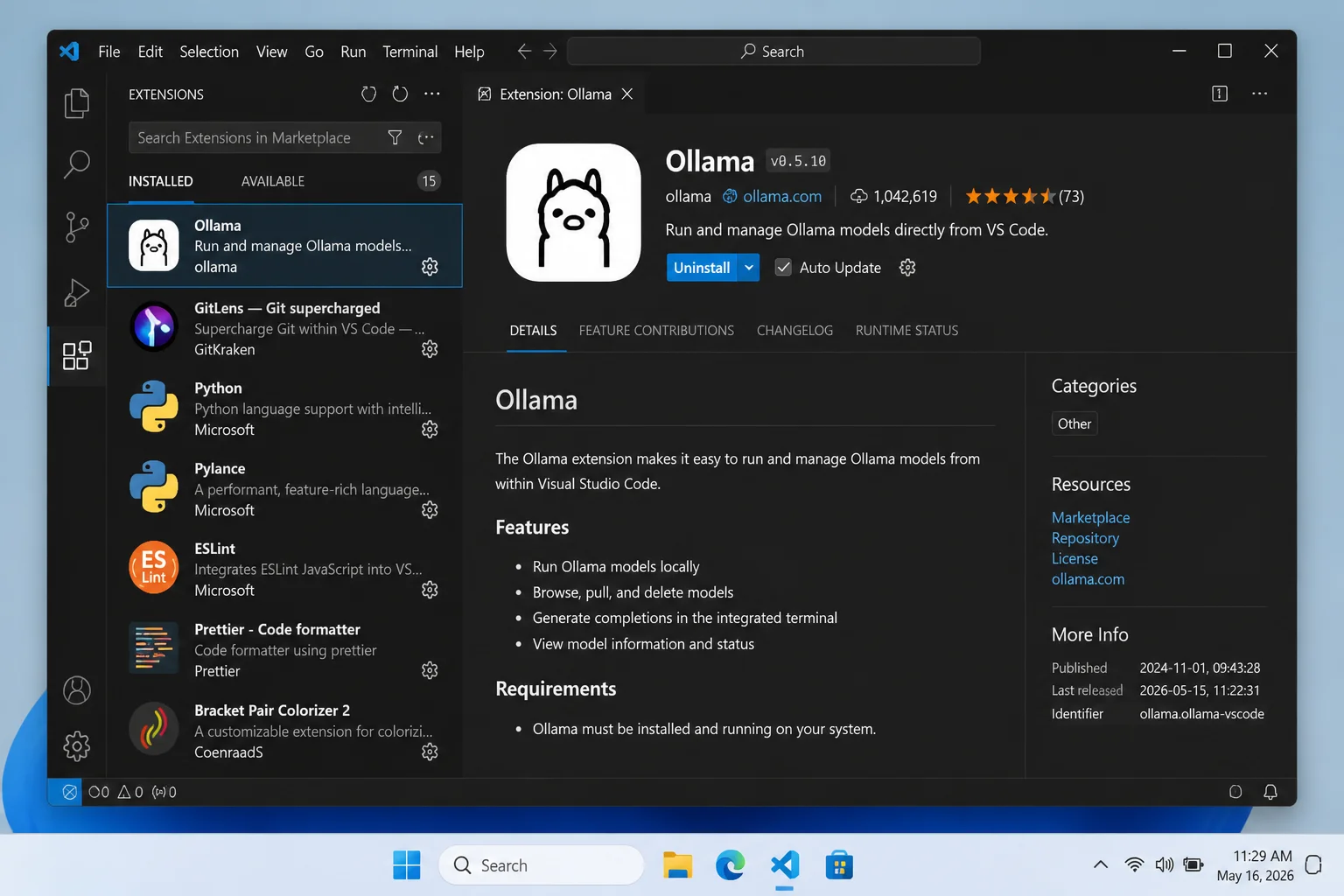
Open Ollama’s official VS Code integration page. Use its Visual Studio Marketplace link. Don’t trust the first Marketplace result that contains “Ollama.” Similar names and stale extensions are common.
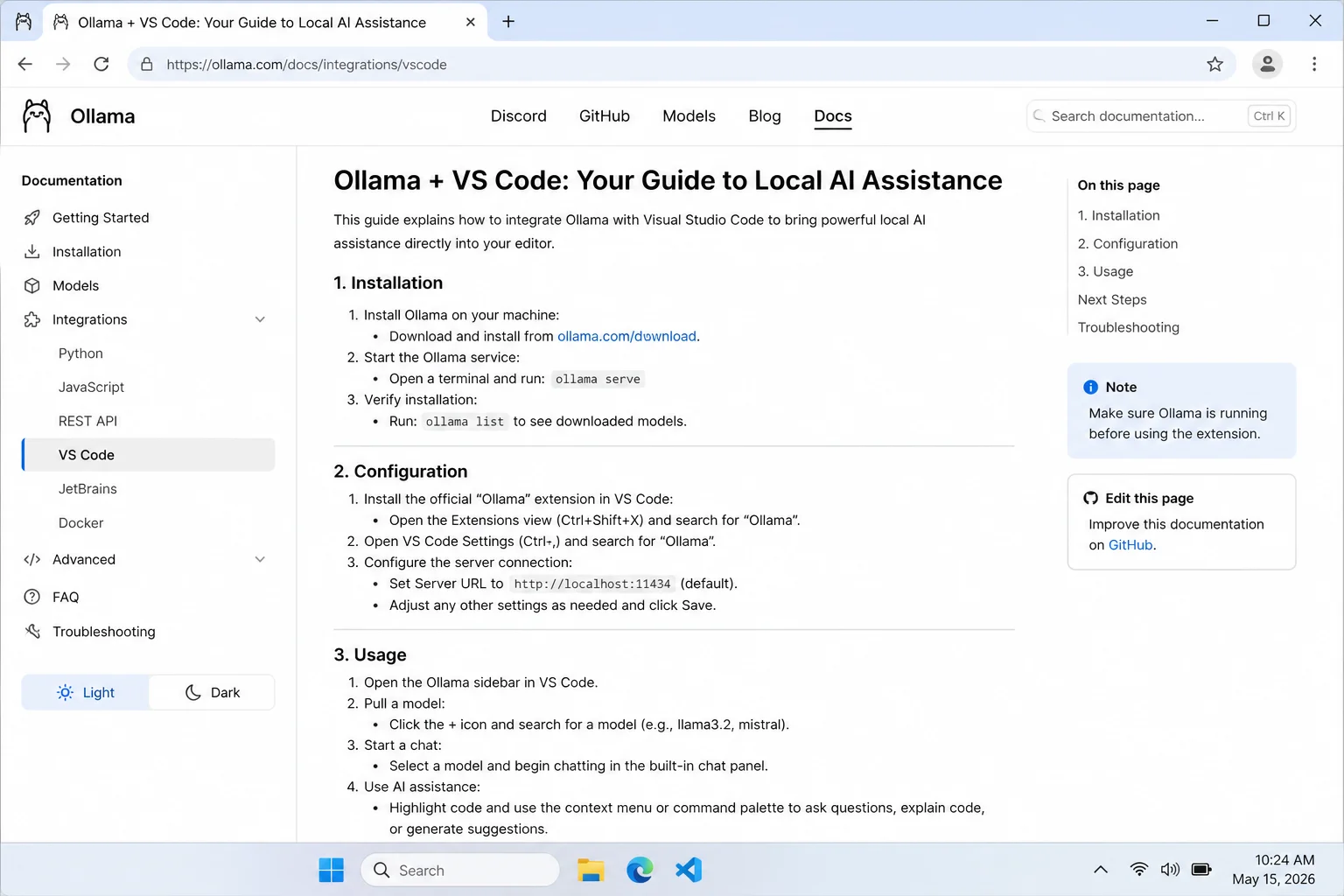
On the Marketplace page, confirm that Ollama’s documentation links to that exact listing. Record the extension name, publisher, and current version.
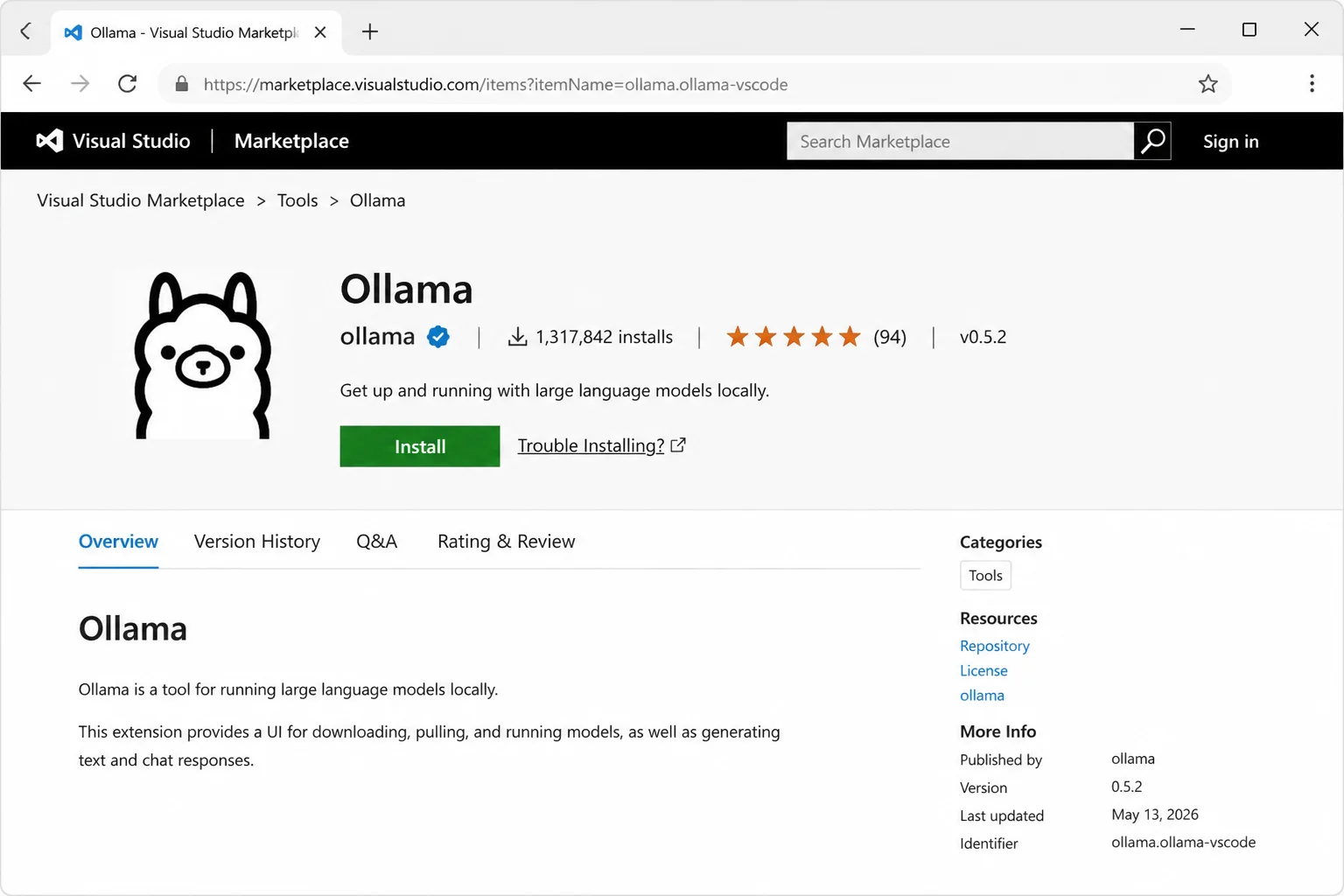
In VS Code:
- Click the Extensions icon in the Activity Bar.
- Search for the exact extension name from the verified Marketplace page.
- Compare its publisher with the verified listing.
- Click Install.
- Reload VS Code if requested.
Skip ollama launch vscode unless the live integration page lists that command for your installed release. Automation built around an undocumented command tends to become a Friday-afternoon repair job.
Step 7: Configure the Local Ollama Provider
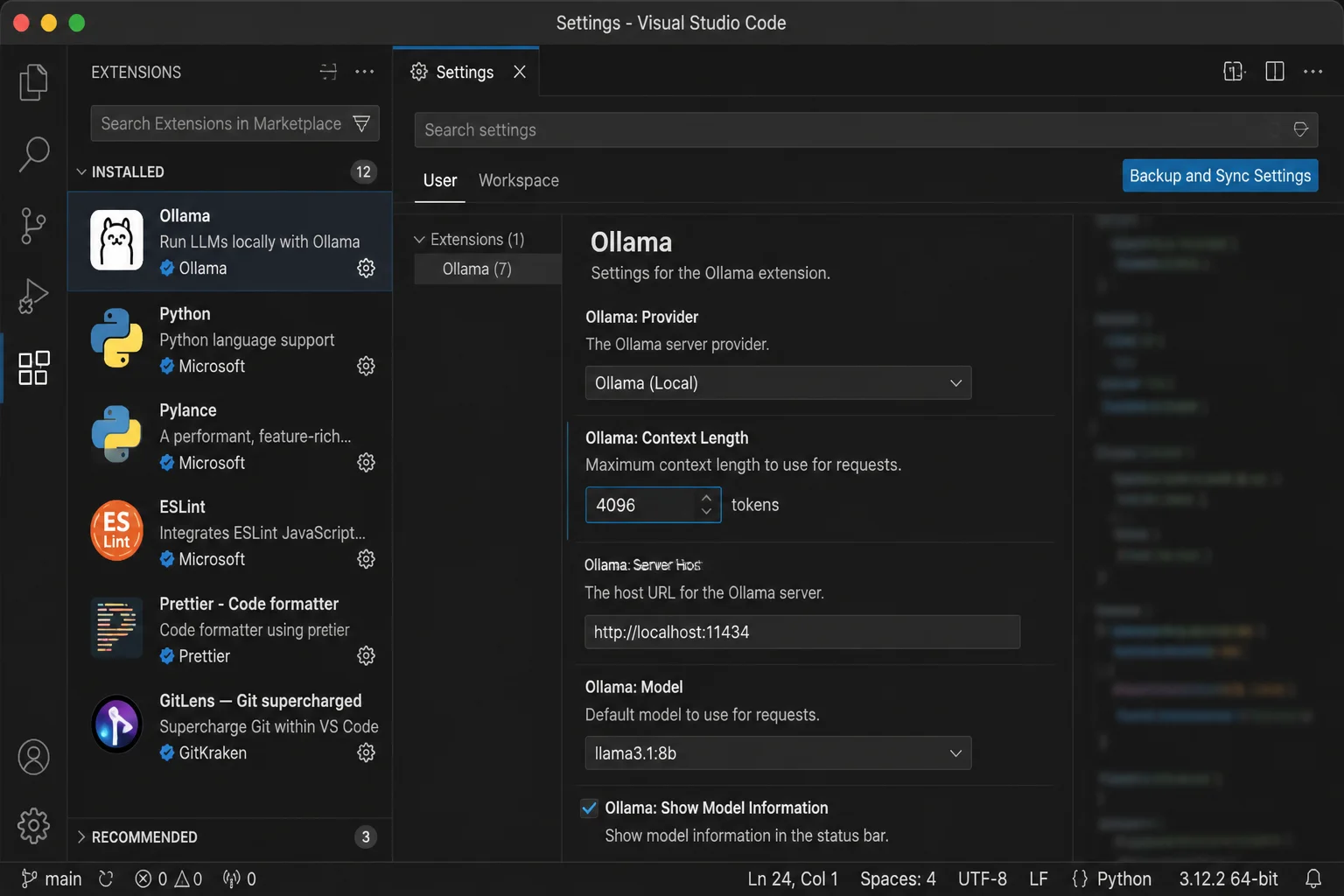
Open the extension’s provider or model picker. Labels vary by release. Look for Provider, Model Provider, Server, Host, Base URL, or Endpoint.
Select Ollama. If the extension asks for a server address, enter:
http://localhost:11434
Keep localhost when both apps run on the same computer. A public IP adds exposure and gives you nothing useful here.
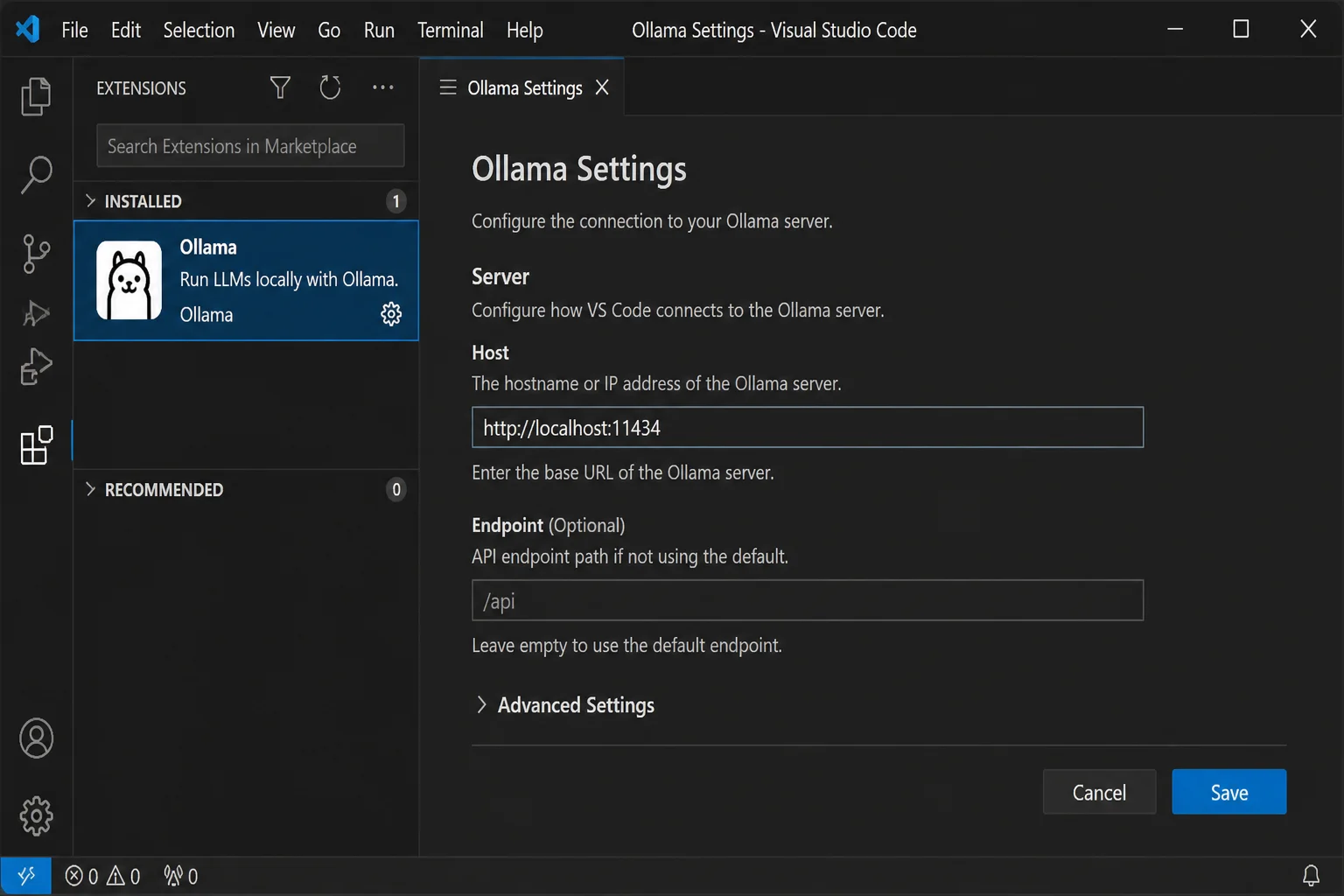
Some extensions hide the endpoint field because they use Ollama’s default address. Keep that default and test it in the next step. Don’t add a guessed key to settings.json; unknown settings create confidence, not configuration.
Step 8: Select the Installed Model in VS Code
Open the model picker. Choose the exact name returned by ollama list, such as qwen2.5-coder:latest.
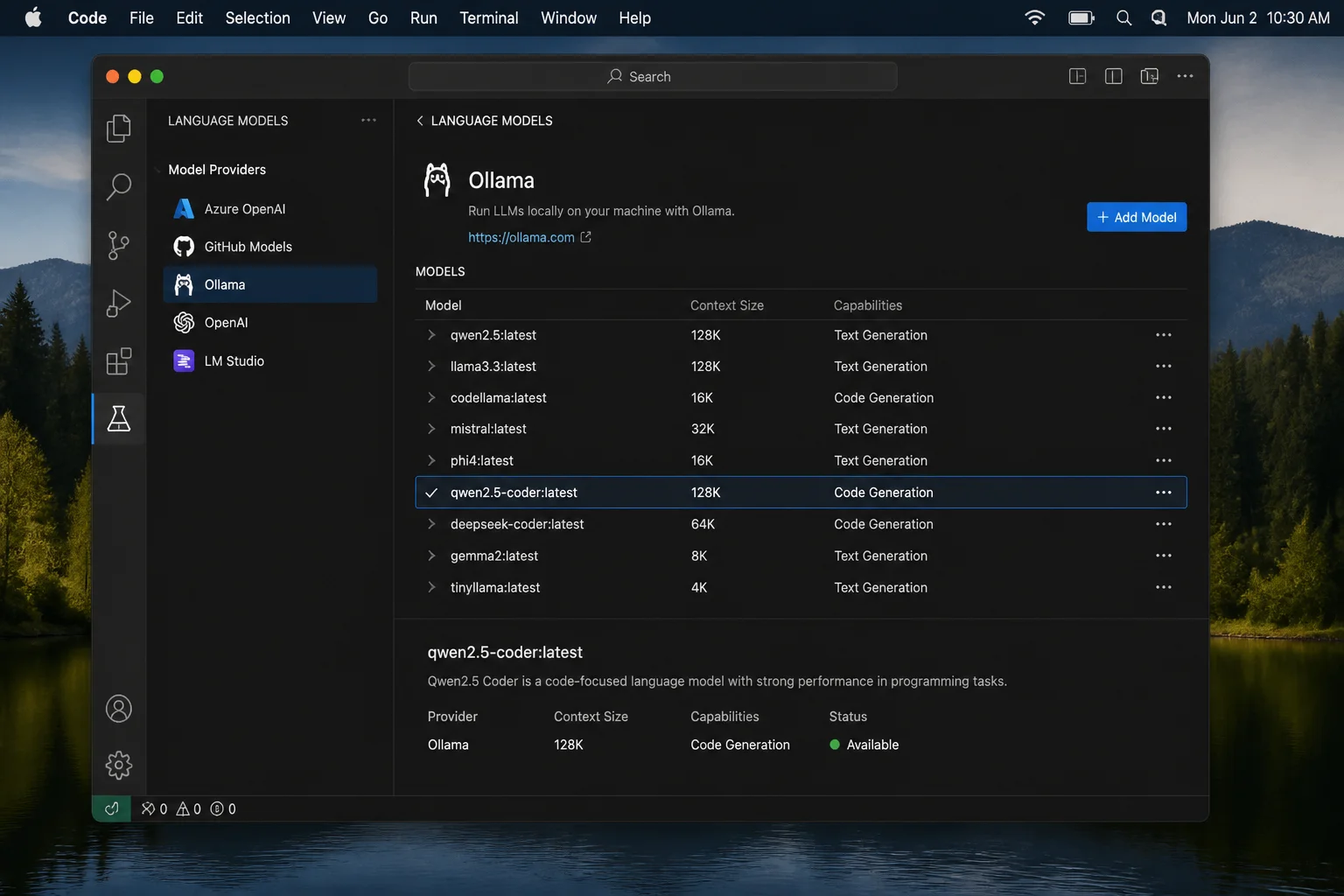
If the model is missing:
- Run
ollama listagain. - Confirm that the model exists on the computer running VS Code.
- Recheck the endpoint.
- Reload VS Code using the Command Palette’s window reload command.
- Reopen the model picker.
Check the exact tag twice. Model discovery failures often mean VS Code has the wrong host or requests a tag you never pulled.
Step 9: Test VS Code and Prove Inference Is Local
Open a new empty file and the extension’s chat or prompt view. Confirm that the provider is Ollama and the selected model matches a local entry.
Submit a harmless prompt:
Create a JavaScript function that validates whether a string is a valid IPv4 address. Explain the edge cases.
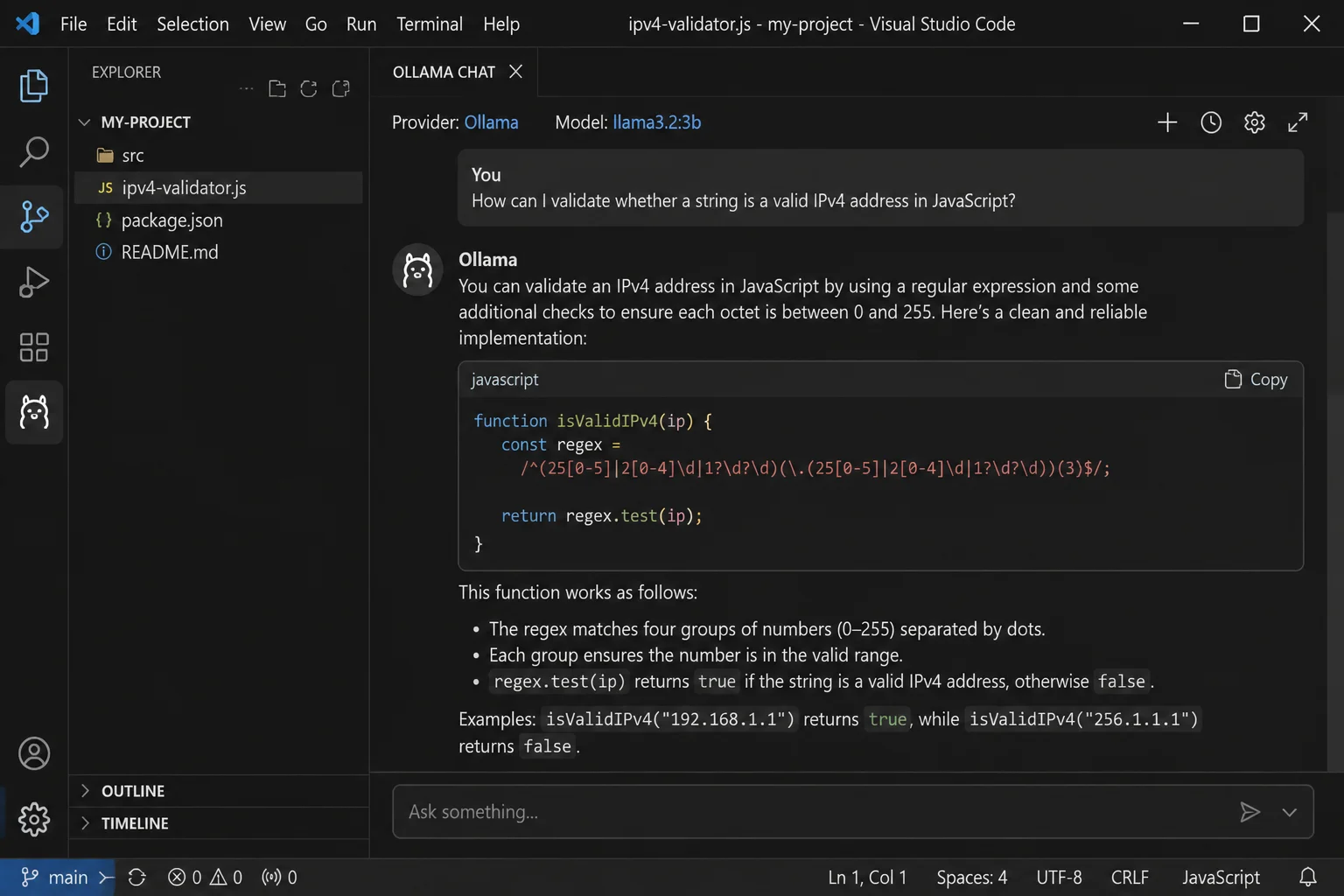
Use three checks to confirm where inference runs:
- Confirm the provider is Ollama and the endpoint is
http://localhost:11434. - Confirm the selected name appears in
ollama list. - Watch the local Ollama process use resources while it generates the answer.
On Windows, open Task Manager > Processes or Performance. On macOS, open Applications > Utilities > Activity Monitor. Send another prompt and watch Ollama’s CPU, memory, or GPU use.
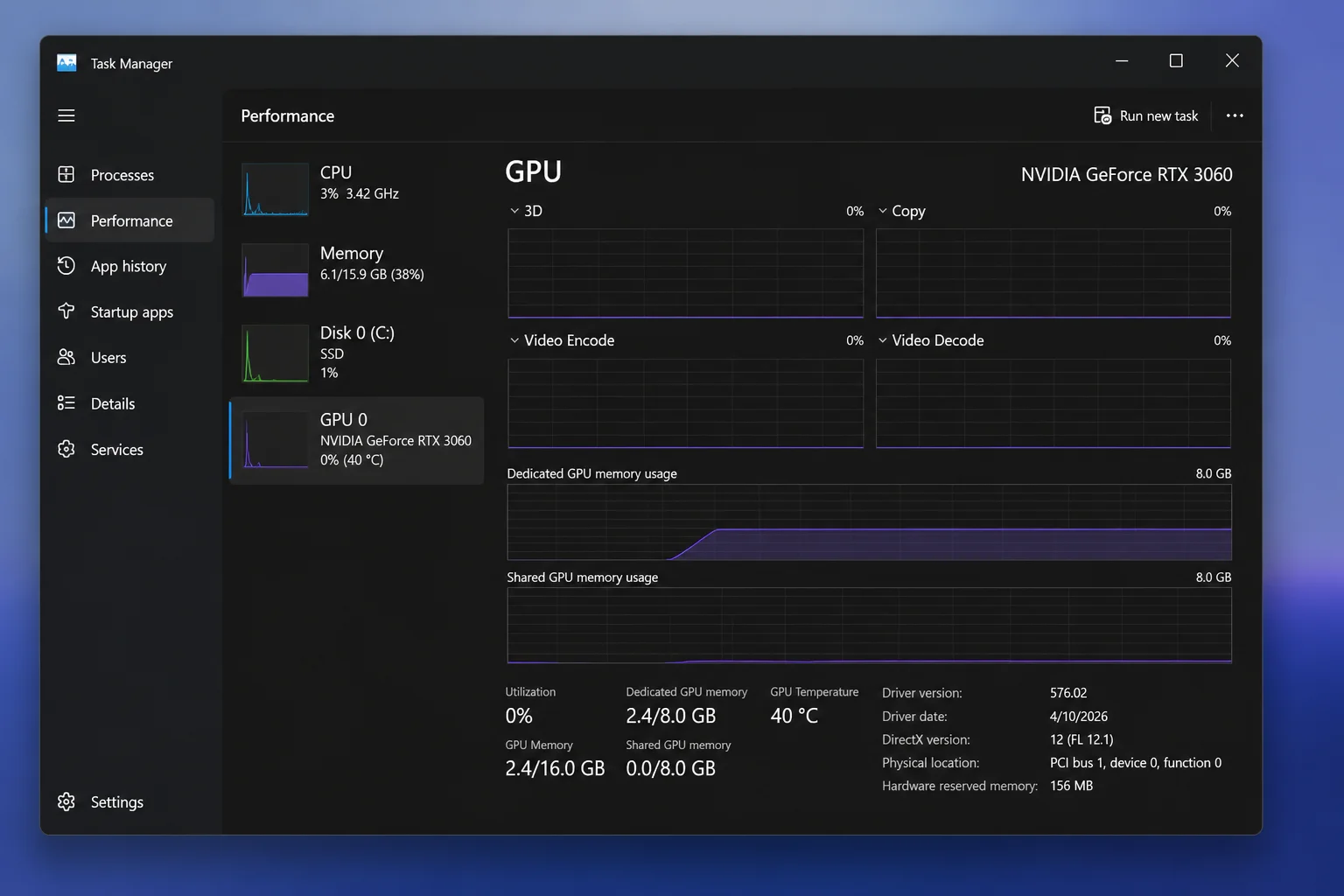
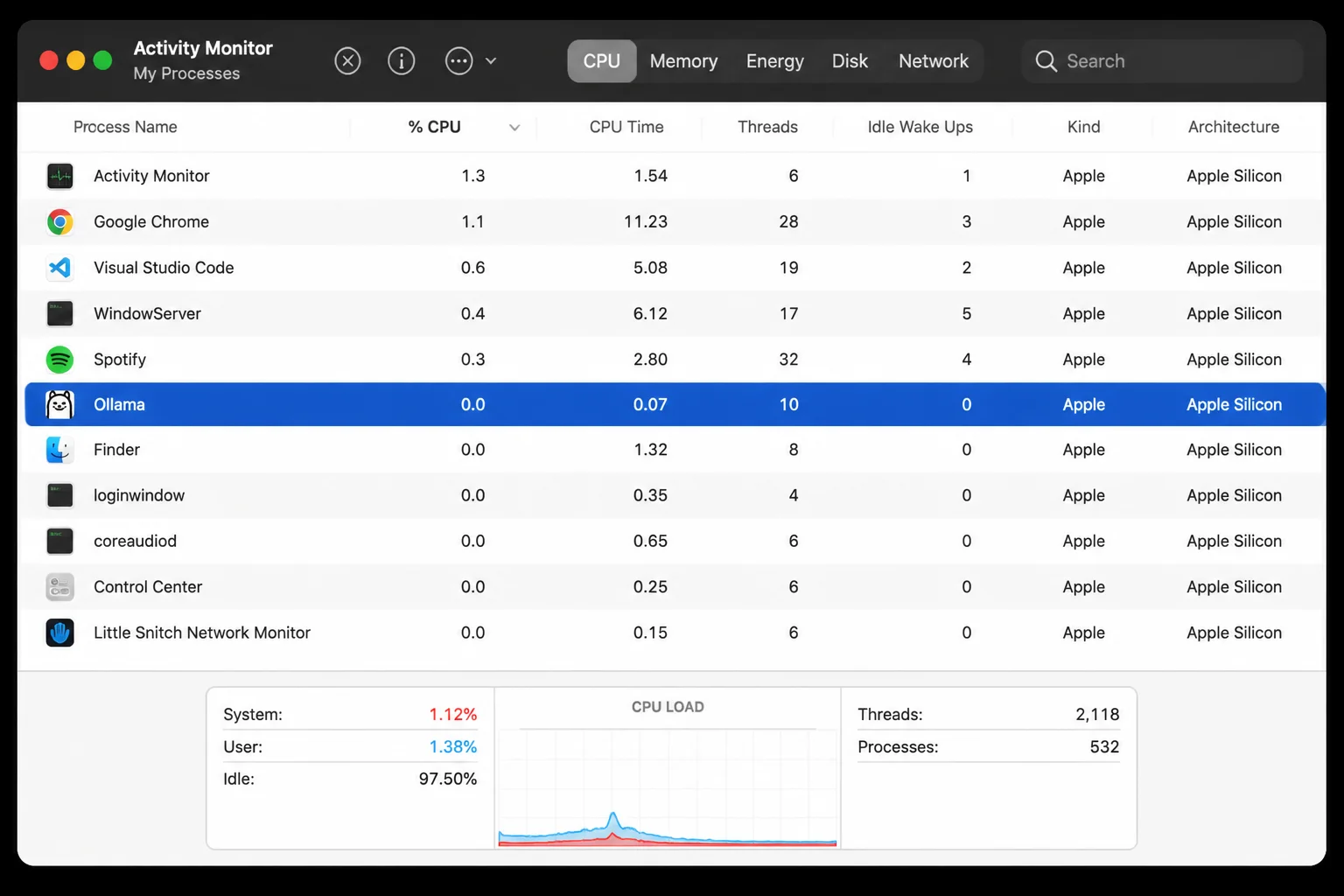
Resource use supports the check, but the configuration is stronger proof. Verify the provider, endpoint, and model together. A cloud model selected through an Ollama interface still runs remotely, whatever badge VS Code shows.
Configuration
Model Size and Available Memory
Model size affects storage, load time, memory use, and generation speed. Use the download size as a rough starting point. Runtime memory also includes model overhead and context data. The OS will keep its share too.
| Available resources | Practical approach |
|---|---|
| Limited RAM and no suitable GPU | Start with the smallest coding model variant offered on the current model page |
| Moderate RAM or unified memory | Try a mid-sized quantized model, then watch memory pressure |
| High RAM or dedicated VRAM | Consider a larger model if its runtime footprint leaves room for the OS and VS Code |
| Hardware cannot fit the required model | Use Ollama Cloud or another secured remote host |
There is no sound “8 GB means model X” rule. Quantization, context length, OS load, and CPU or GPU offload all change the result. Test the actual model on the actual machine.
Context Length
Context length controls how much code, chat history, and instruction text the model can read per request. More context can help with repository work. Its key-value cache also uses memory and can slow generation.
Start with the model or extension default. Raise it only if the model loses earlier code and the system has free memory. If the extension has a context control, use small steps. Repeat the same prompt after each change. Otherwise, you’re comparing anecdotes.
Secure Remote Access
Don’t forward TCP port 11434 from your router or expose the Ollama API to the internet. The local API isn’t built as an internet-facing login barrier.
Use one of these patterns instead:
- A private VPN between the VS Code computer and Ollama host
- An SSH tunnel bound to the client’s loopback interface
- An authenticated reverse proxy with TLS, access controls, and firewall restrictions
- A private subnet with host-based firewall rules limited to approved clients
For an SSH tunnel, run this on the VS Code computer:
ssh -N -L 11434:127.0.0.1:11434 your-username@ollama-host-N stops SSH from opening a remote shell. -L maps local port 11434 to the same port on the remote host’s loopback interface. VS Code can keep using http://localhost:11434. This also binds client access to the local machine.
An SSH tunnel works well for one or two users. It gets awkward with several clients that need persistent access. A VPN or authenticated reverse proxy is easier to run at that point.
Tips and Troubleshooting
VS Code Shows No Ollama Models
Cause: No model is installed, the model list is stale, or the extension points to another server.
Fix:
ollama listIf the list is empty, pull the model:
ollama pull qwen2.5-coderConfirm http://localhost:11434, reload the VS Code window, and select the exact tagged model name. If Terminal sees the model but VS Code doesn’t, check the extension endpoint and reload state.
VS Code Cannot Reach Ollama
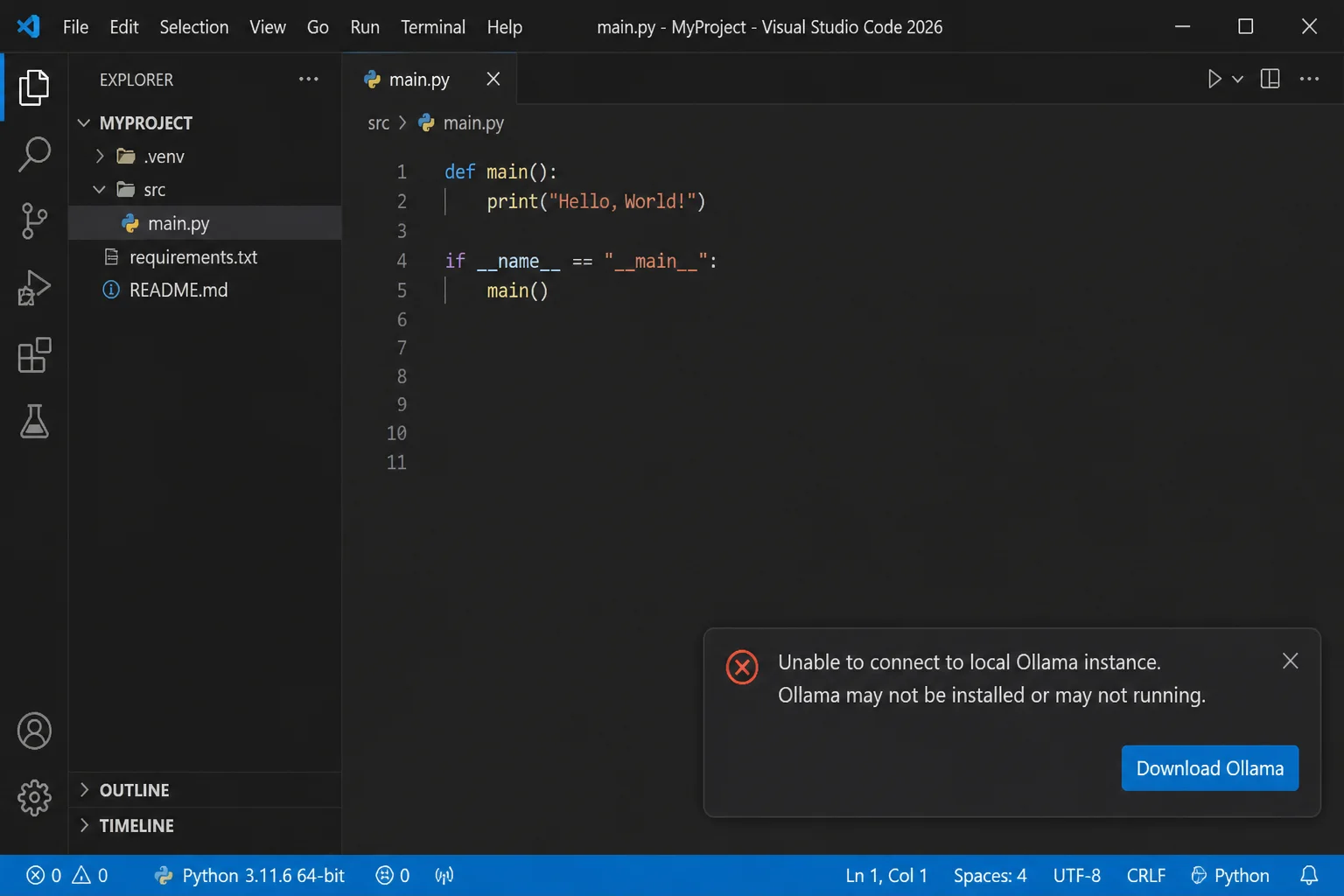
Cause: Ollama is stopped or the endpoint is wrong.
If you installed the Ollama desktop app, start or reopen that app first; it already runs the background service, and a second ollama serve in a terminal will just report that the port is in use. Reach for ollama serve directly only when you installed the CLI/service without the desktop app, or when you deliberately stopped the desktop app and want to run the service by hand.
Start the Ollama desktop application. If needed, run:
ollama serveExpected output should show Ollama listening on local port 11434. Leave that terminal open while testing VS Code. Closing it stops the service you started by hand, which is easy to miss when the connection fails again.
Port 11434 Is Already in Use
On Windows, find the process ID:
Get-NetTCPConnection -LocalPort 11434 | Select-Object LocalAddress, LocalPort, State, OwningProcessThen inspect that process:
Get-Process -Id YOUR_PROCESS_IDReplace YOUR_PROCESS_ID with the number from the first command.
On macOS, run:
lsof -nP -iTCP:11434 -sTCP:LISTENIf Ollama owns the port, don’t start a second service. If another app owns it, stop or change that app through its supported controls. Change Ollama’s port only when the current Ollama and extension docs explain both ends. Half a port change is an outage with extra steps.
Responses Are Slow or the Computer Freezes
Cause: The model or context is too large for the available RAM, VRAM, or shared memory.
- Stop the current generation.
- Close memory-heavy applications.
- Select a smaller model.
- Reduce context length if the extension exposes that setting.
- Test with
ollama runto separate model speed from extension overhead. - Watch Task Manager or Activity Monitor for memory pressure and swapping.
Heavy disk use with slow token output often means the system is paging model data. A larger model may score better in tests, but that won’t matter if each reply turns the workstation into a swap-file benchmark.
The Model Forgets Earlier Code
Start a fresh chat, attach only the files you need, and summarize the requirements. Long chat histories consume context before the model reaches your current code.
Raise the context length only if the machine has spare memory. More context can slow replies, raise memory use, or force the model to unload. Better input selection often costs less than a larger context window.
Operational Checklist for Updates and Rollback
Before changing Ollama, VS Code, the extension, or a model:
- Record
ollama --version - Record the VS Code version from Help/Code > About
- Record the extension name, publisher, and version
- Save the output of
ollama list - Record the selected provider, model tag, endpoint, and context value
- Note Ollama’s desktop or terminal log location shown by the current release
- Save relevant VS Code extension output from View > Output
- Run one short terminal prompt and one VS Code prompt as baseline tests
- Confirm available disk space before downloading a replacement model
- Keep the previous installer or document its supported download source
- Update one component at a time
- Retest the terminal before retesting VS Code
- Roll back through the product’s supported installer or extension-version mechanism if the baseline test fails
Updating one component at a time costs about five minutes. It saves far more time when the baseline fails and you know which change caused it.
Wrapping Up
| Step | Action | Applies To |
|---|---|---|
| 1 | Choose local or cloud inference | Windows and macOS |
| 2 | Install Ollama and verify its version | Windows and macOS |
| 3 | Pull and test a coding model | Windows and macOS |
| 4 | Install the extension linked by official Ollama docs | VS Code |
| 5 | Select http://localhost:11434 and the local model | Local inference |
| 6 | Verify provider, endpoint, model, and process activity | Local inference |
The finished setup gives VS Code a coding model with a known endpoint and a separate command-line test. Local Ollama is a sensible default for private code, provided the machine can run the model without constant paging.
Cloud inference is useful when a model won’t fit. Check the provider, endpoint, and model tag before sending sensitive code. Those three values tell you more than the extension’s branding.