
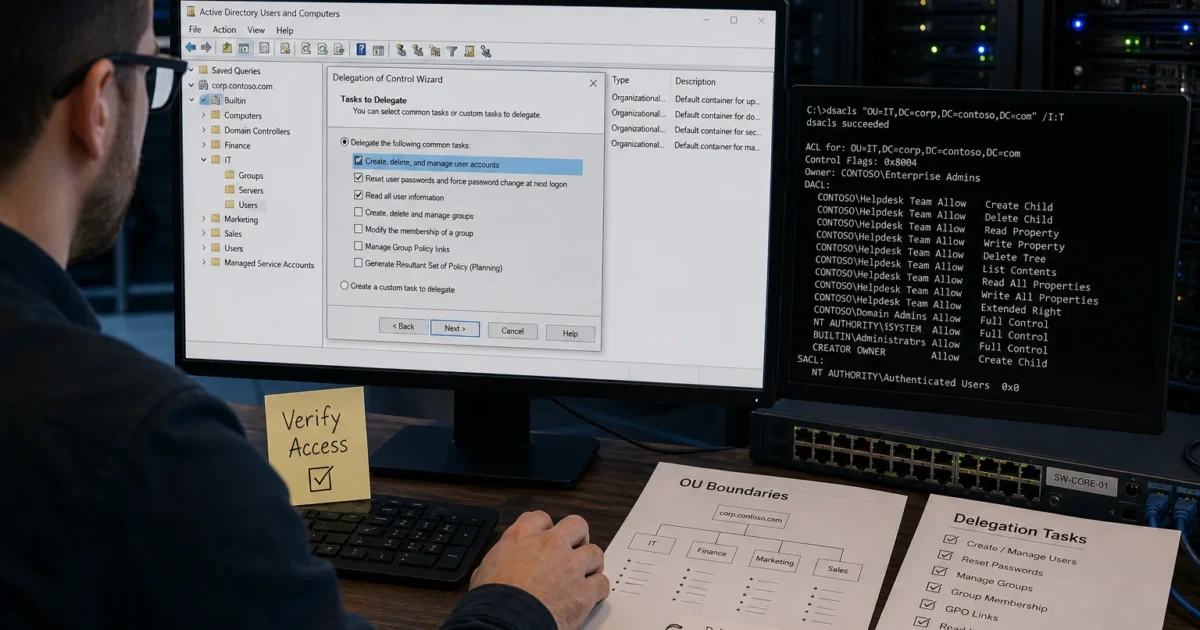
If your help desk’s account list in Domain Admins looks less like a security boundary and more like a junk drawer, this guide is for you. You’ll build OU-based delegation boundaries. Then you’ll hand off narrow tasks, like password resets, computer joins, and attribute edits, to security groups instead of people. Finally, you’ll prove the access actually works, instead of just hoping it does.
Delegation is a five-step discipline: define the task, scope it to an OU, grant it to a group, verify it with a test account, and audit it later. We’ll run through all five using ADUC and dsacls, connecting from a macOS workstation to a Windows management host. There’s still no native macOS console for any of this.
What is Active Directory Delegation?
Active Directory delegation grants narrow, well-defined rights over AD objects (users, groups, computers) without adding anyone to Domain Admins or another privileged group. Instead of an all-or-nothing model, it sets specific access control entries (ACEs) directly on Organizational Units or individual objects. A help desk group can reset passwords in the Sales OU. It can have zero rights anywhere else in the domain. That’s the whole point.
Two tools carry the workload. The Delegation of Control Wizard in ADUC applies the right ACEs for common tasks through a guided interface. dsacls is a command-line tool for inspecting and auditing the resulting access control list. Delegation is just ACL entries under the hood. Everything you grant can be verified with the Effective Access tab, and reversed by removing the corresponding ACE. That only works if you actually check, rather than assume, that the permissions landed where you intended.
This guide covers on-premises AD DS administration only. Entra ID (Azure AD) role-based access control, AD Certificate Services, and Kerberos constrained/unconstrained delegation are separate mechanisms with their own rules. None of that is covered here.
Before You Begin
Make sure you have:
- A Windows Server domain controller running Windows Server 2016 or later with the AD DS role installed (tested on Windows Server 2022 for this piece)
- Domain Admin (or equivalent) rights on an account you’ll use to set up delegation; you won’t use this account day-to-day afterward
- A Windows 10/11 or Windows Server management workstation with RSAT: Active Directory Domain Services and Lightweight Directory Tools installed, or direct console/RDP access to a DC
- A supported macOS machine with Windows App installed from the Mac App Store, since there is no native macOS client for ADUC or
dsacls - At least one test OU you can safely experiment in before touching production OUs
- A non-privileged test user account for verification later on
| Requirement | Details |
|---|---|
| Domain controller OS | Windows Server 2016 or later, AD DS role installed |
| Management client | Windows 10/11 or Windows Server with RSAT, or RDP session to a DC |
| macOS client | A macOS release supported by Windows App (App Store) |
| Admin account | Domain Admin or OU-owner rights for initial setup only |
| Test account | Standard domain user, no group memberships beyond Domain Users |
There is no macOS-native way to run ADUC or dsacls. Every screenshot showing ADUC or a command prompt is captured inside a Remote Desktop session running on Windows. The macOS side is just the connection.
Step-by-Step Guide
Step 1: Connect from macOS to your Windows management host
Open Microsoft Remote Desktop on your Mac and add a new PC connection. Point it at your domain controller or admin jump box using its hostname or IP, plus a domain\username credential with rights to log on. This is the only macOS-specific step in the whole process. After this, everything happens inside Windows.
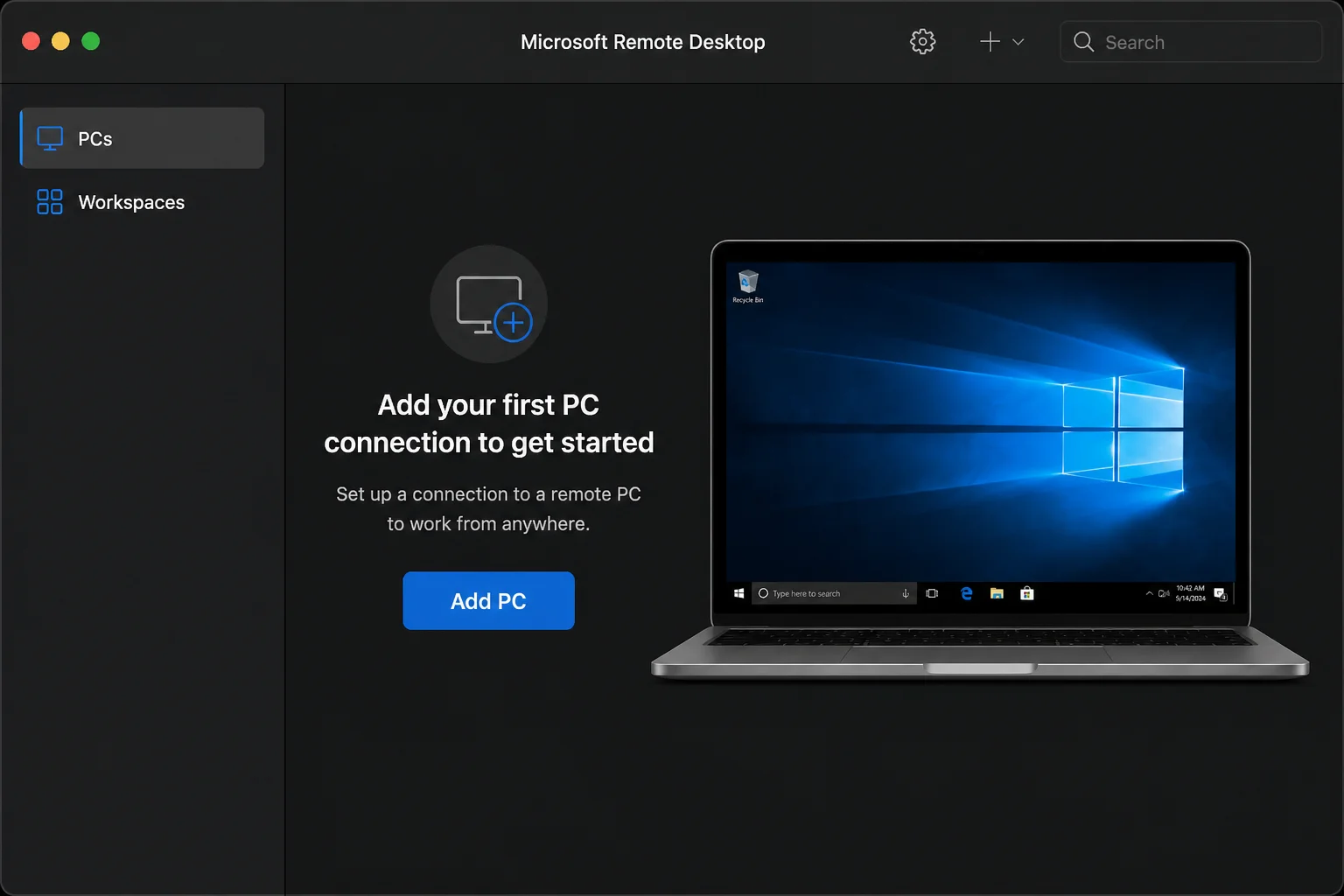
Double-click the saved connection and accept the certificate warning if you’re using a self-signed cert on the DC. Log in with your domain admin credentials. Once the desktop loads, open Server Manager > Tools > Active Directory Users and Computers, or run:
dsa.mscExpected result: the ADUC console opens showing your domain and its default containers (Users, Computers, Domain Controllers).
Step 2: Define the task and scope before delegating
Before you touch ADUC, write down two things: the exact task and the exact OU it applies to. “Help desk needs more access” is not a task. “The NYC-Helpdesk group needs to reset passwords and unlock accounts for users in OU=NYC-Sales,DC=contoso,DC=com, and nothing else” is a task.
This matters because the Delegation of Control Wizard applies permissions to whatever OU you right-click. It has no concept of “just this department” unless your OU structure already reflects that boundary. Skipping this step is the single biggest cause of delegation that’s broader than intended.
For each delegation, document:
- Who: the group that will receive the rights
- What: the specific task (reset passwords, create computer objects, edit specific attributes)
- Where: the OU distinguished name the rights apply to
- Scope: this object only, this object and child objects, or specific descendant types only
Keep this as a simple spreadsheet or text file; you’ll need it again during the audit step.
Step 3: Design OUs that form useful delegation boundaries
Delegation only works cleanly if your OU structure matches your administrative boundaries and not simply your reporting structure. An OU tree built for Group Policy or a tidy org chart often puts users, computers, and groups from different admin teams in the same container. That forces a bad choice: over-scope the delegation, or split objects across OUs you never planned for.
A layout that works well for delegation:
DC=contoso,DC=com
└─ OU=Corp
├─ OU=Role Groups (delegated role groups live here — NOT inside delegated OUs)
├─ OU=Locations
│ ├─ OU=NYC
│ │ ├─ OU=Users
│ │ ├─ OU=Computers
│ │ └─ OU=Groups
│ └─ OU=SLC
│ ├─ OU=Users
│ ├─ OU=Computers
│ └─ OU=Groups
└─ OU=Service Accounts
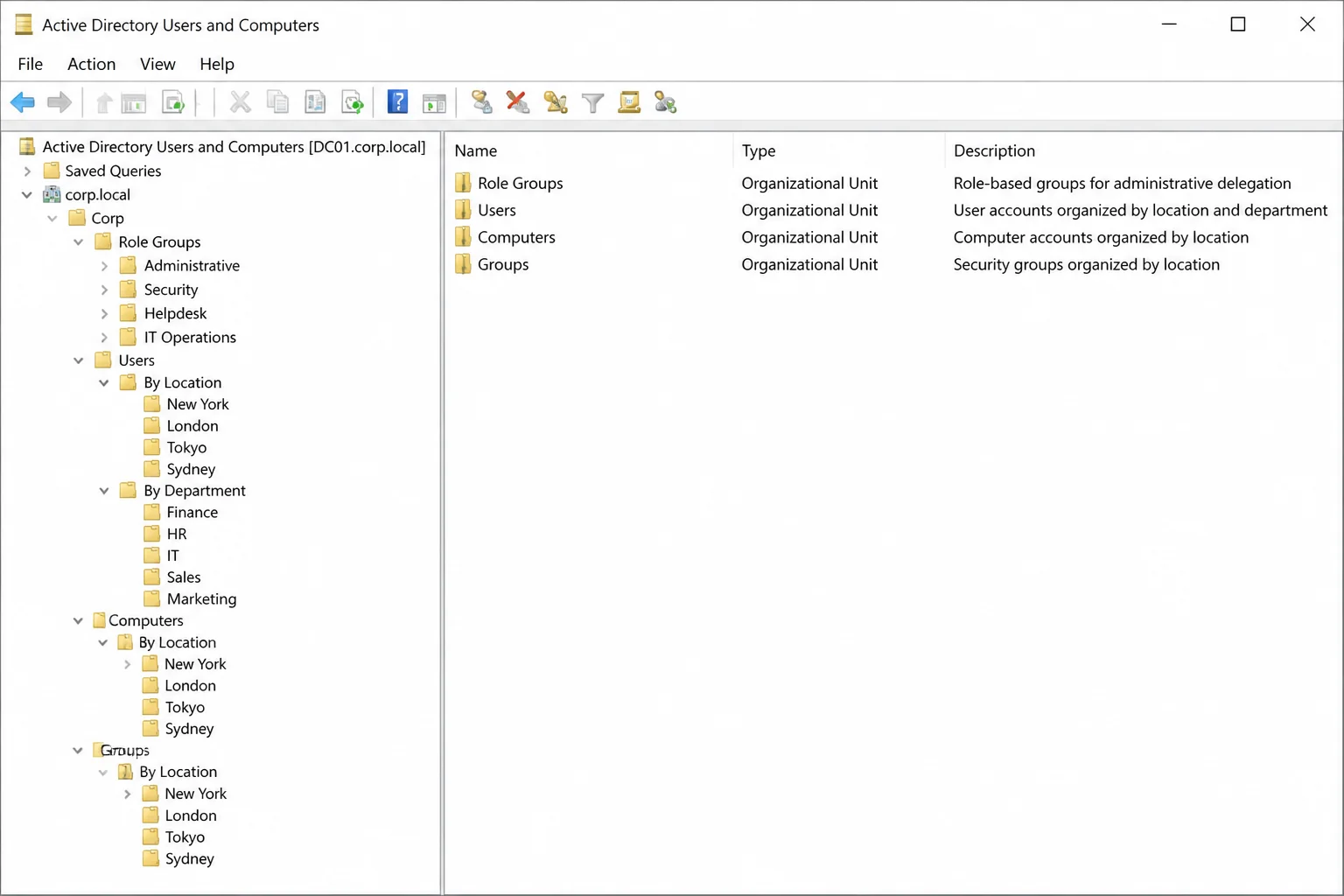
Two design rules matter more than the exact shape:
- Split Users, Computers, and Groups into their own sub-OUs per location or department. This lets you delegate “reset passwords” without also granting rights over computer objects or nested groups in the same container.
- *Keep role groups (the groups you delegate rights to) in a separate OU outside the delegated boundary.* If a help desk group’s rights are scoped to
OU=NYC, and theDEL-NYC-Helpdeskgroup itself lives insideOU=NYC, a broad delegation, like “modify group membership,” could let that group add itself to something more privileged. Keeping role groups inOU=Role Groupscloses that escalation path.
Step 4: Create role groups for delegated administrators
Always delegate to a security group, never to an individual user account. When permissions sit on an ACE that references a group, adding or removing a person is just a membership change. No ACL editing required, and no way for a “temporary” grant to silently outlive someone’s role.
Create the group from ADUC (right-click the Role Groups OU > New > Group) or from PowerShell on the DC:
New-ADGroup -Name "DEL-NYC-Helpdesk-PWReset" `
  -GroupScope Global `
  -GroupCategory Security `
  -Path "OU=Role Groups,OU=Corp,DC=contoso,DC=com" `
  -Description "Delegated: reset passwords + unlock accounts, OU=NYC"

Add-ADGroupMember -Identity "DEL-NYC-Helpdesk-PWReset" -Members jsmith,mrodriguez
Expected output: no errors, and the group appears immediately in ADUC under Role Groups.
Naming convention matters here more than it seems like it should. Use a prefix like DEL- so delegated role groups stand out from regular security groups during an audit. Bake the task and target OU into the name too. DEL-NYC-Helpdesk-PWReset tells you everything six months from now without opening the ACL. That’s exactly when you’ll need it, because nobody remembers this stuff after a quarter.
Step 5: Use the Delegation of Control Wizard for common tasks
For standard tasks, like password resets, account unlocks, computer joins, and group membership management, the wizard is the right tool. It applies a known-good set of ACEs without you having to hand-pick object types and property GUIDs.
Right-click the target OU (OU=NYC, or a more specific sub-OU like OU=Users,OU=NYC) and choose Delegate Control….
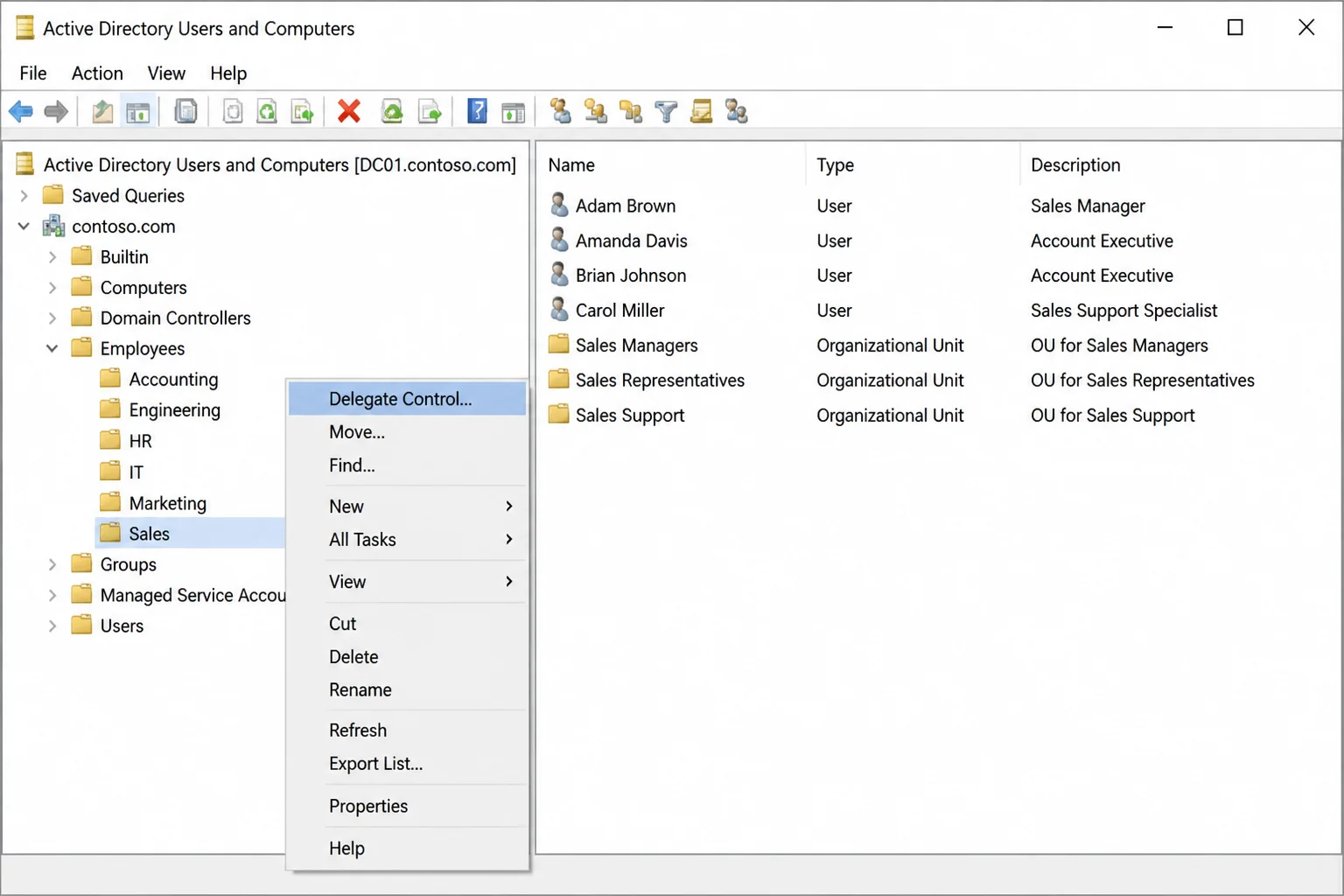
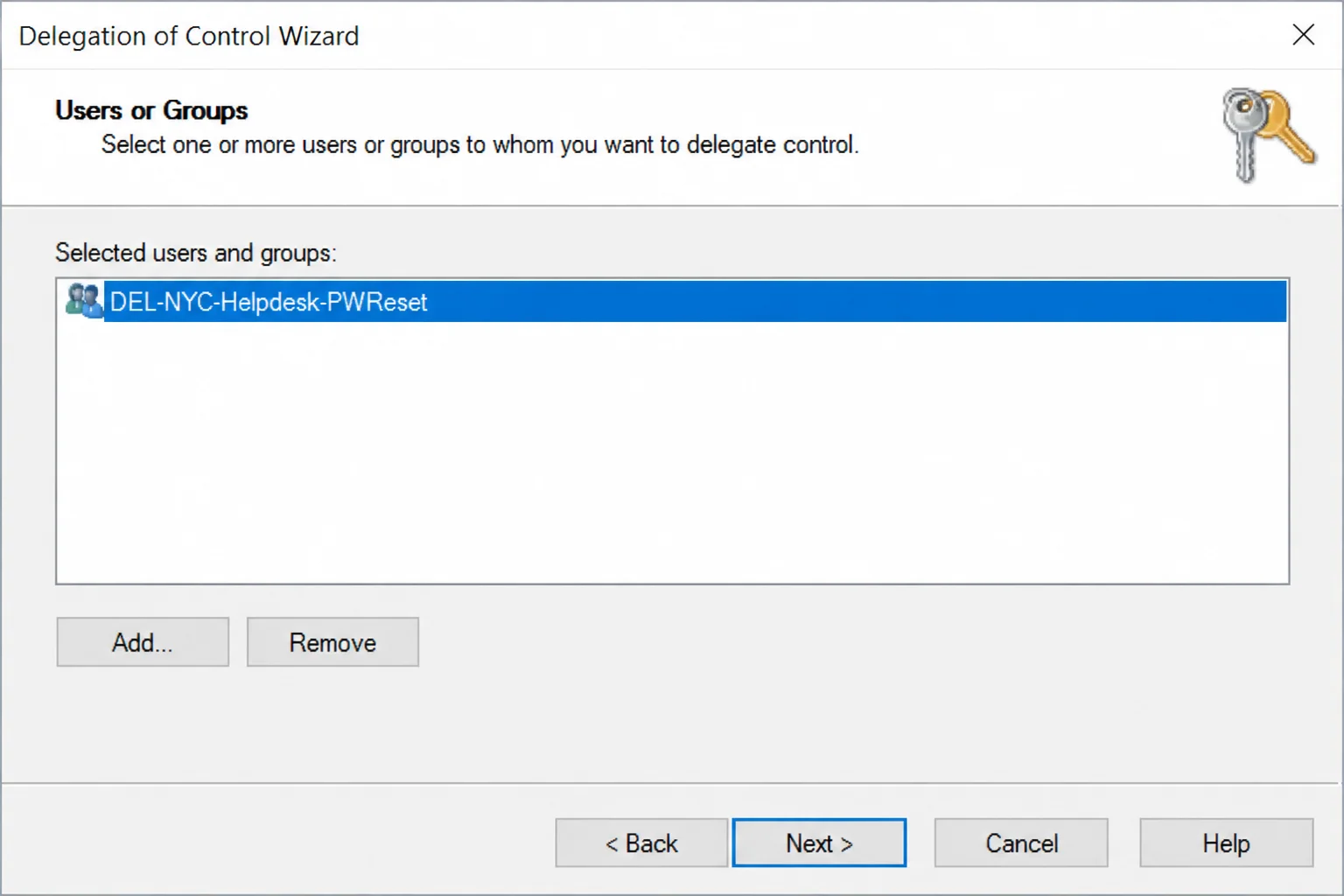
Click Next past the welcome screen, then Add… and type the role group name you created in Step 4. Click Check Names to resolve it, then OK.
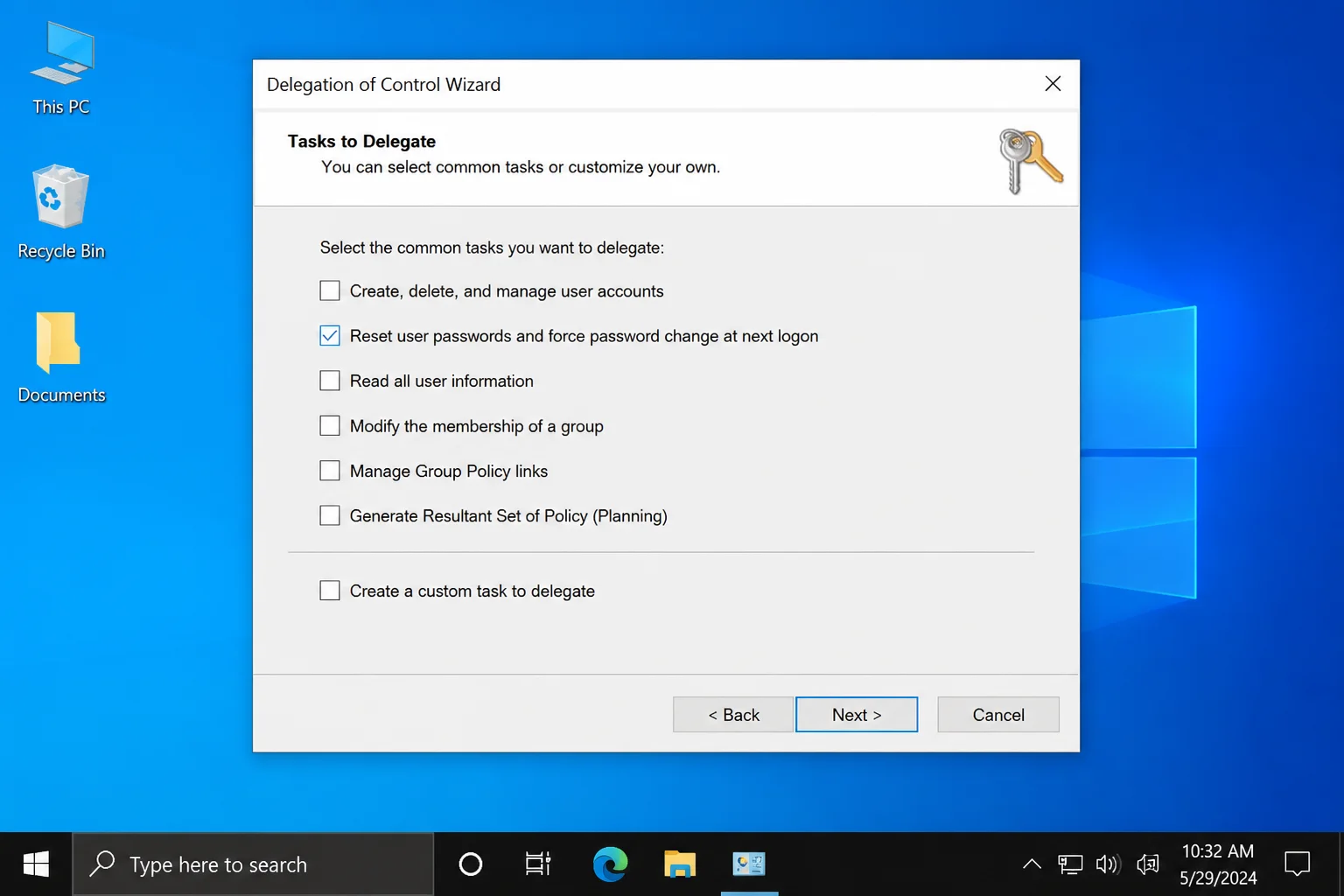
Click Next. On the Tasks to Delegate screen, check the specific common tasks that match what you documented in Step 2, for example, Reset user passwords and force password change at next logon and Read all user information. Resist the urge to check extra boxes “just in case.” Just in case is how you end up back at square one during the audit.
Click Next, review the summary screen, and click Finish. Expected result: the wizard closes with no error, and the group now has explicit ACEs on that OU (you’ll verify this in Step 7).
Step 6: Create a custom task for narrower object and property permissions
The wizard’s common tasks cover maybe 80% of real-world requests. For anything more specific, like a team that should only edit description or telephoneNumber on user objects, and nothing else, use the custom task path instead.
Run the wizard the same way (right-click OU > Delegate Control… > add your group), but on the Tasks to Delegate screen choose Create a custom task to delegate instead of picking from the list.
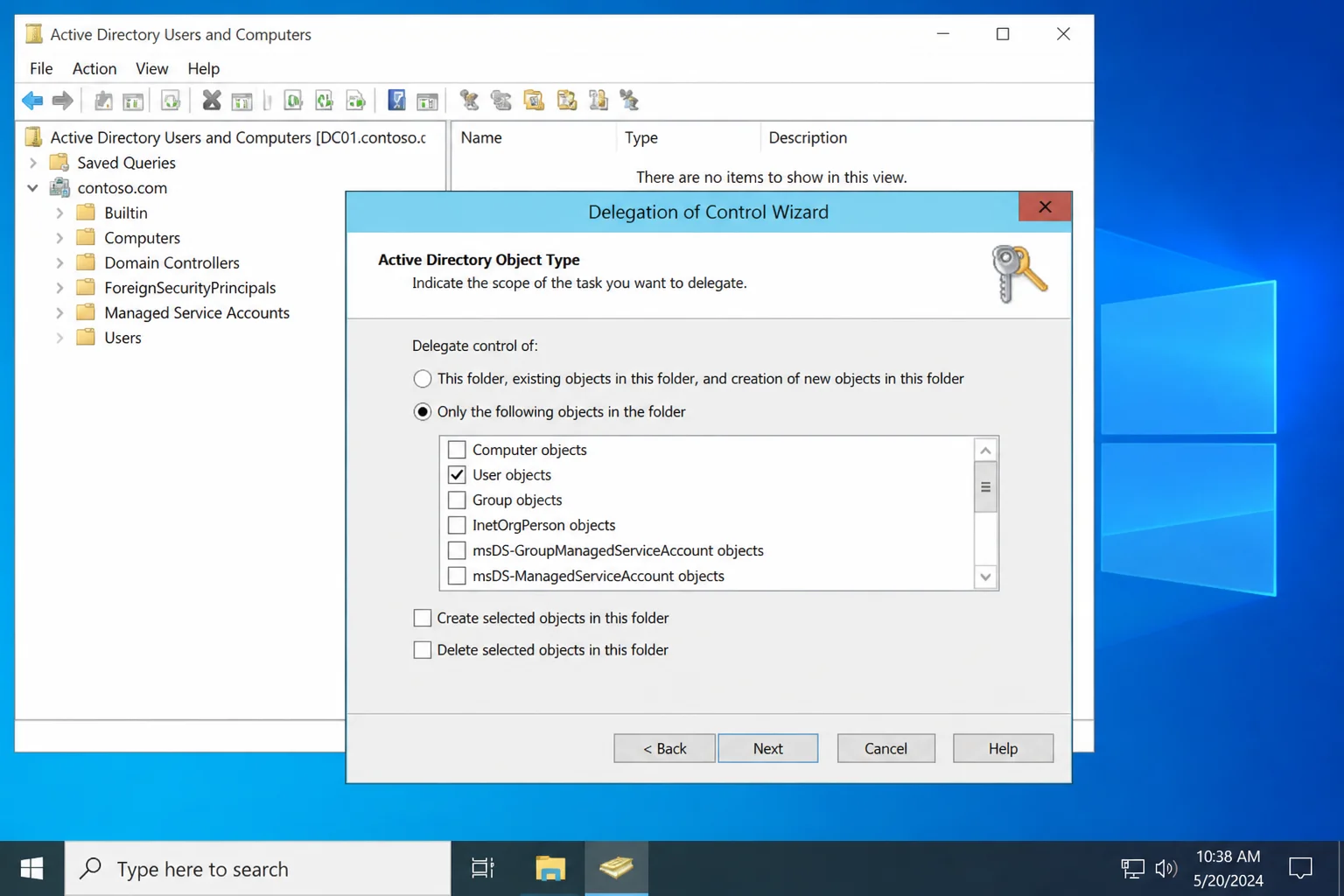
On the next screen, choose Only the following objects in the folder, then check User objects.
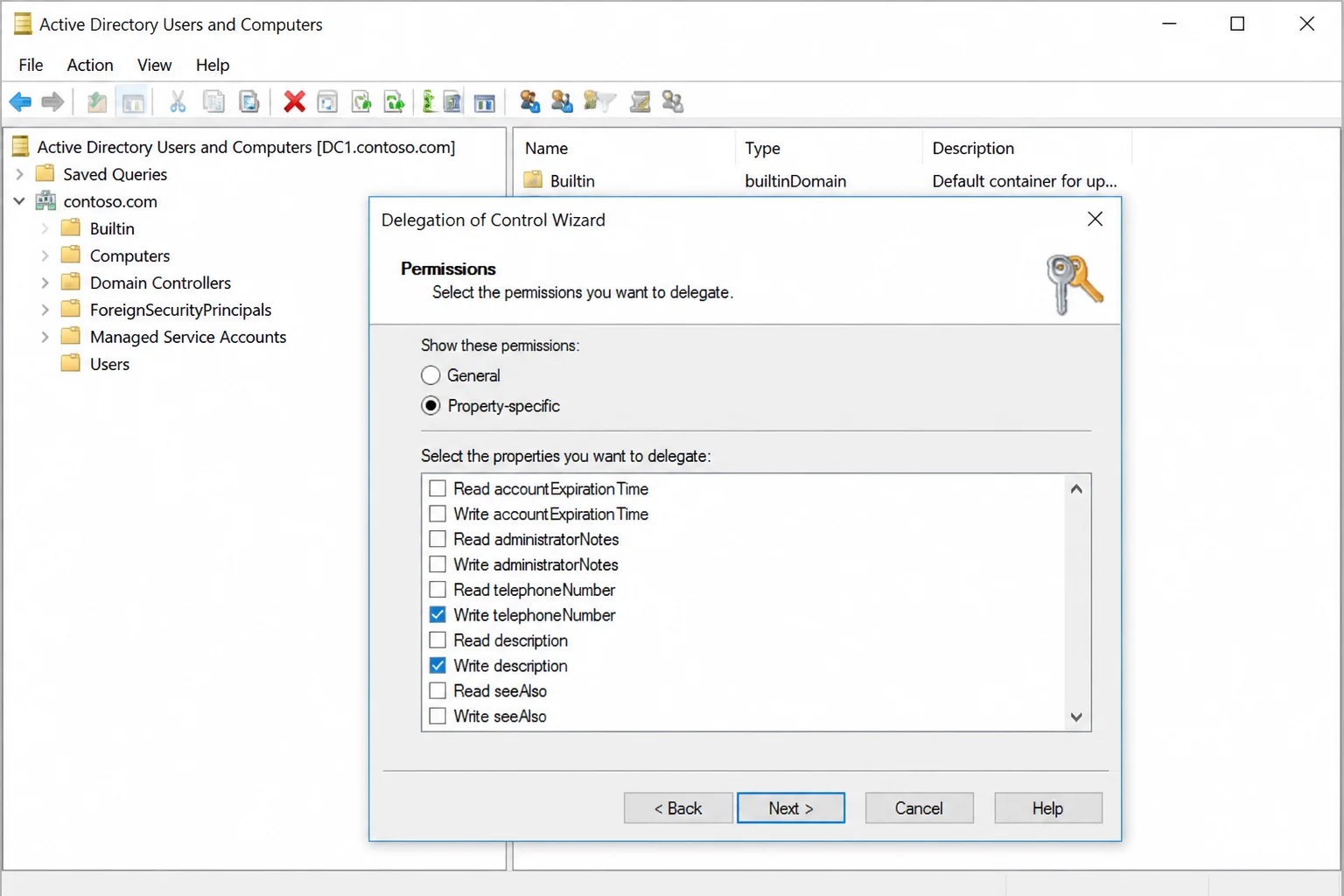
Click Next. On the Permissions screen, select Property-specific, then check only the attributes this role actually needs, for example Read telephoneNumber, Write telephoneNumber, Read description, Write description. Leave everything else unchecked, including group membership, password, and account-lockout related properties.
Click Next, review the summary, and Finish. This is the pattern to reach for any time a request is “just this one field.” In practice, that covers most HR-adjacent and asset-management delegation requests.
Step 7: Verify effective access with a non-privileged test account
This is the step most admins skip, and it’s the one that actually catches mistakes. The wizard tells you what it tried to grant. The Effective Access tab tells you what the account can actually do, after accounting for inheritance, deny ACEs, and group nesting.
Add your test account (from the Prerequisites checklist) to the role group:
Add-ADGroupMember -Identity "DEL-NYC-Helpdesk-PWReset" -Members testuser01Group membership changes require a fresh Kerberos ticket to take effect. If the test account is already logged on somewhere, log it off and back on, or purge its ticket cache:
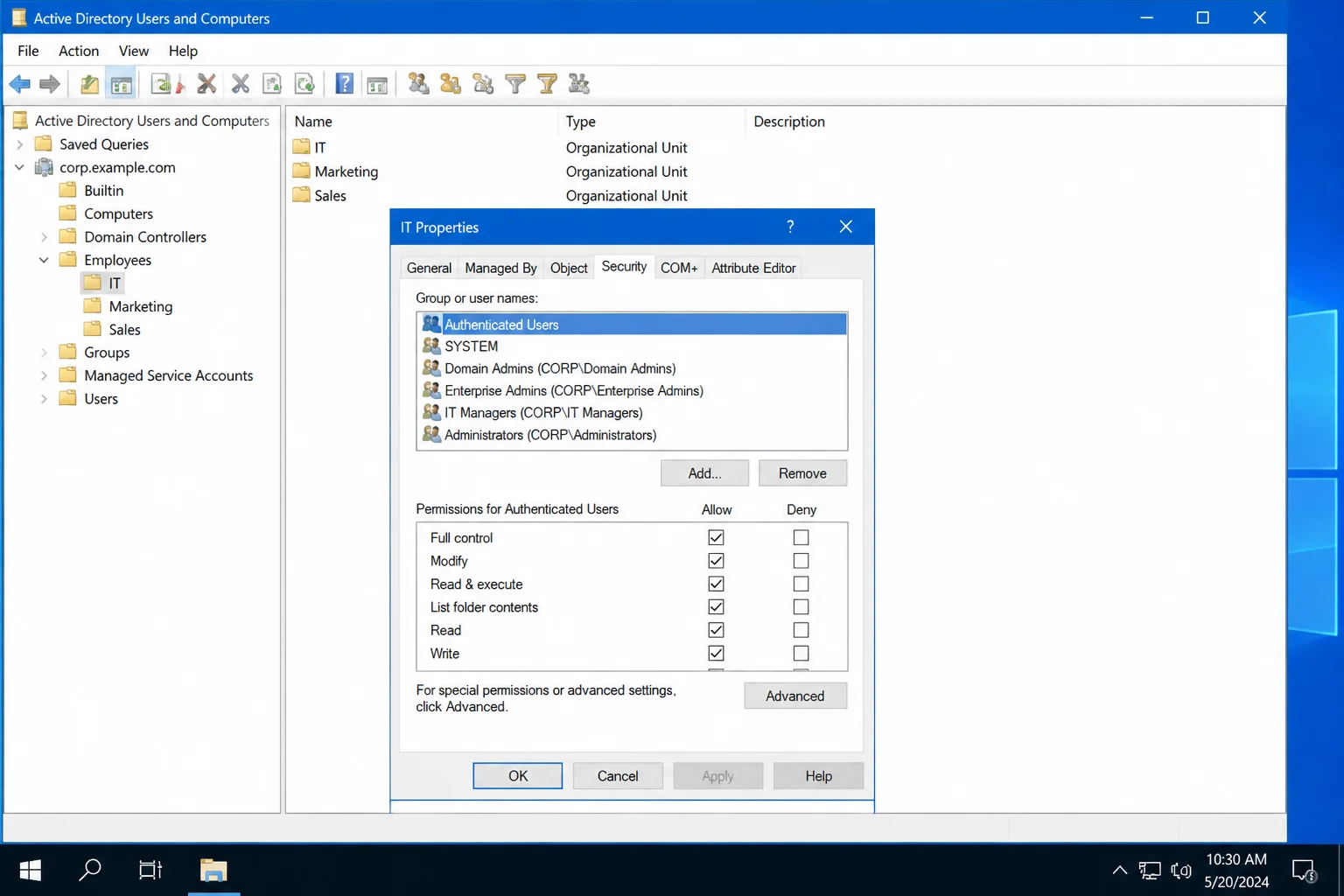
klist purgeNow, back in ADUC, right-click the target OU > Properties > Security tab > Advanced. If you don’t see a Security tab, enable View > Advanced Features in ADUC first.
In Advanced Security Settings, click the Effective Access tab, click Select a user, type testuser01, and click View effective access.
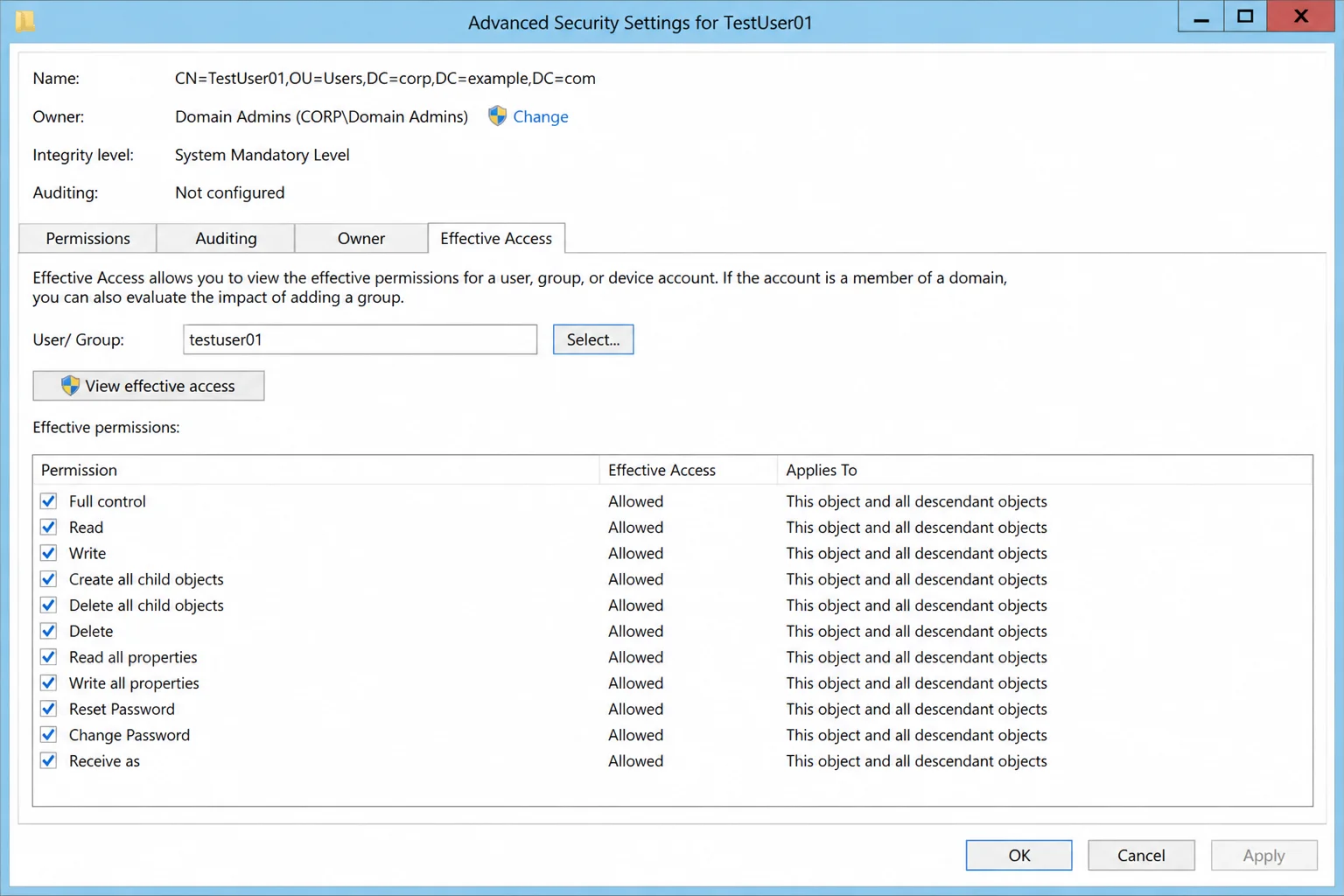
Expected result: Reset Password (or whatever property permissions you granted) shows up as allowed. Nothing else should be checked that you didn’t intend. If a right you expected is missing, or one you didn’t grant shows up, stop. Investigate before telling anyone the delegation is live. Check for a competing deny ACE further up the tree, or confirm the test account’s actual effective group membership, since nested groups can add rights you didn’t expect.
Step 8: Audit delegated ACLs with ADUC and dsacls
The GUI is fine for one-off checks, but dsacls is what you want for scripted audits, periodic reviews, or diffing permissions after a change. From an elevated Command Prompt or PowerShell window on your Windows management host:
dsacls "OU=NYC,OU=Locations,OU=Corp,DC=contoso,DC=com"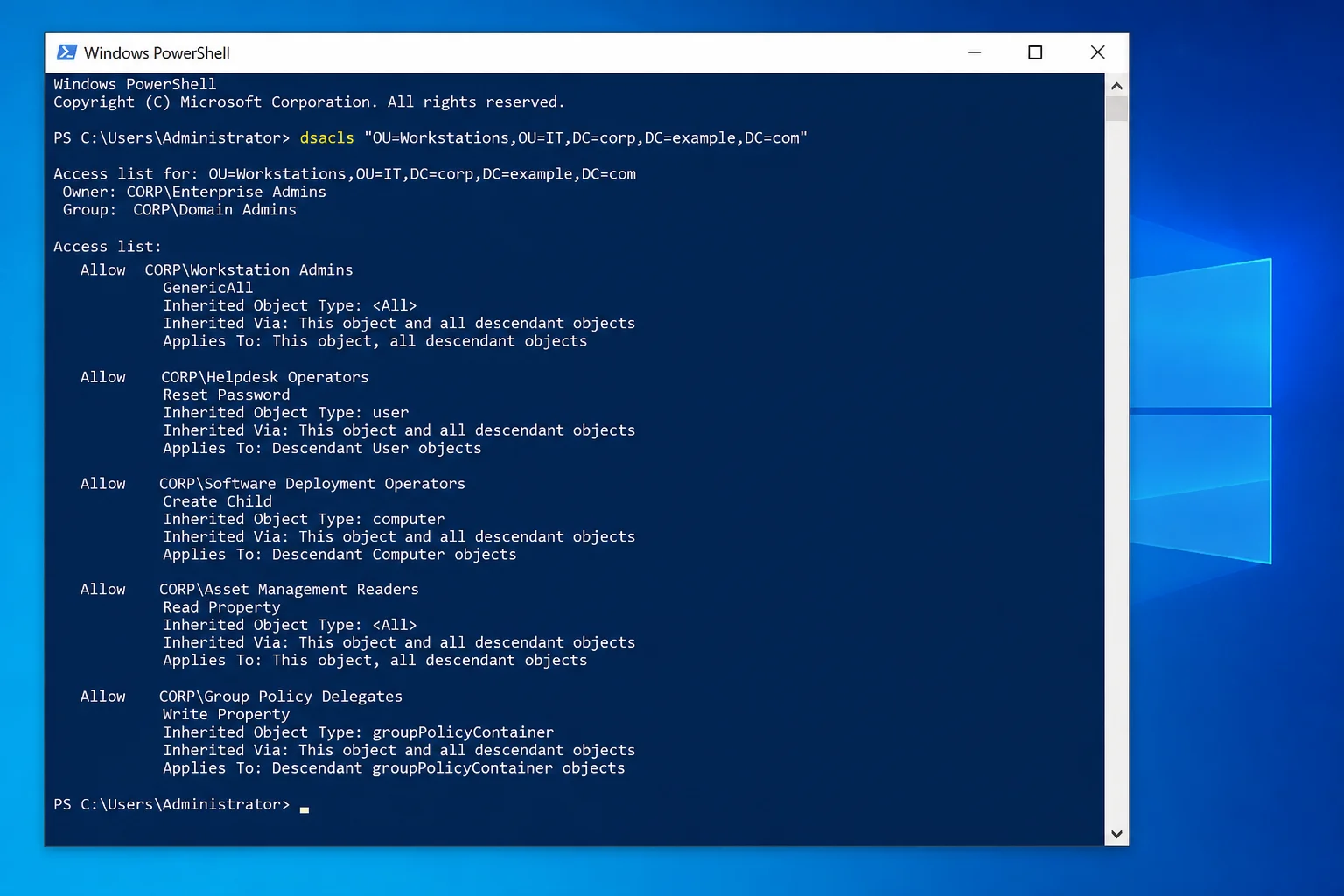
Expected output (trimmed):
Owner: CONTOSO\Domain Admins
Group: CONTOSO\Domain AdminsAccess list:
Allow CONTOSO\DEL-NYC-Helpdesk-PWReset SPECIAL ACCESS for Reset Password
Object Inherited From: (this object)Allow BUILTIN\Administrators FULL CONTROL
Object Inherited From: Not InheritedAllow NT AUTHORITY\SYSTEM FULL CONTROL
Object Inherited From: (default from parent)
…
The command completed successfully
The output lists every ACE, including schema defaults, inherited entries, and explicit ones. Scan for Object Inherited From: (this object) or blank inheritance first, since those are the ACEs someone deliberately added. Cross-reference each explicit entry against your documentation from Step 2. Anything referencing an individual user account instead of a DEL- group, or any group you don’t recognize, needs follow-up.
For a repeatable audit, dump the output to a file and diff it against a prior baseline:
dsacls "OU=NYC,OU=Locations,OU=Corp,DC=contoso,DC=com" > nyc-ou-acl-2026-07.txtStep 9: Remove or correct an unsafe delegation
The wizard only adds permissions; there’s no undo button. To remove or narrow a delegation, go back to Advanced Security Settings on the OU (Properties > Security > Advanced). Select the specific entry for the group in question and click Remove.
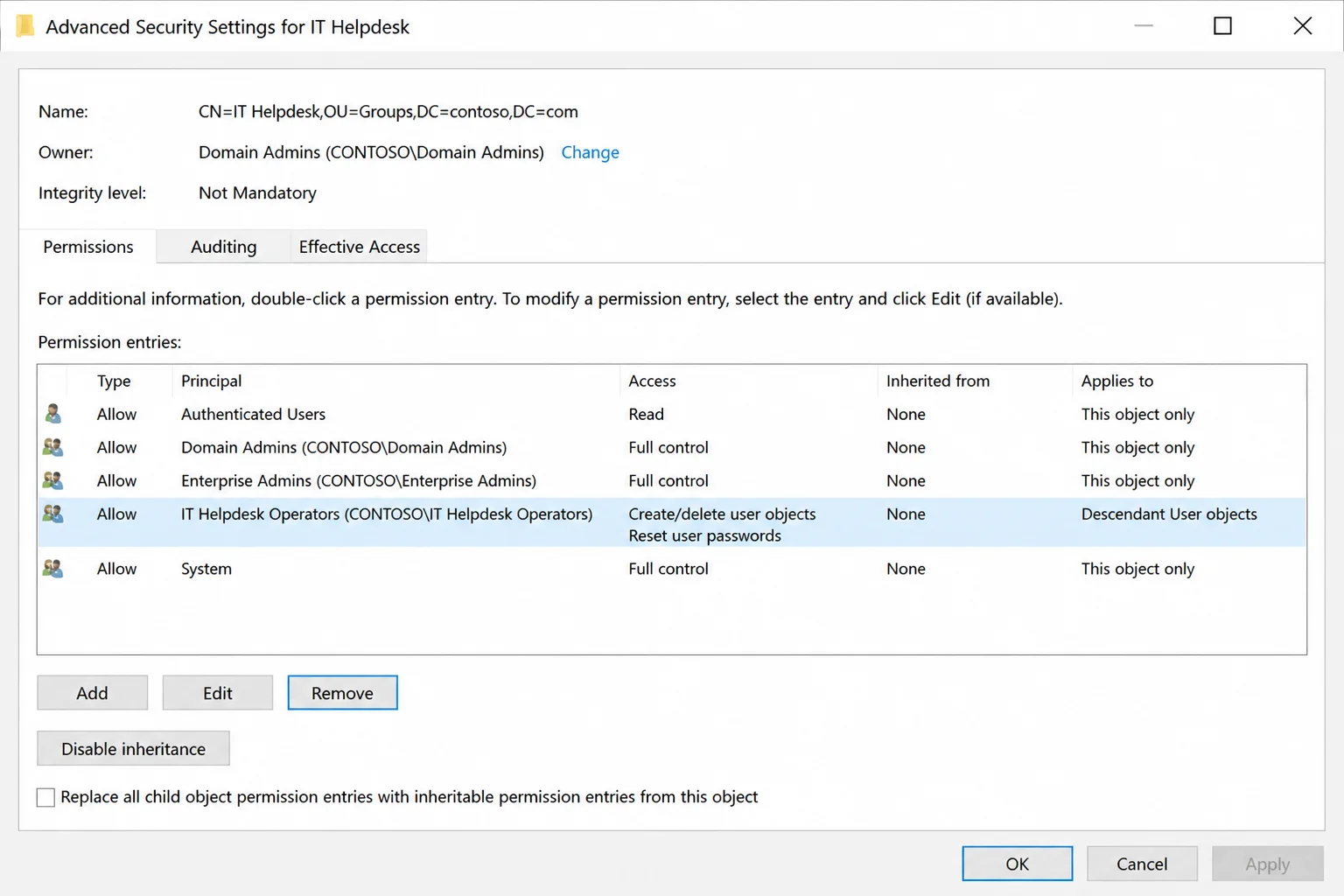
Warning: Removing an ACE takes effect immediately for any session that requests a new Kerberos ticket. If the group has broad rights (for example, accidental Full Control instead of a scoped property permission), remove it as soon as you confirm the scope is wrong. Don’t wait for a maintenance window.
You can also remove an ACE with dsacls for scripting or when you need to be precise about which entry gets touched:
dsacls "OU=NYC,OU=Locations,OU=Corp,DC=contoso,DC=com" /R "CONTOSO\DEL-NYC-Helpdesk-PWReset"/R removes all explicit ACEs for that trustee on the object. If the group should keep some rights and lose others, re-grant the correct scope afterward rather than trying to selectively edit through the command line:
dsacls "OU=NYC,OU=Locations,OU=Corp,DC=contoso,DC=com" /I:S /G "CONTOSO\DEL-NYC-Helpdesk-PWReset:CA;Reset Password;user"/I:S scopes the ACE to subobjects only, not the OU itself. CA means it’s a control access right rather than a generic read/write. The trailing user restricts it to user objects. After any removal or correction, re-run Step 7’s Effective Access check against the test account to confirm the fix actually landed.
Configuration: Key Settings and Patterns
| Setting | What it controls | Recommended default |
|---|---|---|
| OU structure | The delegation boundary: permissions on an OU inherit to objects inside it | Split by location/department, with Users/Computers/Groups in separate sub-OUs |
| Role group location | Where delegated groups themselves live | A dedicated OU=Role Groups outside any OU that group has rights over |
| Permission scope (“Applies to”) | Whether an ACE applies to the OU itself, this object and all descendants, or specific descendant types | Scope to the narrowest object type that satisfies the task (e.g., “User objects” only) |
| Task source | Whether to use the wizard’s common tasks or a custom task | Common tasks for standard help-desk work; custom task for property-specific or unusual requests |
| Delegation target | Whether the ACE is granted to a user or a group | Always a group, never an individual account |
| AdminSDHolder | A background process (roughly every 60 minutes) that reapplies a protected ACL template to members of protected groups like Domain Admins | Leave enabled; be aware it will silently strip custom ACEs from protected-group members |
Tips and Troubleshooting
A delegated admin still can’t perform the task the wizard was supposed to grant. Cause: the wizard ran on the wrong OU. The target objects live in a sub-OU the ACE doesn’t reach, or a deny ACE elsewhere is overriding the grant. Fix: open Advanced Security Settings on the specific object the user is trying to manage, the parent OU won’t reveal the issue, and run Effective Access against the delegated account. If the target user account belongs to a protected group (Domain Admins, Enterprise Admins, etc.), AdminSDHolder resets its ACL on its own schedule and overrides delegated rights on that object. Delegation generally shouldn’t target protected accounts at all.
Help desk can reset passwords, but users can’t log in right after.
Cause: the “Reset Password” control access right was granted, but the workflow also depends on writing pwdLastSet to force a change at next logon. That property isn’t automatically bundled unless you picked the combined common task.
Fix: re-run the wizard (or edit the custom task) and explicitly include Reset user passwords and force password change at next logon rather than a bare “Reset Password” custom grant. Then retest with your non-privileged test account.
Permissions applied through the wizard seem broader than intended. Cause: the wizard ran against a high-level OU (or the domain root) with “This object and all child objects” inheritance. It propagated into unrelated sub-OUs. Fix: open Advanced Security Settings, find the ACE, and either narrow its “Applies to” scope or delete it and re-run the wizard against the correct, more specific OU.
An old delegation is still active after someone changed roles.
Cause: rights were granted to an individual user instead of a group. Removing them from a team distribution list, or reassigning their job, didn’t touch the ACL at all.
Fix: audit with dsacls, find ACEs that reference user accounts instead of DEL- groups, rebuild the grant against a proper role group, and remove the stray user-level ACE.
Test account shows different access than expected.
Cause: from Kerberos’s perspective, the account isn’t actually a member of the role group yet. Group changes don’t apply to an existing logon session, or nested group membership wasn’t accounted for.
Fix: log the test account off and back on (or run klist purge) after any group membership change, and use Effective Access rather than assuming direct membership tells the whole story.
Operational checklist and common mistakes
Run through this before calling any delegation done:
- Task and scope are documented (who, what, where, applies-to)
- Rights are granted to a
DEL-role group, not an individual account - The role group lives outside the OU it has rights over
- Effective Access was checked against a real, non-privileged test account
dsaclsoutput was captured as a baseline for future audits- The delegation doesn’t touch protected/AdminSDHolder-governed accounts
- Property-specific permissions (not blanket write access) were used for HR/attribute-only requests
Most incidents trace back to a handful of repeatable mistakes: delegating to a person instead of a group, running the wizard against a domain root or an overly broad OU, skipping the Effective Access check, and never re-auditing an OU after the admin who set it up leaves. None of these require exotic tooling to catch. They just require doing Steps 7 and 8 instead of trusting that the wizard did what you meant.
Wrapping Up
Once your OU structure and role groups are in place, adding a new delegated task is a five-minute job: run the wizard, verify with a test account, done. The real work happens upfront: designing OUs that actually match your admin boundaries. Skip that part, and every future delegation turns into a one-off custom task instead of a clean grant on an existing container.
Keep dsacls in your toolbox even if you do everything else through the GUI. It’s the fastest way to prove what’s actually on an ACL versus what you think you granted six months ago.
| Step | Action | Applies To |
|---|---|---|
| 1 | Define task, scope, and target group before opening ADUC | All delegations |
| 2 | Build OUs with role groups outside the delegated boundary | Domain/OU design |
| 3 | Create a DEL- prefixed security group per role | Every delegated task |
| 4 | Use the wizard for common tasks, custom task for property-level grants | Password resets, computer joins, attribute edits |
| 5 | Verify with Effective Access against a non-privileged test account | Every new or changed delegation |
| 6 | Audit with dsacls, save output as a baseline | Periodic review |
| 7 | Remove or narrow ACEs via Advanced Security Settings or dsacls /R | Incorrect or stale delegations |