

IIS FTP works well if your shop already uses Windows accounts and IIS. Passive networking is the awkward part. Login can work while directory listings time out, so a broken server may look healthy.
This setup uses explicit FTPS, named users, NTFS permissions, directory isolation, and a fixed passive-port range. Allow 20-30 minutes for the first site. NAT may add more work.
What Is IIS FTP Server?
IIS FTP Server is the FTP publishing service in the Web Server (IIS) role. It accepts standard FTP and certificate-protected FTP over TLS, usually called FTPS.
IIS FTP Server runs on Windows Server 2025. macOS systems can connect through client software that supports FTP or FTPS.
It suits networks that already use Windows accounts and IIS. Its weak spot is FTP’s two-channel design. One connection handles commands. Other connections carry directory listings and files. That design needs more firewall work than SFTP over SSH.
Prerequisites
Have these items ready:
- Windows Server 2025 with the Desktop Experience
- A local or domain account with administrative access
- A static server IP address or DHCP reservation
- A DNS name for the service, such as
ftp.example.net - A valid server certificate with a private key for production FTPS
- One or more named local or Active Directory users
- A dedicated NTFS volume or folder for FTP content
- Permission to change Windows Defender Firewall
- Access to the upstream router, edge firewall, or cloud firewall
- A client that supports explicit FTP over TLS and passive mode
- A genuinely external connection, such as a mobile hotspot, for Internet testing
The examples use these values:
| Requirement | Example |
|---|---|
| Operating system | Windows Server 2025 Desktop Experience |
| Server name | FILE01 |
| Local server IP | 192.0.2.20 |
| Public hostname | ftp.example.net |
| FTP control port | TCP 21 |
| Passive port range | TCP 50000-50100 |
| FTP root | D:\FTP |
| Example local user | ftp-partner1 |
| Encryption | Explicit FTPS with TLS |
| Authentication | Basic Authentication over TLS |
Replace the sample addresses, hostname, users, and paths with your values. These IP blocks are reserved for documentation. They won’t route across the public Internet.
Step-by-Step Guide
Step 1: Install Web Server (IIS) and FTP Service
Sign in with an administrator account and open Server Manager. Select Manage > Add Roles and Features.

Work through the wizard:
- On Before You Begin, select Next.
- Select Role-based or feature-based installation.
- Select the local Windows Server 2025 server.
- On Server Roles, select Web Server (IIS).
- If prompted, select Add Features.
- Continue through Features without adding unrelated components.
- On Web Server Role (IIS), select Next.
- On Role Services, expand FTP Server.
- Select FTP Service.
- Confirm that Management Tools > IIS Management Console is selected.
- Select Next > Install.
- Wait for Installation succeeded, then select Close.
You need these components:
- Web Server (IIS)
- FTP Server
- FTP Service
- IIS Management Console
FTP Extensibility is optional. Install it only if you need custom FTP authentication or extension providers. Standard Windows account authentication doesn’t need it, so I’d leave it out.
Verify the installation from an elevated PowerShell window:
Get-WindowsFeature Web-Server, Web-Ftp-Server, Web-Ftp-Service, Web-Mgmt-Console |
    Select-Object Name, InstallState
Expected result:
Name InstallState
—- ————
Web-Server Installed
Web-Ftp-Server Installed
Web-Ftp-Service Installed
Web-Mgmt-Console Installed
Microsoft covers the role workflow in its Add or remove roles and features guide.
Step 2: Create a Named FTP User
Give each person or integration a dedicated account. Shared administrator credentials ruin useful audit trails. They also make isolation tests rather pointless.
For Active Directory, create the account through Active Directory Users and Computers. Apply your normal password, lockout, and service-account lifecycle policies.
On a standalone server, open PowerShell as an administrator:
$FtpPassword = Read-Host "Enter the password for ftp-partner1" -AsSecureString

New-LocalUser `
    -Name "ftp-partner1" `
    -Password $FtpPassword `
    -Description "Restricted IIS FTP account" `
    -UserMayNotChangePassword
The backtick continues the PowerShell command on the next line. Read-Host -AsSecureString keeps the password off-screen and out of command history.
Expected result:
Name Enabled Description
—- ——- ———–
ftp-partner1 True Restricted IIS FTP account
Keep FTP-only accounts out of Administrators. Administrator membership bypasses the least-privilege controls we’re about to test.
A domain user normally signs in as:
CONTOSO\ftp-partner1
A local account can usually use:
FILE01\ftp-partner1
or:
ftp-partner1
Step 3: Create the FTP Folder Structure
A shared site can use a root such as D:\FTP. Give each customer or partner a separate directory, even if their access is identical today.
This layout matches IIS local-user physical-directory isolation:
New-Item -ItemType Directory -Path "D:\FTP" -Force
New-Item -ItemType Directory -Path "D:\FTP\LocalUser\ftp-partner1" -Force
New-Item -ItemType Directory -Path "D:\FTP\LocalUser\ftp-partner1\incoming" -Force
New-Item -ItemType Directory -Path "D:\FTP\LocalUser\ftp-partner1\outgoing" -Force
Expected result includes:
Directory: D:\FTP\LocalUser\ftp-partner1
Mode Name
—- —-
d—- incoming
d—- outgoing
The layout changes with the isolation mode. Local accounts commonly live below LocalUser. Domain accounts use the matching domain directory.
IIS Manager shows the required pattern beside each option. Follow it exactly. IIS won’t politely reinterpret a nearly correct path.
Step 4: Apply Least-Privilege NTFS Permissions
FTP authorization and NTFS permissions are separate gates. Both must allow an operation.
| Requested action | IIS authorization | Typical NTFS access |
|---|---|---|
| List and download | Read | Read & execute, List folder, Read |
| Upload a new file | Write | Write, plus required folder rights |
| Rename or delete | Write | Modify |
| Full administration | Unsuitable for transfer users | Full Control only for administrators |
Disable inheritance on the user’s private folder. This command copies the current inherited entries before it disables inheritance:
icacls "D:\FTP\LocalUser\ftp-partner1" /inheritance:dRemove broad inherited groups if they exist. Keep access for administrators and the system:
icacls "D:\FTP\LocalUser\ftp-partner1" /remove:g "BUILTIN\Users"
icacls "D:\FTP\LocalUser\ftp-partner1" /grant:r "SYSTEM:(OI)(CI)(F)"
icacls "D:\FTP\LocalUser\ftp-partner1" /grant:r "BUILTIN\Administrators:(OI)(CI)(F)"
icacls "D:\FTP\LocalUser\ftp-partner1" /grant:r "FILE01\ftp-partner1:(OI)(CI)(M)"
Those access-control flags mean:
(OI)passes the permission to files.(CI)passes it to subdirectories.(M)grants Modify.(F)grants Full Control./grant:rreplaces explicit permissions for that identity./inheritance:ddisables future inheritance but first copies inherited entries.
Replace FILE01 with the server’s real name. For a domain account, use CONTOSO\ftp-partner1.
Check the resulting ACL:
icacls "D:\FTP\LocalUser\ftp-partner1"Expected result:
D:\FTP\LocalUser\ftp-partner1 BUILTIN\Administrators:(OI)(CI)(F)
NT AUTHORITY\SYSTEM:(OI)(CI)(F)
FILE01\ftp-partner1:(OI)(CI)(M)
Successfully processed 1 files; Failed processing 0 files
You can also right-click the folder and open Properties > Security > Advanced. Check the effective permissions there.
Avoid Everyone: Full Control. It removes the filesystem safety net. One small IIS rule mistake could then expose another customer’s files.
Step 5: Install or Select a TLS Certificate
Use FTPS for production transfers. Basic Authentication sends a Windows username and password. Plain FTP exposes the credentials and file contents along the network path.
The certificate needs to:
- Include
ftp.example.netin its Subject Alternative Name. - Fall within its validity period.
- Chain to a certificate authority trusted by the clients.
- Include its private key on the IIS server.
- Permit Server Authentication.
Inspect certificates in the local computer store:
Get-ChildItem Cert:\LocalMachine\My |
    Select-Object Subject, Thumbprint, NotAfter, HasPrivateKey
Expected result:
Subject Thumbprint NotAfter HasPrivateKey
——- ———- ——– ————-
CN=ftp.example.net A1B2C3D4E5F6… 8/16/2027 12:00:00 AM True
To install one, open IIS Manager and select the server node. Open Server Certificates, then choose Import for a password-protected PFX file. Use Complete Certificate Request for a request created by IIS.
Stop if HasPrivateKey shows False. A public certificate alone can’t complete the TLS handshake.
Step 6: Open IIS Manager and Start the FTP Site Wizard
In Server Manager, select Tools > Internet Information Services (IIS) Manager.
Expand the server in the Connections pane. Right-click Sites, then select Add FTP Site.
A missing Add FTP Site entry usually means FTP Service wasn’t installed. Check the role services before hunting through IIS menus.
Step 7: Enter the FTP Site Name and Physical Path
On FTP Site Information, enter:
- FTP site name:
Partner FTPS - Physical path:
D:\FTP
The site name is an IIS Manager label. Clients use the DNS hostname. Renaming this entry won’t fix a DNS problem.
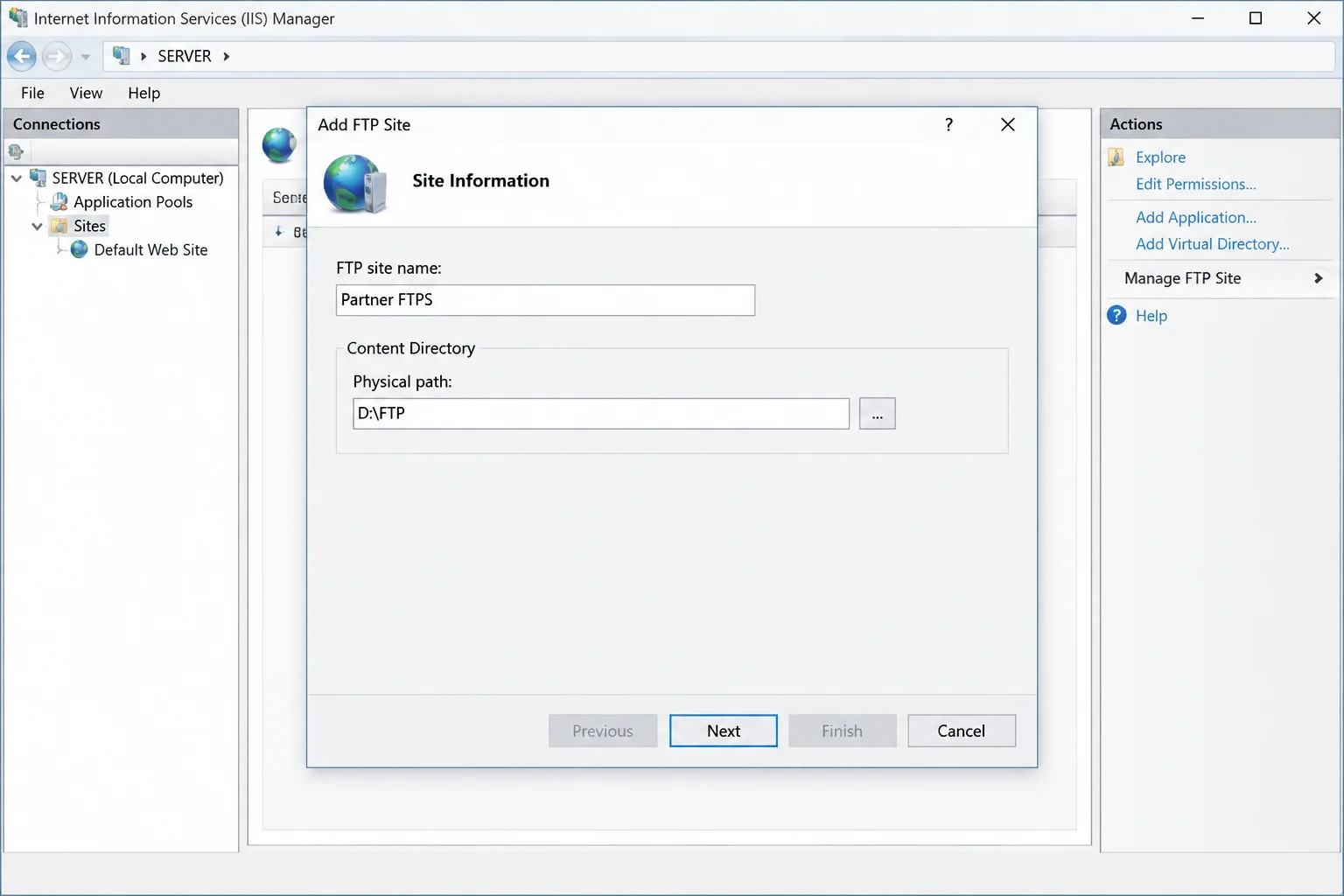
Select Next.
Expected result: IIS accepts the path and opens Binding and SSL Settings. Fix a missing or inaccessible path before you continue.
Step 8: Configure the IP Address and Control Port
On Binding and SSL Settings, configure:
- IP Address: Select the FTP server address, such as
192.0.2.20. - Port: Enter
21. - Start FTP site automatically: Leave selected.
- Virtual Host: Leave blank unless you’ve designed an FTP virtual-host deployment.
All Unassigned is handy on a single-purpose server. A specific IP is safer on a multi-homed host. It keeps IIS from listening on an unintended interface.
Only one service can own the same IP and port pair unless you’ve set up virtual-host handling. Check for an existing port 21 listener:
Get-NetTCPConnection -LocalPort 21 -State Listen -ErrorAction SilentlyContinue |
    Select-Object LocalAddress, LocalPort, OwningProcess
No output is normal before the FTP site starts. If PowerShell returns a listener, identify its process before you assign the binding.
Step 9: Require Explicit FTPS
On Binding and SSL Settings, select the certificate for ftp.example.net. Choose Require SSL for production or partner-facing use.
Each SSL option has a different result:
| SSL choice | Behavior | Appropriate use |
|---|---|---|
| No SSL | Plain FTP only | Isolated lab tests with no sensitive data |
| Allow SSL | Accepts encrypted and unencrypted sessions | Short migration periods |
| Require SSL | Rejects unencrypted authentication and transfer | Production use |
IIS uses explicit FTPS through the site’s SSL controls. The client connects to TCP 21, then upgrades the session with TLS. Client software may call this FTP – Explicit TLS/SSL, Require explicit FTP over TLS, or FTPES.
Use explicit FTPS for this setup. An implicit-FTPS client expects a different connection flow and won’t match this IIS setup.
Select Next.
Step 10: Configure Basic Authentication and Initial Authorization
On Authentication and Authorization Information:
- Under Authentication, select Basic.
- Leave Anonymous cleared.
- Under Authorization, select Specified users.
- Enter
ftp-partner1, or the domain-qualified account. - Select Read.
- Select Write only when the user needs uploads, renames, or deletions.
- Select Finish.
Basic Authentication is safe here because Require SSL wraps it in TLS. Over plain FTP, the same setting exposes credentials on untrusted networks.
Keep Anonymous Authentication disabled unless you’re building a public site on purpose. Anonymous access uses a separate identity and needs its own restricted IIS and NTFS rules.
Expected result: The new site appears below Sites with a Started state.
Step 11: Review FTP Authentication
Select the FTP site in IIS Manager and open FTP Authentication.
Confirm:
- Basic Authentication: Enabled
- Anonymous Authentication: Disabled
Fix either setting with Enable or Disable in the Actions pane. This check takes 15 seconds and rules out a common 530 error.
Step 12: Create Least-Privilege FTP Authorization Rules
Open FTP Authorization Rules for the site. Remove broad entries such as All Users unless every authenticated account should have access.
Select Add Allow Rule, then choose the right scope:
- Specified users: Good for a handful of partner accounts.
- Specified roles or user groups: Easier to manage as the account count grows.
- All users: Usually too broad for partner transfers.
- Anonymous users: Suitable only for a deliberately anonymous site.
Give download-only accounts Read. Add Write only for users who need to create or manage files.
Effective access follows this rule:
Effective FTP access = IIS authorization permission AND NTFS permission
An IIS Write rule can’t override an NTFS denial. NTFS Modify can’t enable uploads if IIS grants only Read. Check both layers before you change either one.
Step 13: Configure FTP User Isolation
Select the FTP site and open FTP User Isolation.
Isolation matters when unrelated customers, suppliers, or departments share one site. A common root can expose directory names or files if NTFS permissions drift.
IIS groups its choices like this:
| Approach | Behavior | Best fit |
|---|---|---|
| Do not isolate users | Users start from the same FTP root or a matching username directory and may move elsewhere when authorized | Trusted internal teams |
| User name directory | Uses a username directory as the starting point without enforcing a private physical root | Controlled legacy layouts |
| User name physical directory | Locks each account into its matching physical home directory | Separate customers or partners |
| FTP home directory configured in Active Directory | Reads the FTP home path from directory-service attributes | Domains that centrally manage home paths |
For unrelated partners, select user name physical directory, then select Apply.
Match the directory layout shown in IIS Manager. The local account in this example uses:
D:\FTP\LocalUser\ftp-partner1
Domain users use a domain-based layout. Confirm the exact IIS path before you create accounts in bulk. Fixing 40 nearly correct home directories is poor use of an afternoon.
Isolation still depends on NTFS. Test with two standard accounts. Check that neither can list, guess, or enter the other’s directory.
Step 14: Configure the Passive Data Port Range
FTP uses two connection types:
- TCP
21carries commands, authentication, and status messages. - A passive data port carries listings, uploads, and downloads.
This split causes the classic failure where login works but the directory listing hangs.
In IIS Manager, select the server node, not the FTP site. Open FTP Firewall Support and set Data Channel Port Range to:
50000-50100
Passive ports must be between 1025 and 65535. Microsoft defines 0-0 as the Windows TCP/IP ephemeral range. A fixed, narrow range is easier to allow, monitor, and diagnose.
50000-50100 gives you 101 passive ports. That’s a reasonable start for a modest partner server. Busy systems with hundreds of concurrent listings and transfers need more ports. Opening the full ephemeral range is easy during setup and painful during every security review afterward.
Select Apply.
Microsoft’s FTP firewall configuration documentation explains how IIS, passive ports, and firewalls work together.
Step 15: Set the External IP Address of Firewall
When Internet clients connect through NAT, IIS must advertise the public address they can reach.
Select the FTP site and open FTP Firewall Support. Enter the edge firewall’s public IPv4 address under External IP Address of Firewall.
For example:
198.51.100.25
Don’t enter:
- The FTP server’s private address
- The client’s address
- The router’s internal gateway address
- A DNS hostname in an IP-address field
Leave this field blank for an internal site without NAT. Dynamic public addresses make passive advertising fragile. Use a static public address, or update IIS through approved automation when the address changes.
Select Apply.
Step 16: Open Windows Defender Firewall Ports
Check the built-in IIS FTP rules first. Open Windows Defender Firewall with Advanced Security and select Inbound Rules. Filter or sort for entries that contain FTP.
Enable built-in rules only if they match the required ports and profiles. For a clear, fixed setup, create two rules from elevated PowerShell:
New-NetFirewallRule `
    -DisplayName "IIS FTPS Control TCP 21" `
    -Direction Inbound `
    -Protocol TCP `
    -LocalPort 21 `
    -Action Allow `
    -Profile Domain,Private
New-NetFirewallRule `
-DisplayName "IIS FTPS Passive TCP 50000-50100" `
-Direction Inbound `
-Protocol TCP `
-LocalPort 50000-50100 `
-Action Allow `
-Profile Domain,Private-Direction Inbound allows connections entering the server. -Profile Domain,Private keeps the rules off on networks marked Public. Add the Public profile only if the server’s network design requires it.
Verify both rules:
Get-NetFirewallRule `
    -DisplayName "IIS FTPS Control TCP 21","IIS FTPS Passive TCP 50000-50100" |
    Select-Object DisplayName, Enabled, Direction, Action
Expected result:
DisplayName Enabled Direction Action
———– ——- ——— ——
IIS FTPS Control TCP 21 True Inbound Allow
IIS FTPS Passive TCP 50000-50100 True Inbound Allow
Warning: Windows Defender Firewall is only one hop. Internet access also needs matching edge-firewall rules, NAT mappings, and cloud network policies.
Step 17: Configure the Upstream Firewall and NAT
Create these TCP destination NAT or port-forwarding mappings on the edge firewall or router:
| Public ports | Protocol | Internal destination |
|---|---|---|
21 | TCP | 192.0.2.20:21 |
50000-50100 | TCP | 192.0.2.20:50000-50100 |
Add matching allow rules to every device or service in the path:
- The edge firewall
- Perimeter or internal segmentation firewalls
- Cloud network security groups
- Hosting-provider firewalls
- Load balancers in front of the FTP server
Keep the public and internal passive ranges identical. Port translation adds another variable. It can also conflict with the passive response that IIS sends to clients.
Some firewalls include FTP inspection or an FTP Application Layer Gateway. These helpers can read plain FTP control traffic. FTPS encrypts the commands they need. Direct passive-range forwarding is more predictable.
Step 18: Restart the FTP Service
Restart Microsoft FTP Service after you change FTP Firewall Support. This loads the new passive settings:
Restart-Service ftpsvcCheck its state:
Get-Service ftpsvc |
    Select-Object Name, Status, StartType
Expected result:
Name Status StartType
—- —— ———
ftpsvc Running Automatic
Warning: Restarting
ftpsvcdrops active FTP and FTPS sessions. Use a maintenance window on a busy server.
Restart after changing the server-level data-channel range. Restart again if new sessions still receive old firewall settings. Authorization and NTFS changes usually don’t need a service restart.
Step 19: Verify the Listener and Site State
Confirm that port 21 is listening:
Get-NetTCPConnection -LocalPort 21 -State Listen |
    Select-Object LocalAddress, LocalPort, State, OwningProcess
Expected result:
LocalAddress LocalPort State OwningProcess
———— ——— —– ————-
192.0.2.20 21 Listen 4120
A site bound to all addresses may show 0.0.0.0 or :: under LocalAddress.
Check the related services:
Get-Service ftpsvc,was,w3svc |
    Select-Object Name, Status, StartType
Expected result:
Name Status StartType
—- —— ———
ftpsvc Running Automatic
was Running Automatic
w3svc Running Automatic
In IIS Manager, confirm that Partner FTPS shows Started. Select the site and click Start in the Actions pane if needed.
Step 20: Configure an Explicit FTPS Client
Use a client that supports explicit FTPS and passive mode. Configure its saved connection with:
- Host:
ftp.example.net - Protocol: FTP
- Encryption: Require explicit FTP over TLS
- Port:
21 - Transfer mode: Passive
- Username: The named local or domain account
- Password: Enter interactively or store according to policy
The hostname must match the certificate. Connecting by IP with a certificate issued only for ftp.example.net causes a name warning. That’s the correct response.
During the first test, check the certificate name, issuer, expiration date, and fingerprint. Verify the fingerprint through a separate trusted source before you trust the certificate or save an exception.
Step 21: Test Authentication and File Operations
Start on the local network and test each action:
- Sign in with the named account.
- Complete TLS negotiation without a certificate warning.
- List the remote directory.
- Download a known test file.
- Upload a small file when Write is authorized.
- Rename and delete when NTFS rights permit those actions.
- Attempt an operation the account should be denied.
- Confirm the account can’t enter another user’s directory.
A successful login proves the control channel works. A directory listing proves that at least one passive data connection works. You need both results before you call the service operational.
Repeat every test from a genuinely external network. A mobile hotspot avoids NAT loopback quirks and catches missing public firewall rules.
From another Windows system, check basic control-port access:
Test-NetConnection ftp.example.net -Port 21Expected result:
ComputerName : ftp.example.net
RemotePort : 21
TcpTestSucceeded : True
This command tests TCP 21 only. It says nothing about TLS, credentials, directory listings, or passive ports.
Configuration
Recommended Production Baseline
| Setting | Recommended value | Why |
|---|---|---|
| Control port | TCP 21 | Standard explicit FTP/FTPS control connection |
| SSL policy | Require SSL | Prevents plain-text credentials and transfers |
| FTPS mode | Explicit TLS | Matches the documented IIS workflow |
| Authentication | Basic over required TLS | Supports named Windows accounts |
| Anonymous Authentication | Disabled | Prevents unintended public access |
| Authorization | Named users or dedicated groups | Easier to audit and restrict |
| NTFS access | Minimum required rights | Provides the final filesystem control |
| User isolation | Physical-directory isolation | Separates unrelated customers and partners |
| Passive range | A narrow range such as 50000-50100 | Easier to secure and diagnose |
| External firewall IP | Static public NAT address | Gives passive clients a reachable endpoint |
| Client transfer mode | Passive | Works better for clients behind NAT |
| Logging | Enabled | Provides evidence for failures and audits |
This baseline favors predictable troubleshooting over convenience. IIS FTP allows looser settings. Broad anonymous rules and passive ranges, however, tend to stay long after a temporary migration ends.
Read-Only and Upload Account Patterns
For a download-only account:
- IIS authorization: Read
- NTFS: Read & execute, List folder contents, and Read
- No IIS Write permission
- No NTFS Modify permission
For an account that uploads and manages its own files:
- IIS authorization: Read and Write
- NTFS: Modify only on that user’s isolated directory
- No permission on other customer directories
Drop-box folders need more care. If users can upload but can’t browse or retrieve files, NTFS inheritance gets subtle quickly. Test create, list, overwrite, rename, delete, and read as separate actions. Selecting IIS Write alone doesn’t create a secure write-only directory.
Capacity Planning for Passive Ports
Each active listing or transfer uses a passive data port. Capacity depends on concurrent operations, not the number of accounts.
The 50000-50100 range supplies 101 ports. That’s enough for many small deployments. A server with hundreds of simultaneous transfers will exhaust it. Watch for data-connection failures during peak periods. Expand the range based on measured use.
Apply every range change in all six places:
- IIS FTP Firewall Support
- Windows Defender Firewall
- NAT or port forwarding
- Edge firewall policy
- Cloud firewall or security groups
- Monitoring and documentation
Miss one layer and the failure may look random. It usually isn’t.
Tips and Troubleshooting
User Signs In but the Directory Listing Times Out
Typical client error:
Status: Logged in
Command: PASV
Error: Connection timed out after 20 seconds
Error: Failed to retrieve directory listing
Cause: TCP 21 works, but the separate passive connection is blocked. IIS may also advertise an address the client can’t reach.
Fix:
- Confirm the server-level passive range is
50000-50100. - Confirm the site’s External IP Address of Firewall contains the public NAT address.
- Apply the settings and restart
ftpsvc. - Check the Windows firewall rule for the exact range.
- Check port forwarding and every upstream firewall.
- Confirm the client uses passive mode.
- Test from outside the LAN.
This is the usual IIS FTP failure. Authentication works, but file transfers and directory listings fail.
The Client Reports a 530 Login or Authorization Error
Typical error:
530 User cannot log in.
Cause: Basic Authentication is disabled, the account format is wrong, the password is invalid, or no rule allows the identity.
Fix:
- Open the site in IIS Manager.
- Open FTP Authentication and enable Basic Authentication.
- Confirm Require SSL is active.
- Try
FILE01\ftp-partner1orCONTOSO\ftp-partner1. - Open FTP Authorization Rules.
- Add an allow rule for that user or one of its groups.
- Check whether the account is disabled or locked out.
Resist fixing a 530 with an All Users rule. That swaps a clear login failure for a harder access-control problem.
Login Works but Upload Returns Access Denied
Typical error:
550 Access is denied.
Cause: The account lacks IIS Write permission, NTFS Modify permission, or both.
Fix:
- Confirm the FTP authorization rule includes Write.
- Open the isolated folder’s Security tab.
- Check the user’s effective access.
- Grant Modify only on that user’s isolated directory.
- Look for explicit Deny entries that override Allow entries.
- Reconnect and upload a new small file.
Test rename and delete separately. NTFS may allow file creation while blocking later file management.
FTP Write Is Allowed but the Server Still Returns 550
IIS authorization is the first gate. NTFS is the second. Check the exact Windows identity and its isolated home directory:
icacls "D:\FTP\LocalUser\ftp-partner1"Confirm the account has the required rights and can pass through each parent directory. Avoid broad permissions on D:\FTP when only one user’s folder needs a fix.
FTPS Shows a Certificate Warning
Cause: The certificate is expired, untrusted, missing its private key, or lacks the hostname used by the client.
Fix:
- Connect with the certificate’s DNS name.
- Open Server Certificates in IIS Manager.
- Confirm the selected certificate has a private key.
- Check its expiration date and Subject Alternative Name.
- Confirm the client trusts the issuing certificate authority.
- Open FTP SSL Settings and select the correct certificate.
- Start a new client session.
Don’t train users to ignore certificate warnings. A warning can mean the server is wrong, the certificate was deployed badly, or someone is intercepting traffic.
Plain FTP Works but Explicit FTPS Fails
Cause: The client may use implicit FTPS. IIS may have the wrong certificate. A firewall may also rely on reading unencrypted FTP commands.
Fix:
- Set the client to Explicit FTP over TLS on port
21. - Confirm IIS uses the intended server certificate.
- Remove dependence on FTP inspection for passive-port discovery.
- Explicitly open and forward
50000-50100. - Review the client TLS log for certificate or protocol errors.
FTP, FTPS, and SFTP use different protocols. An IIS FTP site won’t answer an SFTP client.
Internal Access Works but Internet Access Fails
Cause: IIS and the local firewall work, but NAT or an upstream security rule is incomplete.
Fix:
- Verify DNS resolves to the correct public address.
- Forward TCP
21to the IIS server. - Forward the entire passive range.
- Set External IP Address of Firewall to the public address.
- Review edge and cloud firewall logs.
- Test from a mobile hotspot or another external connection.
A public-hostname test from the same LAN may depend on NAT loopback. Use an external network for the result that matters.
Users Can See Another User’s Files
Cause: Isolation is disabled, the directory layout doesn’t match the selected mode, or NTFS access is too broad.
Fix:
- Open FTP User Isolation.
- Select physical-directory isolation for unrelated users.
- Build the directory structure IIS displays.
- Remove broad inherited user access.
- Grant each account access only to its directory.
- Test with two non-administrator accounts.
Test directory listings and direct path access. A hidden directory name offers no protection if a user can enter its path directly.
The FTP Site Will Not Start
Cause: Another site or process owns the same IP address and port.
Check current listeners:
Get-NetTCPConnection -LocalPort 21 -State Listen -ErrorAction SilentlyContinue |
    Select-Object LocalAddress, LocalPort, OwningProcess
Resolve the process:
Get-Process -Id YOUR_PROCESS_IDReplace YOUR_PROCESS_ID with the reported OwningProcess value.
Check every FTP site binding in IIS Manager. Assign a unique IP and port pair, or stop the conflicting service.
Firewall Changes Do Not Take Effect
Select Apply under FTP Firewall Support, then restart the FTP service:
Restart-Service ftpsvcDisconnect and reconnect the client to create a fresh passive session. Existing sessions may keep the old connection details.
If IIS still advertises the wrong range, confirm that you changed the server-level Data Channel Port Range. The site-level screen controls the external address.
One Client Works but Another Does Not
Compare these settings:
- FTP instead of SFTP
- Explicit TLS instead of implicit TLS
- TCP port
21 - Passive transfer mode
- Certificate trust
- Correct hostname
- Correct local or domain username format
Use a dedicated FTP client for diagnosis. Its protocol log will show AUTH TLS, PASV, certificate failures, and server response codes. Basic operating-system handlers often hide the useful parts.
Wrapping Up
| Step | Action | Applies To |
|---|---|---|
| 1 | Install IIS, FTP Server, and FTP Service | Every deployment |
| 2 | Create named accounts and private directories | Authenticated sites |
| 3 | Align IIS rules with NTFS permissions | Every secured site |
| 4 | Require explicit FTPS with a trusted certificate | Production and partner traffic |
| 5 | Configure user isolation | Multi-user sites |
| 6 | Define and allow a narrow passive range | Every passive FTP deployment |
| 7 | Set the external NAT address | Internet-facing servers |
| 8 | Test login, listing, upload, download, and denial | Every deployment |
IIS FTP is practical when Windows identities and IIS are already in place. Its permissions are flexible, but passive networking won’t forgive a missing firewall rule.
Treat the certificate, NTFS ACLs, public IP, and 50000-50100 range as one setup. Test allowed and denied operations from both sides of the firewall. A clean login alone proves very little.