
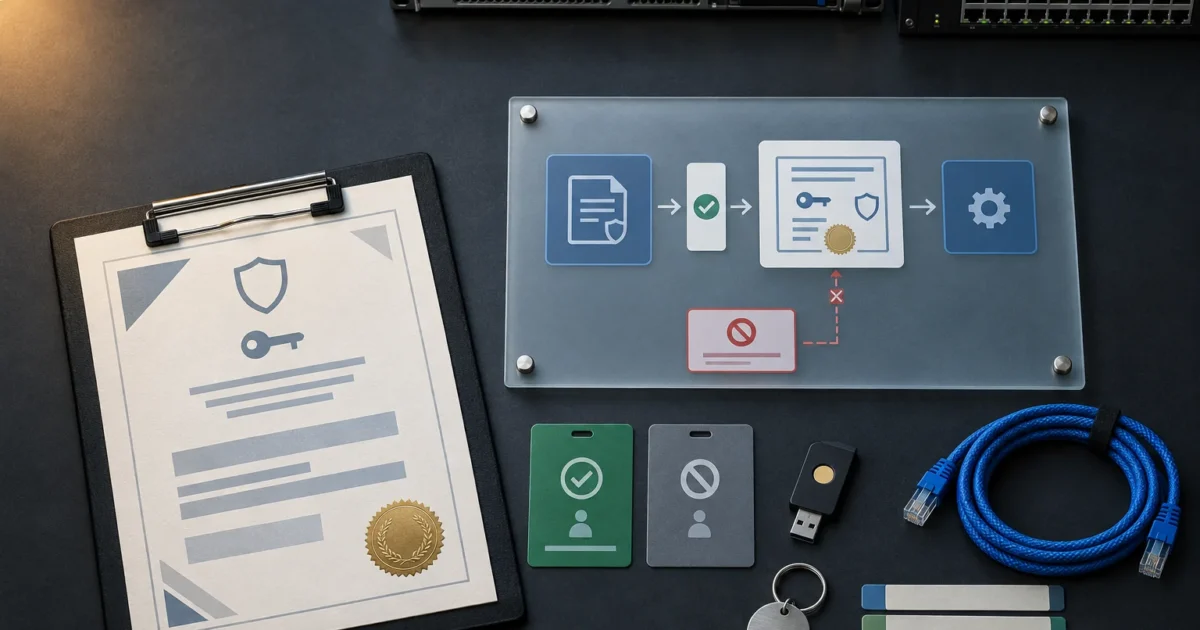
How do you know an AD CS certificate template is ready to deploy? Check four things: an approved identity can enroll, an excluded identity can’t, the certificate has the right fields, and the application accepts it. You’ll use an existing enterprise CA and have a way to stop new issuance if a test fails.
What Are AD CS Certificate Templates?
An Active Directory Certificate Services (AD CS) certificate template sets the rules for certificates an enterprise CA can issue. It controls purpose, identity fields, keys, and enrollment rights. Templates live in Active Directory Domain Services (AD DS). Creating a template and publishing it on a CA are separate steps. A duplicate can exist in AD DS before any CA can issue from it. Microsoft explains this in its certificate template concepts and template management guide (retrieved October 15, 2026).
Prerequisites
- An existing AD DS domain and enterprise CA running Windows Server 2016, 2019, 2022, or 2025.
- An approved certificate use case and the relying application’s certificate requirements.
- A template administrator with Domain Admins membership or equivalent delegated permissions to administer domain certificate templates, as documented in Microsoft’s linked template-management guide. Use the directory owner’s approved delegation; do not grant broad rights just for this pilot.
- An account separately authorized by the issuing CA’s administrator to change that CA’s template issuance list. Confirm this authority before the change window. Local administrator rights on the administration host let you manage its tools; do not assume they authorize AD DS template changes or publication on a remote CA. Requester Read/Enroll rights are a separate enrollment scope.
- A Windows Server administration machine with the AD CS management tools. This console-based procedure also uses Active Directory Users and Computers to manage the pilot group.
- The computer account of every CA that will issue the template, so you can verify its Read access after changing template permissions.
- One pilot user or computer that should enroll, plus a separate identity to exclude.
- A change window with time for AD DS replication and application testing.
This procedure uses the Windows consoles on a Windows Server administration host. The supported operating-system versions above are not the labels in the template’s Compatibility controls. Set CA and client compatibility for your actual issuing CAs and recipients; exact labels and available options depend on those compatibility levels. If the administration server lacks the tools, open an elevated Windows PowerShell session and install them:
Install-WindowsFeature RSAT-ADCS
Install-WindowsFeature -Name RSAT-AD-Tools -IncludeAllSubFeature
Microsoft’s template management guide documents Install-WindowsFeature RSAT-ADCS. Its RSAT installation guide explicitly gives Install-WindowsFeature -Name RSAT-AD-Tools -IncludeAllSubFeature as its Windows Server AD DS tools example and lists Windows Server 2016, 2019, 2022, and 2025 in its applicability. These are documented installation instructions, not a report that this article tested each server release.
Verify the administration host before starting the pilot. Use the guide’s Get-WindowsFeature -Name RSAT* check and review the installation result. Open certtmpl.msc, certsrv.msc, and dsa.msc to confirm that the required consoles are available on that host. If one is missing, stop and use Server Manager > Manage > Add Roles and Features > Features > Remote Server Administration Tools to select the relevant AD CS or AD DS tools, then check again. Do not treat the documented AD DS command as evidence that your particular host already has the Active Directory Users and Computers console. Windows client installation uses a different method.
A pilot virtual machine makes application tests easier to repeat. On a physical host, a UPS can save your test session during an outage. Neither affects template security.
Step-by-Step Guide: How to Pilot an AD CS Certificate Template Before Deployment
Step 1: Write the pilot acceptance checks and rollback boundary
Add these details to your change record before opening the template console:
| Item | Record |
|---|---|
| Use case | What the certificate will authenticate or encrypt |
| Intended identities | Exact user or computer accounts and pilot group |
| Excluded identity | A separate account outside the pilot group, including its nested group memberships |
| Relying application | Application name, host, and how you’ll test certificate use |
| Certificate requirements | Subject, Subject Alternative Name (SAN), key algorithm and size, Key Usage, Application Policies, validity, and trusted CA chain |
| Administration | Who may edit the template and who may publish it on the CA |
| Acceptance | Allowed enrollment succeeds; excluded enrollment is blocked; certificate fields match; application test passes |
| Rollback | Which CA publication you’ll remove, who will do it, and how you’ll handle certificates already issued |
Expected result: Approvers know what “pass” means before you issue a certificate. Your rollback stops new issuance. Removing CA publication prevents that CA from issuing more certificates from the template. Certificates already issued remain in place.
Step 2: Create or identify the pilot group and test accounts
Open Active Directory Users and Computers (dsa.msc). In the organizational unit for security groups, right-click and choose New > Group. Use a clear name such as ADCS-Cert-Pilot. Select Global and Security, then click OK.
Open the group and select Members > Add. Add the intended pilot user or computer. For a computer account, click Object Types, select Computers, then enter its name. Keep the excluded identity out of the group and its nested groups. Record both accounts and the membership.
Expected result: The intended identity appears on the group’s Members tab. The excluded identity doesn’t. If you changed membership on a signed-in client, sign out and back in. The client needs a fresh access token.
Step 3: Duplicate a suitable template
On the administration machine, press Win+R, enter certtmpl.msc, and press Enter. In Certificate Templates, find a template close to your approved use case. Choose a user template for a user certificate or a computer template for a machine certificate. Right-click it and choose Duplicate Template.
Expected result: The duplicate’s properties window opens. The source template remains unchanged.
Step 4: Set compatibility, names, and certificate behavior
On Compatibility, choose the oldest CA and certificate recipient versions you need. Read the warning when you change either control. Compatibility limits which template options you can use. Your oldest pilot client must support the recipient level you select.
On General, enter a distinct Template display name, such as Application Client Pilot. Record that name and the Template name shown below it. You’ll use the short name to check CA publication and issued certificates.

Documentation capture: Microsoft Learn, captured 2026-10-16 11:32:12.751 UTC. This shows the published guidance, not a Windows console or a performed pilot.
Review these tabs against the requirements from Step 1:
- Request Handling: Check the certificate purpose and private key export setting. Leave export off unless the application needs it.
- Cryptography: Choose a key provider, algorithm, and minimum key size the application supports.
- Subject Name: Use identity data from AD DS when it fits. If requesters must supply a subject or SAN, limit who can enroll. Decide how you’ll check those values; requester-supplied names need care.
- Extensions: Check Key Usage and Application Policies, including the required extended key usage.
- Issuance Requirements: Set approval or authorized signature requirements if the use case needs them.
Click Apply and keep the properties window open for security.
Expected result: The duplicate has its own names and settings. It remains an AD DS template until you publish it on a CA.
Step 5: Restrict enrollment to the pilot group
On the duplicate’s Security tab, click Add, enter the pilot group name, and click Check Names > OK. Select the group and allow Read and Enroll. Add Autoenroll if this pilot includes automatic enrollment.
Make ACL changes only on the new pilot duplicate, leaving the source template and production templates unchanged. Record the duplicate’s existing entries and review inherited rights and nested groups with the template owner. Under the approved pilot design, remove broad Enroll and Autoenroll grants from this duplicate only; retain the rights needed to manage it and every issuing CA’s Read access. If inherited or delegated permissions prevent the intended scope, stop for the directory owner’s approved ACL procedure rather than changing inheritance or broad production permissions.
Verify that every issuing CA’s computer account has Read permission on the template. If you remove Authenticated Users, add each CA computer account and allow Read before saving; Microsoft documents this requirement in Certification Authority can’t use a certificate template (original KB 283218). The requester needs Read and Enroll; the CA needs Read. Recheck these entries after your ACL changes, then click OK to save.
Documentation capture: Microsoft Learn, captured 2026-10-16 11:32:12.851 UTC. This shows the published guidance, not a Windows console or a performed pilot.
Expected result: The pilot group has Read and Enroll, plus Autoenroll only for an automatic-enrollment pilot. Every issuing CA retains Read. The excluded identity has no other group path to enroll. Template visibility alone is not the negative-test result: Step 10 checks that the excluded identity receives no certificate.
Step 6: Wait for AD DS replication, then publish on the intended CA
Wait for the template and group changes to reach the domain controllers used by the CA and clients. Ask the directory administrator to use the organization’s approved replication and object-comparison runbook. For a concrete read-only replication report, Microsoft’s AD replication diagnosis guide documents this command, run from an authorized administration host with the RSAT replication tool:
repadmin /showrepl * /csv > showrepl.csvReview the relevant domain controllers, Last Success Time, and reported replication failures. Resolve errors and confirm that the actual pilot template ACL and group changes are present on the domain controllers the CA and clients use; a clean replication report or fixed waiting period alone does not establish that those specific changes arrived. Record the controller names and results using the approved directory runbook. Replication also does not refresh an existing logon token: sign in again and confirm the requesting pilot identity’s group membership before enrollment.
Open Certification Authority (certsrv.msc) and connect to the intended enterprise CA. Expand the CA, right-click Certificate Templates, and choose New > Certificate Template to Issue. Select the duplicate by its display name and click OK.
Expected result: The pilot template appears under that CA’s Certificate Templates node. If you have several issuing CAs, check the CA name before you continue. On each intended issuing CA, you can also verify its published templates with the read-only command documented in Microsoft’s template management guide:
Get-CATemplateCheck that the pilot template’s internal name appears in that CA’s output. Record the CA and result; this is a publication check, not proof that enrollment succeeds.
Step 7: Enroll as an allowed pilot identity
Sign in as the allowed pilot user or use the allowed pilot computer. For a user certificate, press Win+R, run certmgr.msc, and open Personal > Certificates. For a computer certificate, work on the intended pilot computer, open certlm.msc with the rights needed to manage its Local Computer store, and open Personal > Certificates there. The pilot user account requesting a user certificate, or the pilot computer account requesting a computer certificate, needs effective Read and Enroll on the template, directly or through the pilot group. Separately, each issuing CA’s computer account needs Read so that CA can read the template; CA template access does not require granting it Enroll. Local administrator rights alone do not grant the requesting identity template enrollment. Right-click Certificates, choose All Tasks > Request New Certificate, and follow the Active Directory Enrollment Policy wizard.
Select the pilot template. If the wizard asks for more details, enter the identity values approved in Step 1. Click Enroll, then Finish.
Documentation capture: Microsoft Learn, captured 2026-10-16 11:32:12.953 UTC. This shows the published guidance, not a Windows console or a performed pilot.
Expected result: Open the issued certificate and confirm that it is in the intended user or Local Computer store, as required in Microsoft’s pilot-validation checklist. Record the actual result, certificate identifiers, and requesting identity in your change record. If the request is pending or no issued certificate is installed, stop this test and follow the CA administrator’s approved approval and retrieval procedure before continuing to Step 8. Neither a finished wizard nor a pending request is evidence that this acceptance check passed.
Step 8: Inspect the issued certificate
Double-click the new certificate. On General, check that Windows reports a private key if the use case needs one. On Details, compare Subject, Subject Alternative Name, Key Usage, Enhanced Key Usage/Application Policies, public key algorithm and size, validity dates, issuer, and template information with your change record.
Open Certification Path. Check that the issuing and root CAs match those expected by the application. The chain should show no trust or validity error on the test client.
Expected result: The identity and purpose fields match. The required private key is present, and the chain is valid. You still need to check whether the application accepts the certificate.
Step 9: Test the relying application
Set the relying application to use the pilot certificate through its normal selection or binding interface. Run the operation named in Step 1. For example, complete a client certificate sign-in or establish the intended TLS connection. Check the result and logs. Record the thumbprint or serial number of the certificate the application used.
Expected result: The application completes the operation with the pilot certificate. Record the exact pass condition and evidence. If it picks another certificate, this test hasn’t passed.
Step 10: Test an excluded identity
Use the excluded user or computer identity in a separate test session on the appropriate host, with the matching user or Local Computer certificate store. Have the template or directory owner review its effective template permissions, including direct entries, inherited rights, and group nesting, using the organization’s approved ACL and group-membership runbook; document the actual requester and effective grants. If that runbook or authorized verification is unavailable, keep the pilot held. Choose Personal > Certificates > All Tasks > Request New Certificate. Check whether the pilot template is absent or unavailable. If you can select it, try to enroll and record the actual result. For every CA on which the pilot template is published, check Issued Certificates for a pilot certificate issued to that identity. Wizard visibility or a group-membership check alone is not a passing negative test.
Expected result: The excluded identity gets no pilot certificate. Record whether the template was hidden, unavailable with an explanation, or rejected. Successful issuance fails the pilot. Stop new issuance at Step 11, check rights and group nesting, then repeat both identity tests after the fix.
Step 11: Accept, expand, or stop the pilot
Compare the four results in your change record:
| Check | Pass condition |
|---|---|
| Allowed requester | Certificate issued to the intended pilot identity |
| Excluded requester | No pilot certificate issued |
| Certificate contents | Identity, purpose, key, validity, and chain match requirements |
| Relying application | Intended operation succeeds using that certificate |
Before expanding, also run the applicable checks from Microsoft’s linked template management guide: confirm the configured approval disposition, test private-key access and export behavior where relevant, and exercise renewal and any planned supersedence. Record the results or why a check does not apply.
If issued-certificate publication to AD DS is configured, check the result on the actual certificate subject’s user or computer object. This is separate from publishing the template on a CA. Review the template’s publication setting, the CA Exit Module’s Allow certificates to be published in the Active Directory setting, and the CA’s permission to update that subject object. The linked Microsoft guide identifies the destination attribute as userCertificate.
Have the directory administrator verify the actual subject object using the organization’s approved, read-only certificate-publication runbook. Obtain the object’s distinguished name, the domain controller checked, the check time, and the pilot certificate’s thumbprint, issuer, and serial number. The administrator must compare those identifiers with Step 8; a nonempty attribute alone is insufficient.
Microsoft’s Get-ADObject property reference and X509Certificate2 certificate-parsing reference describe individual APIs, not an end-to-end validation procedure. This tutorial supplies no unvalidated script for combining them. If an authorized administrator and a validated inspection method are unavailable, do not mark this optional publication check complete or expand a pilot that requires it.
Expected result: The administrator’s evidence identifies the pilot certificate on the actual subject object with the same thumbprint, issuer, and serial number recorded in Step 8. A different certificate or a nonempty attribute alone is not a pass. Record the object DN, domain controller, query time, and matching identifiers. If the query fails, the attribute is empty, or the pilot certificate is missing, keep this check open; investigate the publication settings, permissions, and AD DS replication before expanding. Do not republish the template merely to mask a failed issued-certificate publication check.
Expand enrollment only when all four checks and these applicable validations pass. Give the change approver the identities, group membership, CA and template names, request and certificate IDs, field checks, application result, negative test result, and rollback owner. To expand, add the approved wider group on the template’s Security tab with Read and Enroll. Add Autoenroll if approved. Allow replication, then repeat representative enrollment and application tests.
If a check fails, open certsrv.msc on the intended CA. Under Certificate Templates, right-click the pilot template and choose Delete. In this console, Delete removes publication from that CA. The AD DS template object remains. You can also remove the pilot group’s Enroll and Autoenroll rights, then allow replication. Check every CA where you published the template. Review certificates already issued. Follow your incident or revocation process if one was misissued.
Expected result: After you remove publication, the template disappears from that CA’s Certificate Templates node and from Get-CATemplate run on that CA. That CA can no longer issue from it. Another CA where the template remains published can still issue from it, so verify every CA used in the pilot. Removing publication does not revoke certificates already issued; review those separately.
Configuration: Settings That Usually Need a Decision
| Setting | Pilot choice | Why it matters |
|---|---|---|
| Compatibility | Match the oldest required CA and client | Newer levels can exclude older recipients |
| Subject and SAN | Use approved identity sources | The application may match an exact name |
| Key and provider | Match application support | A valid certificate can still be unusable by the application |
| Requester Read and Enroll | Pilot group only | Limits who can request the certificate |
| Issuing CA Read | Every issuing CA computer account | Lets the CA read the template after ACL restrictions |
| Autoenroll | Only for an autoenrollment pilot | Causes eligible clients to request certificates through policy |
| CA publication | Intended issuing CA only | A template can be published on more than one CA |
For automatic enrollment, check that the relevant user or computer Group Policy enables certificate autoenrollment. The pilot group also needs Autoenroll, Read, and Enroll. Test manual enrollment first. It helps you separate template and CA problems from policy timing.
Tips and Troubleshooting
The pilot template is missing from the enrollment wizard
Cause: The CA hasn’t published the template, replication isn’t complete, the requester lacks Read or Enroll, or the issuing CA can’t read the template. You may also have the wrong certificate store open.
Fix: Check for the template under the intended CA in certsrv.msc. Check replication, group membership, and the issuing CA computer account’s Read permission. Use certmgr.msc for a user template or certlm.msc for a computer template. Sign in again after a group change, then retry.
Manual enrollment succeeds, but autoenrollment does not
Cause: The group lacks Autoenroll, or the relevant Group Policy doesn’t enable it.
Fix: Check Read, Enroll, and Autoenroll on the template. Check the user or computer policy that applies to the pilot identity. Refresh policy and inspect the client’s certificate autoenrollment events. Keep the manual enrollment result in the record so you know which part works.
The certificate is issued, but the application rejects it
Cause: The application may need a different SAN, purpose, key provider, private key, or trusted chain.
Fix: Compare the certificate’s Details and Certification Path tabs with the application requirements. Check the certificate the application selected by thumbprint or serial number. Fix the duplicate template or application settings. Issue a fresh test certificate and retry.
The excluded identity can enroll
Cause: Another group grants Enroll, a nested group includes the account, or an unintended CA has published the template.
Fix: Stop new issuance by removing the pilot template from each issuing CA. Review template rights and nested groups. Fix the scope, allow replication, and repeat both identity tests. Review the issued certificate separately; removing publication doesn’t invalidate it.
Wrapping Up
Expand the pilot when the application accepts the certificate and the excluded identity can’t get one. If a check fails, remove publication from each CA that can issue it, then review any certificates already issued.