
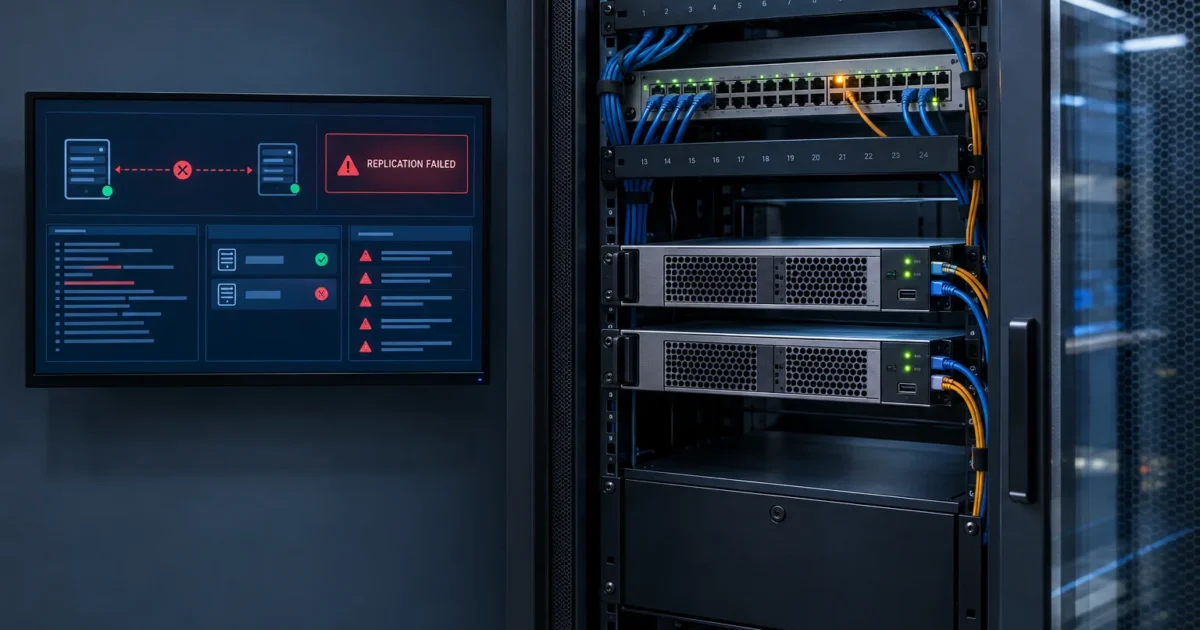
A password reset that works on one domain controller but not another usually means Active Directory replication is broken somewhere. Nearly every replication failure leaves a clear trail. You can follow it with three built-in tools: repadmin, dcdiag, and the Directory Service event log. This is a fix-first runbook for Windows Server 2025, and it maps each common error code and event ID to one root cause and one fix.
The short answer: open an elevated Command Prompt on any domain controller (DC) and run repadmin /replsummary. It shows which DCs are failing and the error code. Run repadmin /showrepl against the failing DC to see the exact partner and partition. Use dcdiag /test:replications as a second opinion. Then match the error code to the Directory Service event log and use the tables below to find the fix.
Prerequisites
- Windows Server 2025 domain controllers. Windows Server 2025 is the current LTSC release. Check the Windows Server release information page for the latest cumulative update before you start. Patch levels change monthly.
- repadmin.exe and dcdiag.exe. These tools are included by default on Windows Server domain controllers, including Windows Server 2025. You don’t need to install anything additional.
- Admin rights. Many forest-wide commands require Enterprise Admins or equivalent delegated rights, while single-domain operations often work with Domain Admins rights. The exact minimum permission depends on the specific command, your delegation model, and topology, so confirm what’s needed for your scenario before you run anything destructive.
- An elevated shell. Select Start, search for
cmd, right-click Command Prompt, and select Run as administrator. PowerShell run as administrator works for most commands here too. Two exceptions:Get-ADObject(Problem 6) needs the ActiveDirectory PowerShell module, which comes with RSAT, andOut-GridView(Step 3) needs a graphical session, so it doesn’t run on Server Core. - Optional: RSAT on a workstation. To run these tools from a supported Windows 10 or Windows 11 workstation, go to Settings > Apps > Optional features > Add a feature (the exact path can vary slightly by Windows version). Add the RSAT: Active Directory Domain Services and Lightweight Directory Tools feature.
Scope of this guide
All commands and UI paths below are standard on Windows Server 2025 domain controllers. They’re based on Microsoft’s AD replication troubleshooting guidance and the Diagnose Active Directory replication failures article. Sources were retrieved 2026-10-24. Example outputs use the placeholder domain contoso.com with DCs named DC01 and DC02. Your names, timestamps, and GUIDs will differ.
Quick Diagnosis: The Four-Command Triage
Run these in order. Don’t jump straight to fixes. A forced sync on top of the wrong root cause can make things worse, especially with lingering objects.
Step 1: Get the forest-wide picture with repadmin /replsummary
This is Microsoft’s recommended first step. It shows inbound and outbound failures per DC. It also shows the largest delta, which is the time since the last good sync.
repadmin /replsummaryExample output (illustrative):
Replication Summary Start Time: 2026-10-24 09:12:44
Beginning data collection for replication summary, this may take awhile:
…..Source DSA largest delta fails/total %% error
DC01 47m:12s 0 / 10 0
DC02 3d.04h:15m:30s 5 / 5 100 (5) Access is denied.Destination DSA largest delta fails/total %% error
DC01 3d.04h:15m:30s 5 / 5 100 (5) Access is denied.
DC02 47m:12s 0 / 10 0
How to read it:
- fails/total: 0 failures everywhere means replication is healthy. Any nonzero value is your lead.
- largest delta: a delta of minutes is normal. Hours or days points to a stuck link. A delta near your tombstone lifetime is an emergency. Problem 6 covers that.
- error: the Win32 error code in parentheses (here,
5) is what you’ll match against the error table.
If only one DC shows failures, the problem is local to that DC or its links. If every DC fails, check shared infrastructure first: DNS, a firewall change, or time. Topology, site-link, or forest-wide configuration problems can also produce that pattern, so don’t stop at the first suspect.

Step 2: Find the failing partner and partition with repadmin /showrepl
/replsummary tells you which DC is hurting. /showrepl tells you where. It shows the source DC, the naming context (partition), and the last success time.
repadmin /showrepl DC01Example output (illustrative, trimmed):
Default-First-Site-Name\DC01
DSA Options: IS_GC
Site Options: (none)
DSA object GUID: 3f1c2b9a-0000-0000-0000-000000000001
DSA invocationID: 7a8d4e21-0000-0000-0000-000000000001==== INBOUND NEIGHBORS ======================================
DC=contoso,DC=com
Default-First-Site-Name\DC02 via RPC
DSA object GUID: 9b2e7c44-0000-0000-0000-000000000002
Last attempt @ 2026-10-24 09:10:02 failed, result 5 (0x5):
Access is denied.
5 consecutive failure(s).
Last success @ 2026-10-21 05:02:11.CN=Configuration,DC=contoso,DC=com
Default-First-Site-Name\DC02 via RPC
DSA object GUID: 9b2e7c44-0000-0000-0000-000000000002
Last attempt @ 2026-10-24 09:10:02 was successful.
Read each block as: partition > source DC > result. Here, DC01 can’t pull the domain partition (DC=contoso,DC=com) from DC02. It still pulls Configuration fine. That pattern often points to permissions or authentication. A broader network outage would typically affect replication across all partitions with that partner, though the exact pattern can vary by topology and transport.
Note the DSA object GUID values. You’ll need them later for lingering-object cleanup.
Step 3: Export every DC to CSV for large environments
With more than a handful of DCs, scrolling text gets old fast. Export everything and sort by the oldest last success:
repadmin /showrepl * /csv > C:\Temp\showrepl.csv
# * targets every DC repadmin can discover and reach; /csv writes comma-separated output
Open the file in Excel, or view it in PowerShell on a machine with a desktop session:
Import-Csv C:\Temp\showrepl.csv | Out-GridViewFilter the Number of Failures column for values above zero. Then sort Last Success Time in ascending order. The oldest failure is a good place to start, and newer failures downstream are often side effects. Failures can also run in parallel, so confirm each failing link instead of assuming one root cause. A DC missing from the export may simply be unreachable, so compare the list against your known DCs.
Step 4: Get a second opinion with dcdiag /test:replications
dcdiag gives you a second view of the same replication state. If both report the same error, you can be more confident about the symptom. You still need the event logs to pin down the root cause.
dcdiag /test:replications /v
# /v adds verbose detail; add /s:DC02 to test a remote DC
A failing run typically ends with failed test Replications and includes the error it hit, though the exact wording varies by condition and target. A healthy run ends like this:
Testing server: Default-First-Site-Name\DC01
Starting test: Replications
……………………. DC01 passed test Replications
Step 5: Correlate with the Directory Service event log
Open Event Viewer > Applications and Services Logs > Directory Service. Sort by Date and Time. Look for Error and Warning events near the first failure timestamp from /showrepl. These events often name the exact problem: an unreachable partner, an exceeded tombstone lifetime, or an authentication failure.
To pull the same data from PowerShell:
Get-WinEvent -FilterHashtable @{LogName='Directory Service'; Level=2,3} -MaxEvents 50
# Level 2 = Error, Level 3 = Warning
Check the log on both DCs. The destination DC typically logs the inbound failure, but the underlying cause — such as an authentication rejection — may be recorded on the source DC instead, so don’t assume either side tells the whole story.
Symptoms at a Glance
| Symptom | Likely cause | Go to |
|---|---|---|
| New user or password change missing on some DCs | Stuck inbound link on one DC | Quick Diagnosis, Steps 1–2 |
/showrepl shows error 5 or LDAP error 49 | Authentication, secure channel, or time skew | Problem 4 |
| Failures on every partition from one partner | DNS or network/firewall | Problems 1 and 3 |
| DC shows no inbound neighbors; Event 1925 | KCC can’t build a connection object | Problem 5 |
| Error 8614 / Event 2042 | DC offline longer than tombstone lifetime | Problem 6 |
Error 8461, /queue shows PREEMPTED | Possible workload contention or resource constraints | Problem 7 |
| DC “forgets” recent changes after a VM restore | Possible USN rollback | Problem 8 |
| Largest delta keeps climbing | Any of the above, unresolved | Drill down from /replsummary |
Common Issues and Solutions
Problem 1: DNS Can’t Locate the Replication Partner
Symptoms:
- Replication fails on all partitions from one or more partners.
/showreplerror text mentions DNS lookup or name resolution.dcdiag /test:dnsreports failures.
Why it happens: DCs find each other through DNS. That includes the SRV records under _msdcs and each DC’s GUID-based CNAME. A DC might point to a public resolver, register the wrong IP, or lose its SRV records. Any of those means partners can’t find it. Microsoft’s replication troubleshooting docs list DNS as a core dependency.
Fix:
- Confirm every DC’s network adapter uses internal AD DNS servers only. Remove public resolvers, such as your ISP’s or 8.8.8.8, from the adapter. Set up public forwarding on the DNS server instead.
- Verify the DC locator SRV records resolve:
nslookup -type=SRV _ldap._tcp.dc._msdcs.contoso.com
# Returns DC locator SRV records registered in DNS for this domain;
# the exact hosts and ports returned depend on DNS registration and scope- Run the DNS test against the affected DC:
dcdiag /test:dns /v /s:DC02- If records are missing or stale, re-register them on the affected DC. The usual approach is to refresh the host’s A record and restart the Netlogon service. Netlogon re-registers the SRV records when it starts:
ipconfig /registerdns
net stop netlogon
net start netlogon
If that doesn’t work: These are long-standing commands for re-registering a DC’s records. If they don’t restore the records, work through Microsoft Learn’s DNS troubleshooting guidance for domain controllers.
Verification: Re-run the nslookup command and confirm the DC appears. Then force a resync with repadmin /replicate DC01 DC02 "DC=contoso,DC=com" /force — DC01 is the destination pulling the partition, DC02 is the source, and /force overrides the normal replication schedule — and check repadmin /showrepl DC01 for was successful. Microsoft’s Repadmin reference lists the destination DC first, then the source, then the naming context.
Problem 2: Time Skew Breaks Kerberos (and Replication With It)
Symptoms:
- Error 5 (Access is denied) or LDAP error 49 between DCs.
- Kerberos-related errors in the System log around the same time.
- The clocks on two DCs visibly disagree.
Why it happens: Replication authenticates with Kerberos. Kerberos requires clocks to agree within 5 minutes. A drifted DC is common. It’s often a VM syncing to its hypervisor host instead of the domain hierarchy. That DC will fail authentication to its partners.
Fix:
- Check time status on the affected DC:
w32tm /query /status
# Look at "Source" and "Last Successful Sync Time"
A non-PDC DC should show another DC as its source. Local CMOS Clock or VM IC Time Synchronization Provider usually means it isn’t following the domain hierarchy. Check whether that matches your virtualization design before you change it, and confirm the offset in the next step.
- Compare the offset against a healthy partner:
w32tm /stripchart /computer:DC01 /samples=5 /dataonly
# Shows offset in seconds between this machine and DC01- Force a resync once the source is correct:
w32tm /resync- On VMs, make sure hypervisor time sync doesn’t override the domain hierarchy. In Hyper-V, review the Time synchronization integration service setting for DC VMs.
- The PDC emulator at the forest root should sync to a reliable external source. Some environments use a dedicated hardware NTP or GPS time server for this.
Note: The 5-minute figure is the default of the Kerberos policy setting Maximum tolerance for computer clock synchronization, which Microsoft recommends leaving at 5 minutes. For PDC emulator time-source setup, follow Microsoft Learn’s Windows Time service documentation.
Verification: Run w32tm /query /status again and confirm a domain source. Then rerun repadmin /showrepl to confirm the error 5 or LDAP 49 failures have cleared.
Problem 3: Firewall or RPC Ports Block Replication
Symptoms:
- Replication worked yesterday and failed right after a firewall, network security group (NSG), or VLAN change.
- Every partition fails from a specific partner, often across a site link.
/showreplerror text references the RPC server or endpoint mapper.
Why it happens: AD replication uses RPC. The client first contacts the RPC Endpoint Mapper on TCP port 135. The endpoint mapper then hands out a dynamic high port for the actual data channel. If a firewall allows 135 but blocks the dynamic range, replication fails. Basic connectivity still looks fine, which is what makes this one annoying.
Fix:
- Test the endpoint mapper from the destination DC to the source DC:
Test-NetConnection -ComputerName DC02 -Port 135
# TcpTestSucceeded : True means 135 is reachable- Test LDAP and Kerberos while you’re there, since replication setup depends on both:
Test-NetConnection -ComputerName DC02 -Port 389
Test-NetConnection -ComputerName DC02 -Port 88- Review any firewall rules between DC subnets. That includes Windows Defender Firewall, network appliances, and cloud NSGs. Make sure the RPC dynamic port range is allowed between DCs, along with port 135.
Note: Port 135 for the endpoint mapper is documented by Microsoft. The dynamic range is commonly cited as 49152-65535 by default, and some organizations restrict RPC to a static range through the registry. Confirm the range in use before you write firewall rules.
Warning: Changing firewall rules on a DC’s network can cut off authentication for every client on that subnet. Make changes in a maintenance window. Keep console access (iLO, iDRAC, or hypervisor console) available.
Verification: Force a sync with repadmin /replicate DC01 DC02 "DC=contoso,DC=com" /force (DC01 is the destination, DC02 is the source) and confirm success in repadmin /showrepl DC01.
Problem 4: Error 5 (Access Is Denied) or LDAP Error 49
Symptoms:
/replsummaryor/showreplshows(5) Access is denied.- LDAP error 49 (invalid credentials) appears in repadmin output or related events.
- Other partitions or partners may still work.
Why it happens: An existing replication link is failing authentication. Common causes:
- a broken secure channel
- Kerberos ticket problems
- the DC’s computer account out of sync with the Key Distribution Center (KDC)
- DNS pointing to the wrong host
- time skew
Fix:
- Rule out time first (Problem 2). It’s the cheapest check and a frequent cause.
- Rule out DNS (Problem 1). Make sure the partner name resolves to the correct IP. A stale record for a decommissioned server is a classic trap.
- Check the secure channel from the affected DC:
nltest /sc_verify:contoso.com
# Should report "Trusted DC Connection Status Status = 0 0x0 NERR_Success"- Review the Directory Service, System, and Security logs on both DCs for authentication failures at the failure timestamp.
- Only after confirming the above should you consider resetting the DC’s computer account password. Plan that step against Microsoft’s documented procedure. Careless account resets on a DC can widen the outage.
Verification: repadmin /showrepl shows was successful for the previously failing partition, and the consecutive failure count resets.
Problem 5: No Inbound Neighbors and Event ID 1925
Symptoms:
repadmin /showreplshows an empty or missing INBOUND NEIGHBORS section for a partition.- The Directory Service log shows Event ID 1925 (source NTDS KCC). It reports that the attempt to establish a replication link for a writable directory partition failed.
Why it happens: The Knowledge Consistency Checker (KCC) builds replication connection objects automatically. Event 1925 means it couldn’t set one up with another DC. DNS, network, or firewall problems are common causes, but topology or authentication problems can produce it too. Read the error code in the event to narrow it down.
Verify: The 1925-to-NTDS KCC mapping comes from Microsoft’s error 8614 article event table. Confirm the exact message text on your DC.
Fix:
- Open Active Directory Sites and Services (
dssite.msc). Expand Sites > your site > Servers > DC name > NTDS Settings. Confirm connection objects exist to at least one partner. - Confirm the DC is in the correct site. Its IP subnet should be mapped to that site under Sites > Subnets.
- Work through DNS (Problem 1) and firewall/RPC (Problem 3) checks against the intended partner.
- Trigger the KCC to recalculate topology:
repadmin /kcc DC02
# Forces the KCC on DC02 to re-evaluate and create connection objects- Right-click a connection object under NTDS Settings and select Replicate Now to force a sync from the GUI.
repadmin /replicatedoes the same from the command line.
Verification: repadmin /showrepl DC02 lists inbound neighbors for every partition. No new Event 1925 entries appear after the next KCC run.
Problem 6: Error 8614 / Event ID 2042: Tombstone Lifetime Exceeded
Symptoms:
/showreplordcdiagreports error 8614. It means the time since the last replication with this server has exceeded the tombstone lifetime.- The Directory Service log shows Event ID 2042. It reports that it’s been too long since this machine last replicated with the named source.
- It’s common after a branch DC sat powered off, a site lost its WAN link for weeks, or failed hardware took a long time to repair.
Why it happens: When you delete an object, AD keeps a tombstone for the length of the tombstone lifetime. That lets the deletion replicate. A DC that misses replication for longer than that may still hold objects everyone else deleted. These are lingering objects. AD stops replication with that partner to keep them from coming back. See Microsoft’s Event ID 2042 and error 8614 articles.
Warning: Do not force replication or flip registry overrides to “get it working.” Doing that before you clean up lingering objects can bring back deleted users, groups, and computer accounts across the whole forest.
Fix:
- Check your forest’s actual tombstone lifetime instead of assuming a default:
Get-ADObject "CN=Directory Service,CN=Windows NT,CN=Services,CN=Configuration,DC=contoso,DC=com" -Properties tombstoneLifetime
# Replace DC=contoso,DC=com with your forest root
The default value depends on how and when the forest was created. Read it from your forest. Don’t trust a number from a blog post.
- Get the DSA object GUID of a known-good reference DC. That’s a DC that’s replicated recently and that you trust:
repadmin /showrepl DC01
# Copy the "DSA object GUID" from the header- Run lingering-object detection in advisory mode first. This only reports and changes nothing:
repadmin /removelingeringobjects DC02.contoso.com 3f1c2b9a-0000-0000-0000-000000000001 DC=contoso,DC=com /advisory_mode
# Arg 1: the DC suspected of holding lingering objects
# Arg 2: GUID of the trusted reference DC
# Arg 3: the partition to check; repeat for each affected partition- Review the results logged to DC02’s Directory Service log. The scope tells you which path to take:
- Few objects, DC otherwise healthy: run the same command without
/advisory_modeto remove them. Then repeat for each partition. - Large scope or a DC you don’t trust: demote or decommission the stale DC and rebuild it. For a long-offline branch DC, this is often the faster and safer option.
- Few objects, DC otherwise healthy: run the same command without
- Microsoft’s 2042 article documents a registry override that allows replication with a divergent partner. Use it only after cleanup is done. Follow the article exactly, and revert it afterward.
Verification: Re-run advisory mode and confirm it reports no lingering objects. Then confirm /replsummary shows zero failures for the DC.
Problem 7: Error 8461: The Replication Operation Was Preempted
Symptoms:
/showreplshows error 8461.repadmin /queueshows tasks marked PREEMPTED.- Replication is delayed but eventually completes.
Why it happens: Microsoft documents error 8461 as replication work being preempted. The exact trigger isn’t spelled out in a single precise rule, but it’s commonly associated with competing replication work, such as bulk changes like a large user import, or a DC that’s short on CPU, memory, or disk resources. Treat those as things to investigate, not proof of the cause. Microsoft’s error 8461 article treats it as a condition that usually clears on its own.
Fix:
- Watch the queue over a few minutes:
repadmin /queue DC01
# Run several times; note whether the oldest task changes- If the oldest task keeps moving, the queue is draining. Let it finish.
- If the same task stays stuck, check DC CPU, memory, and disk latency. Also check the Directory Service log for any NTDS Replication warning that mentions queue depth or a backlog — treat it as a corroborating signal, not a confirmed mapping to error 8461.
- Avoid scheduling bulk changes during business hours on undersized DCs.
Verification: repadmin /queue empties and /showrepl no longer reports 8461.
Problem 8: USN Rollback After a Bad VM Snapshot Restore
Symptoms:
- A DC was restored from a VM snapshot or an unsupported backup method.
- Changes made on that DC never reach other DCs, while the DC still receives inbound changes.
repadminmay show no errors at all, which is what makes this one dangerous.- Object counts or recent changes appear to roll backward.
Why it happens: Every DC tracks changes with an Update Sequence Number (USN). Partners remember the highest USN they’ve received from each DC.
On Hyper-V, Windows Server DCs can use the VM-Generation ID to detect many snapshot-based reverts; when that ID changes, the DC is supposed to invalidate its RID pool and other sensitive state and request a safe resync instead of silently diverging. Classic USN rollback — where the counter goes backward and partners simply ignore the DC’s “new” changes — is primarily a risk when VM-Generation ID protection isn’t available or didn’t trigger: unsupported virtualization platforms, physical-to-virtual or direct-disk restores, or backup/restore paths outside the documented, supported process.
Don’t assume every snapshot revert is a classic USN rollback event. Use event log evidence and replication metadata (not snapshot timing alone) to establish which condition you’re actually dealing with, and confirm current Microsoft Learn guidance for your exact scenario before you act.
Detection:
Use read-only checks. Don’t create test objects on a DC you suspect, because any write there may never replicate out.
- Check the Directory Service log on the restored DC for Event ID 2095. Microsoft’s USN rollback article says DCs log it when they detect a USN rollback, and the Net Logon service is paused at the same time. These events can be overwritten before anyone sees them.
- If the event is gone, check the registry on the suspect DC. Under
HKEY_LOCAL_MACHINE\System\CurrentControlSet\Services\NTDS\Parameters, a Dsa Not Writable value of0x4is Microsoft’s documented forensic evidence of a rollback. Don’t delete or change it; Microsoft says that leaves the DC permanently unsupported. - Compare an object that changed recently on the suspect DC against a healthy partner. Different metadata, or objects that exist on only one side, point to changes that never replicated:
repadmin /showobjmeta DC02 "CN=Jane Doe,CN=Users,DC=contoso,DC=com"
# Run against the suspect DC and a healthy DC, then compare versions and originating DCs
Safe recovery (general approach; confirm against Microsoft Learn before acting):
Warning: Don’t let a suspected rolled-back DC keep accepting writes. Every change made on it may never replicate out. Isolate it, typically by disconnecting its network, while you decide.
- First, establish which condition you have. If the DC runs on Hyper-V with VM-Generation ID support and the generation ID changed, Windows Server is designed to handle the resync safely on its own — confirm this from event log evidence and replication metadata rather than assuming it from the restore method alone. If VM-Generation ID wasn’t available, didn’t change, or the restore came from an unsupported method, treat it as a classic USN rollback and proceed with the steps below.
- Preferred: remove the affected DC and rebuild it. Demote it if you can. Otherwise, run metadata cleanup from a healthy DC, then promote a fresh server. Any unreplicated changes made on the rolled-back DC are lost, so recreate them on a healthy DC.
- Alternative: restore the DC from a supported system-state backup through the documented non-authoritative restore process.
- Either way, follow the steps in Microsoft’s USN rollback article (original KB 875495). It applies to all supported Windows Server versions.
Verification: After rebuilding, create a test object on the new DC and confirm it appears on all partners. /replsummary should show zero failures in both directions.
Error Code and Event ID Quick Reference
| Error / Event | Where you see it | Meaning | Root-cause fix | Microsoft doc |
|---|---|---|---|---|
| Error 5 | repadmin, dcdiag | Access is denied on a replication link | Check time, DNS, secure channel, Kerberos (Problems 2, 4) | Guidance |
| LDAP error 49 | repadmin, event logs | Invalid credentials on a bind; read the subcode and surrounding events | Check account and password health, Kerberos, time (Problem 4) | Guidance |
| Error 8461 | repadmin, dcdiag, /queue | Replication preempted | Usually self-resolving; check DC load (Problem 7) | 8461 |
| Error 8614 | repadmin, dcdiag | Tombstone lifetime exceeded | Lingering-object cleanup or rebuild (Problem 6) | 8614 |
| Event 1925 (NTDS KCC) | Directory Service log | Replication link could not be established | DNS, network, firewall, connection objects (Problem 5) | 8614 event table |
| Event 2042 | Directory Service log | Too long since last replication with source | Same as 8614 (Problem 6) | 2042 |
| NTDS Replication queue-depth warning (ID varies by system; not a confirmed 8461 mapping) | Directory Service log | Possible corroborating sign of backlog or resource contention | Investigate DC performance (Problem 7) | 8461 |
| Event 2095 | Directory Service log | USN rollback detected; DC restored improperly outside VM-Generation ID protection | Isolate and rebuild DC (Problem 8) | USN rollback (KB 875495) |
Platform-Specific Issues
Running the tools from a Windows 10/11 workstation
RSAT puts repadmin and dcdiag on your admin workstation, but a few things change:
- Always target a DC explicitly, for example
dcdiag /test:replications /s:DC01. Otherwise the tools may pick a DC you didn’t intend. - Run your shell as a domain account with the right rights. A local admin won’t cut it.
- The workstation needs the same DNS and firewall access to DCs. A “replication failure” seen only from your laptop may just be your laptop’s network path. Confirm on the DC console before you chase it.
Domain controllers running as VMs (Hyper-V or other hypervisors)
- Snapshots can trigger USN rollback, though Hyper-V’s VM-Generation ID safeguard can detect many reverts and prompt a safe resync instead of silent divergence. That protection depends on your hypervisor and configuration, so don’t assume it will save you. Treat “revert to checkpoint” on a DC as a destructive operation regardless, and use supported, application-aware backups instead.
- Time integration services can override the domain time hierarchy. Review them when you see skew (Problem 2).
- If the hypervisor host loses power uncleanly, DC databases can suffer too. A UPS sized for your virtualization host and storage, with graceful shutdown set up, is cheap insurance in homelabs and small offices alike.
Configuration Issues: Common Mistakes
| Mistake | Why it breaks replication | Correct configuration |
|---|---|---|
| Public DNS (ISP, 8.8.8.8) on a DC’s NIC | DC can’t resolve _msdcs records consistently | Internal AD DNS only on DC NICs; public resolution through DNS server forwarders |
| DC syncing time from hypervisor or CMOS | Clock drift beyond 5 minutes breaks Kerberos | Non-PDC DCs sync from the domain hierarchy; forest-root PDC syncs to a reliable external source |
| Firewall allows 135 but not dynamic RPC | Endpoint mapper works, data channel fails | Allow the RPC dynamic range (verify the range in use) between DC subnets |
| DC subnet not mapped in Sites and Services | KCC builds poor or missing topology | Map every DC subnet to the correct site under Sites > Subnets |
| Reverting a DC VM checkpoint | Can cause USN rollback or an unsafe resync, especially without VM-Generation ID support | Use supported system-state backups and restore procedures for your platform |
| Leaving a branch DC offline for months | Exceeds tombstone lifetime; lingering objects | Rebuild it, or clean lingering objects before reconnecting |
Post-Fix Verification Checklist
Don’t close the ticket until each of these passes:
- Forest summary is clean:
repadmin /replsummary
# Expect 0 in every fails/total row for both Source and Destination DSA- Every partition on the fixed DC succeeds:
repadmin /showrepl DC01
# Every inbound neighbor should read "Last attempt @ ... was successful."- Push a full sync and watch it succeed:
repadmin /syncall DC01 /AdeP
# /A all partitions held on DC01; /d name servers by distinguished name in messages;
# /e include DCs in all sites; /P push changes outward from DC01
Those flag meanings come from Microsoft’s repadmin /syncall reference. By default /syncall doesn’t sync DCs in other sites, which is why /e is there.
- dcdiag agrees:
dcdiag /test:replications /vExpected: ......................... DC01 passed test Replications
- Queue is empty:
repadmin /queue DC01shows no pending items. - Event log is quiet: no new Directory Service errors or warnings after the fix timestamp.
- End-to-end test: create a test user on one DC, wait a replication cycle, and confirm it appears on every DC. Then delete it and confirm the deletion replicates.
Getting Help
When you escalate to a colleague, a forum, or Microsoft Support, collect this first:
repadmin /replsummaryoutput, saved to a file with> C:\Temp\replsummary.txtrepadmin /showrepl * /csvexportdcdiag /v /c > C:\Temp\dcdiag.txt(/cruns comprehensive tests)- An export of the Directory Service log from affected DCs. In Event Viewer, right-click the log and select Save All Events As.
- Timeline: what changed right before replication broke (firewall, DNS, patch, VM restore)
Official resources:
- Troubleshooting Active Directory Replication Problems
- AD DS Troubleshooting overview
- Diagnose Active Directory replication failures
- Troubleshoot AD DS replication (Microsoft Learn training module)
Microsoft has also offered the Microsoft Support and Recovery Assistant (SaRA) as a GUI option for replication diagnostics. It’s handy if you’re less comfortable at the command line. Check its current availability first. It also doesn’t replace repadmin for scripting.
Escalate to Microsoft Support in three cases: lingering objects are widespread across multiple partitions, you suspect USN rollback on more than one DC, or the forest-root PDC emulator is the failing DC.
Prevention Tips
- Monitor
/replsummaryon a schedule. Run it daily as a scheduled task and alert on any nonzero failure count. That catches problems long before tombstone lifetime becomes an issue. - Never revert DC snapshots. Back up domain controllers with supported system-state backups. Store them off the DC, on a NAS drive or another backup target.
- Lock down DNS and time. Use internal DNS only on DC NICs and a clean time hierarchy rooted at the PDC emulator. These two fix more replication issues than anything else.
- Document firewall requirements. Any time someone touches rules between DC subnets, re-run the port tests from Problem 3.
- Retire stale DCs quickly. If a branch DC has been offline for weeks, plan to rebuild it. Don’t just plug it back in.
- Run at least two DCs, even in a homelab. A pair of small mini PCs or VMs on separate hosts gives you redundancy and real replication to practice on. Connect them with a managed switch so you can test VLAN and firewall scenarios safely.
Frequently Asked Questions
What’s the first command to run when AD replication seems broken?
repadmin /replsummary from an elevated prompt on any DC. It summarizes which DCs are failing as source or destination, how long since the last success, and the error code. It points you at where to look; /showrepl and the event logs tell you why.
How do I read repadmin /showrepl output to find the failing partner and partition?
Each block under INBOUND NEIGHBORS starts with a partition (for example, DC=contoso,DC=com). Under it you’ll find the source DC (Site\DCname via RPC) and the result. Find lines that say failed, result N. The partition above it and the DC name in that block are your failing link.
What do Event IDs 1925 and 2042 mean?
Event 1925 (NTDS KCC) means a replication link for a writable partition couldn’t be set up. DNS, network, or firewall problems are common causes; check the error code in the event.
Event 2042 means the DC hasn’t replicated with a source for longer than the tombstone lifetime. Replication is blocked to keep lingering objects from spreading.
Is it safe to force replication after a 2042 error?
No. Run repadmin /removelingeringobjects in /advisory_mode first to measure the damage. Then clean up or rebuild the DC. Forcing a sync first can resurrect deleted objects forest-wide.
Do I need to install repadmin or dcdiag on Windows Server 2025?
Not on a domain controller. Microsoft’s Repadmin reference says repadmin is available on any server with the AD DS or AD LDS role installed. On a member server or a Windows 10 or 11 workstation, install the AD DS tools from RSAT.
How do I know replication is fully healthy after a fix?
Work through the verification checklist above. You want zero failures in /replsummary and successful attempts on every partition in /showrepl. You also want a passed dcdiag /test:replications, an empty queue, and a test object that replicates end to end.
Wrapping Up
Most AD replication failures on Windows Server 2025 come down to four things: DNS, time, firewall/RPC, or a DC that was offline (or restored) when it shouldn’t have been. Use repadmin /replsummary to find the DC and /showrepl to find the link. Confirm with dcdiag, and let the Directory Service log explain. You can usually name the root cause in a few minutes instead of guessing.
My honest take: the commands are easy, and discipline is the hard part. Don’t force syncs or flip registry overrides until you know the cause, especially with 8614/2042 and suspected USN rollback. In AD, fixing the right thing slowly beats fixing the wrong thing fast.
| Step | Action | Applies To |
|---|---|---|
| 1 | repadmin /replsummary to find failing DCs | All replication issues |
| 2 | repadmin /showrepl to find the partner and partition | All replication issues |
| 3 | dcdiag /test:replications as a second opinion | All replication issues |
| 4 | Correlate with the Directory Service event log | All replication issues |
| 5 | Fix DNS, time, firewall/RPC, or authentication | Errors 5, LDAP 49, Event 1925 |
| 6 | Advisory-mode lingering-object check, then clean or rebuild | Error 8614, Event 2042 |
| 7 | Isolate and rebuild the DC | Suspected USN rollback |
| 8 | Run the verification checklist | Every fix |
Last updated: 2026-10-24 | Applies to Active Directory Domain Services on Windows Server 2025 domain controllers